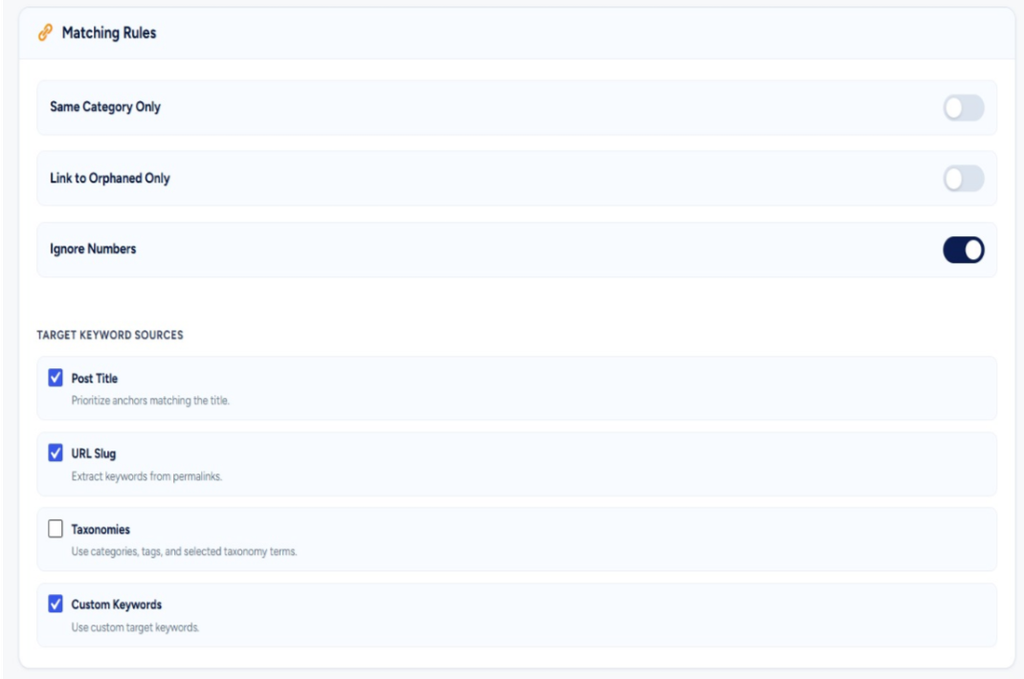
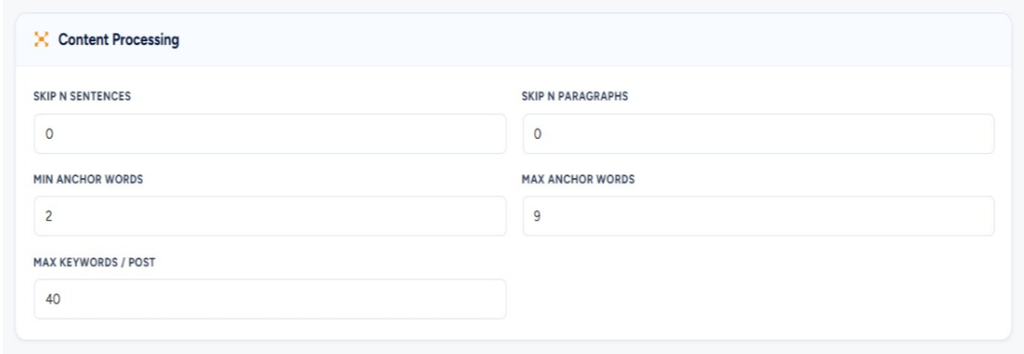
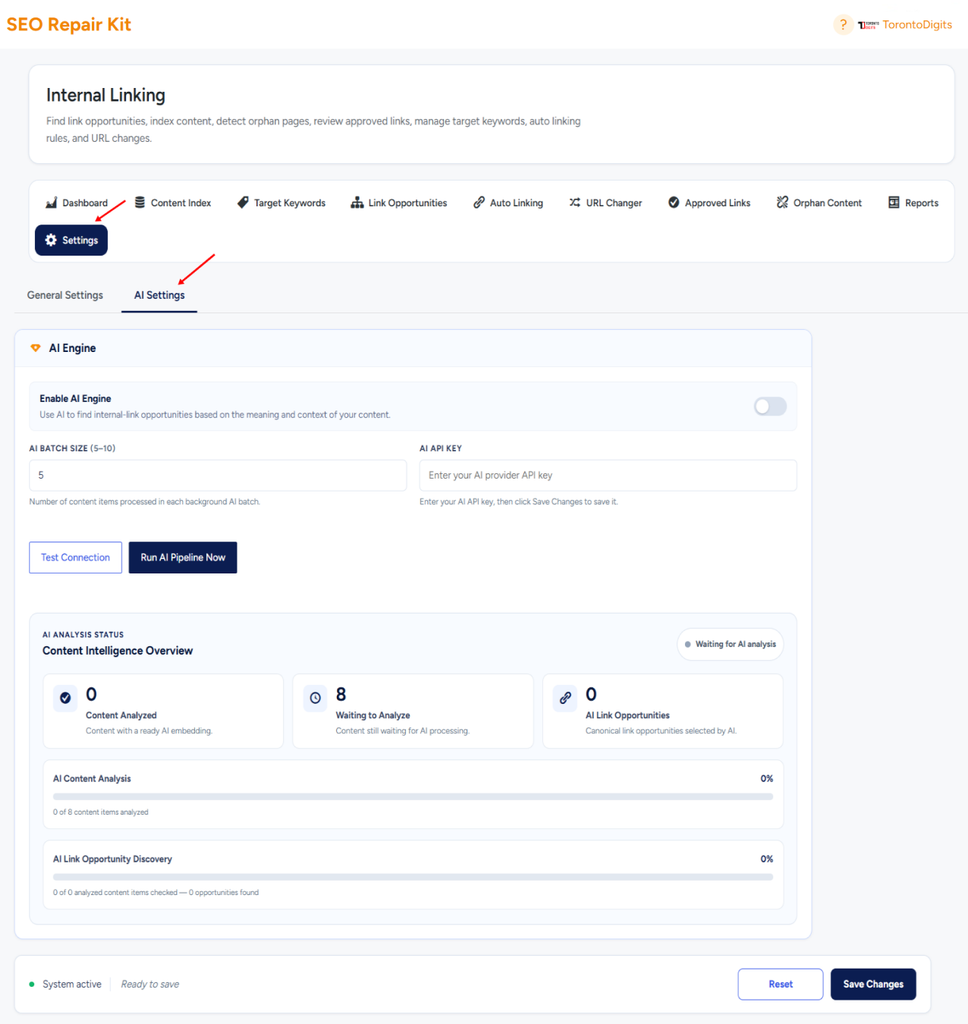
Getting Started

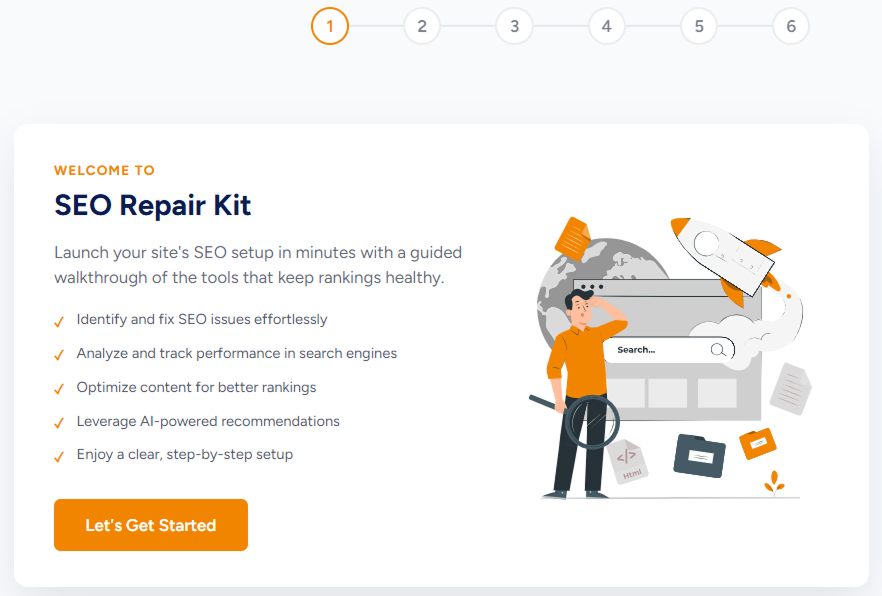
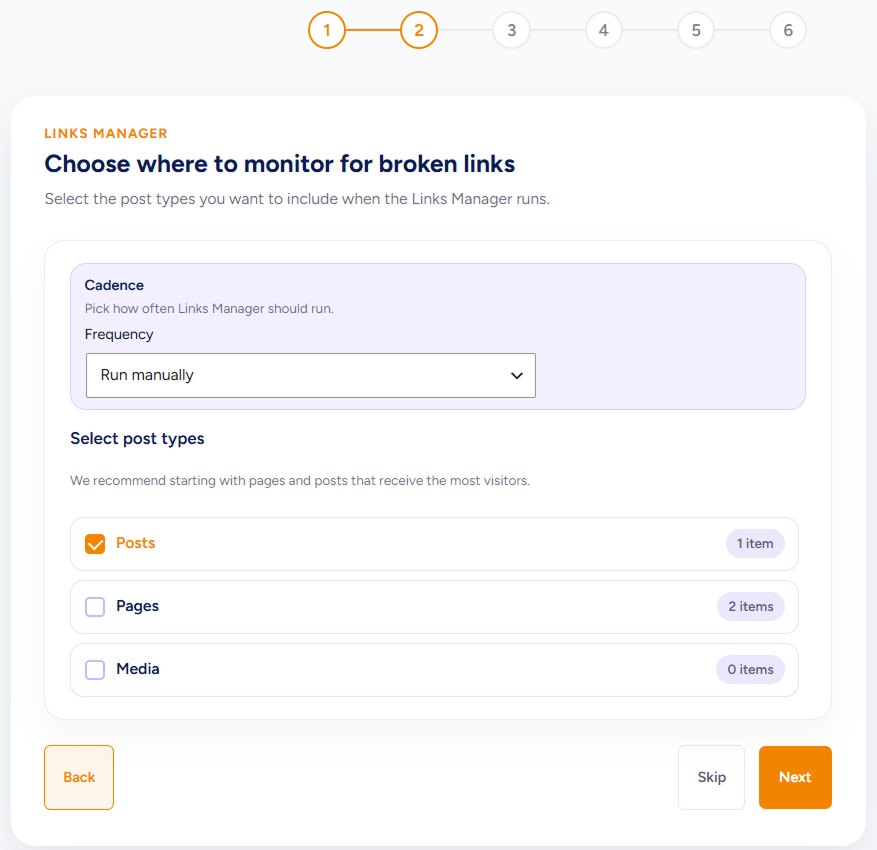
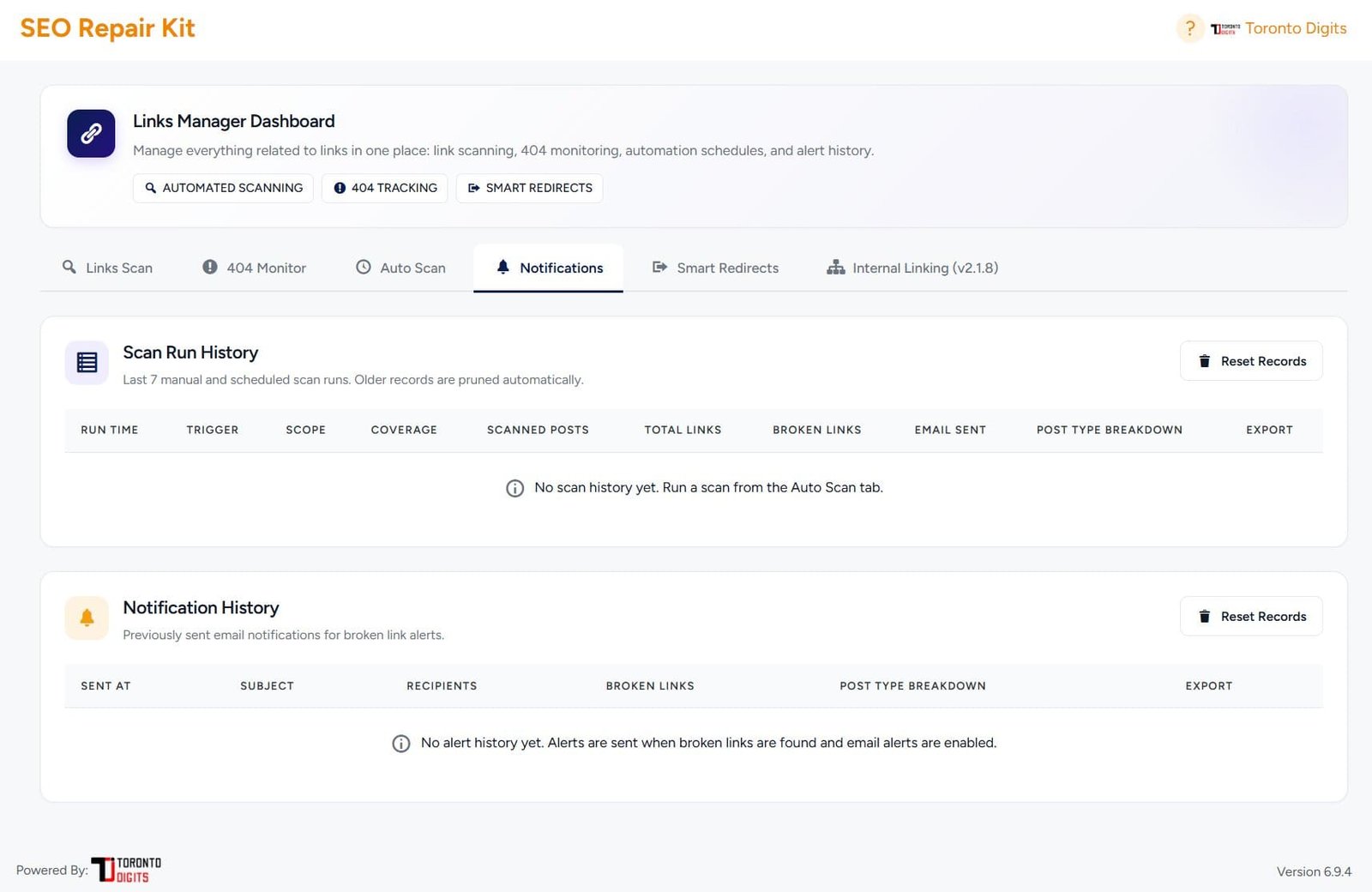
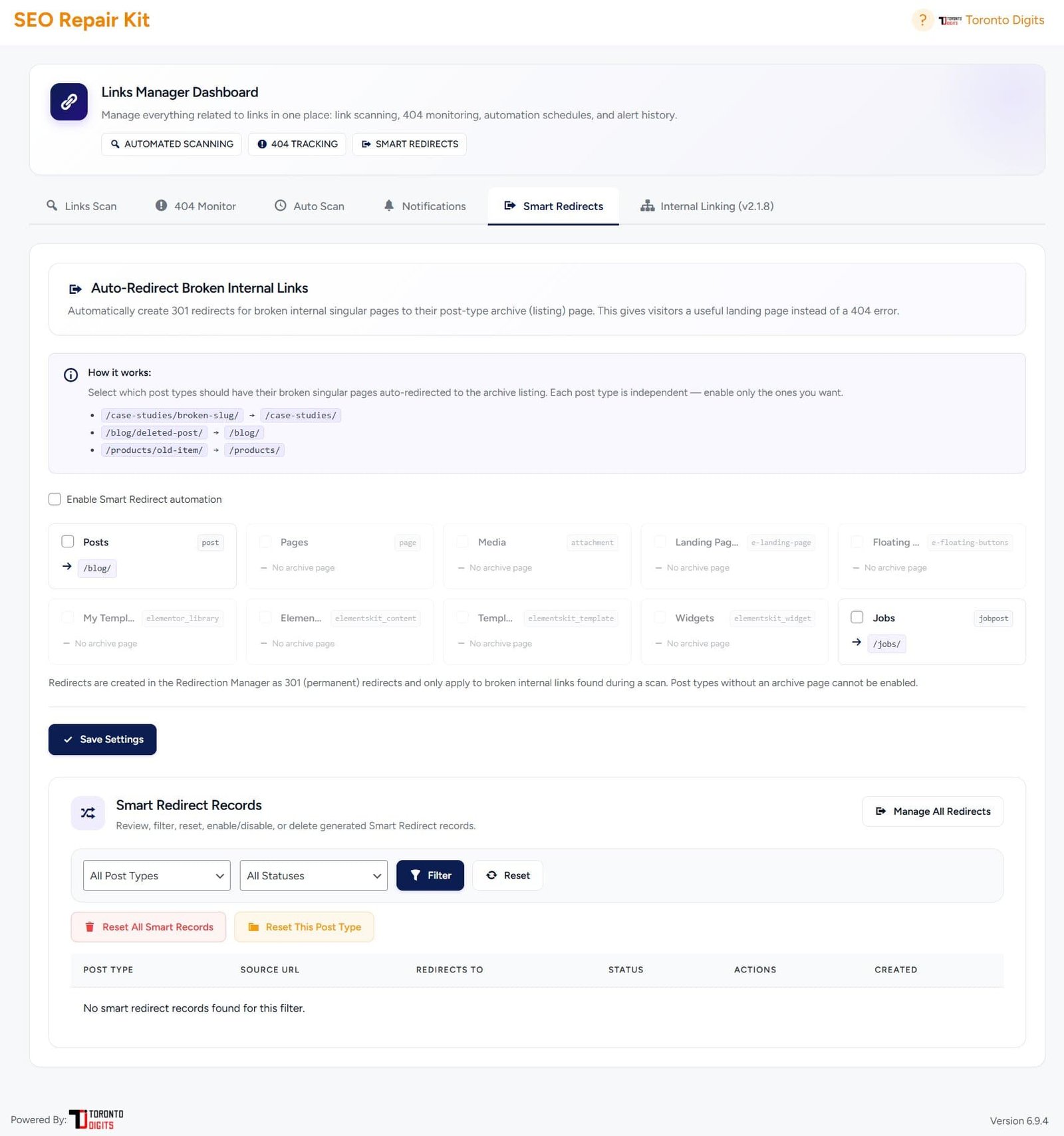
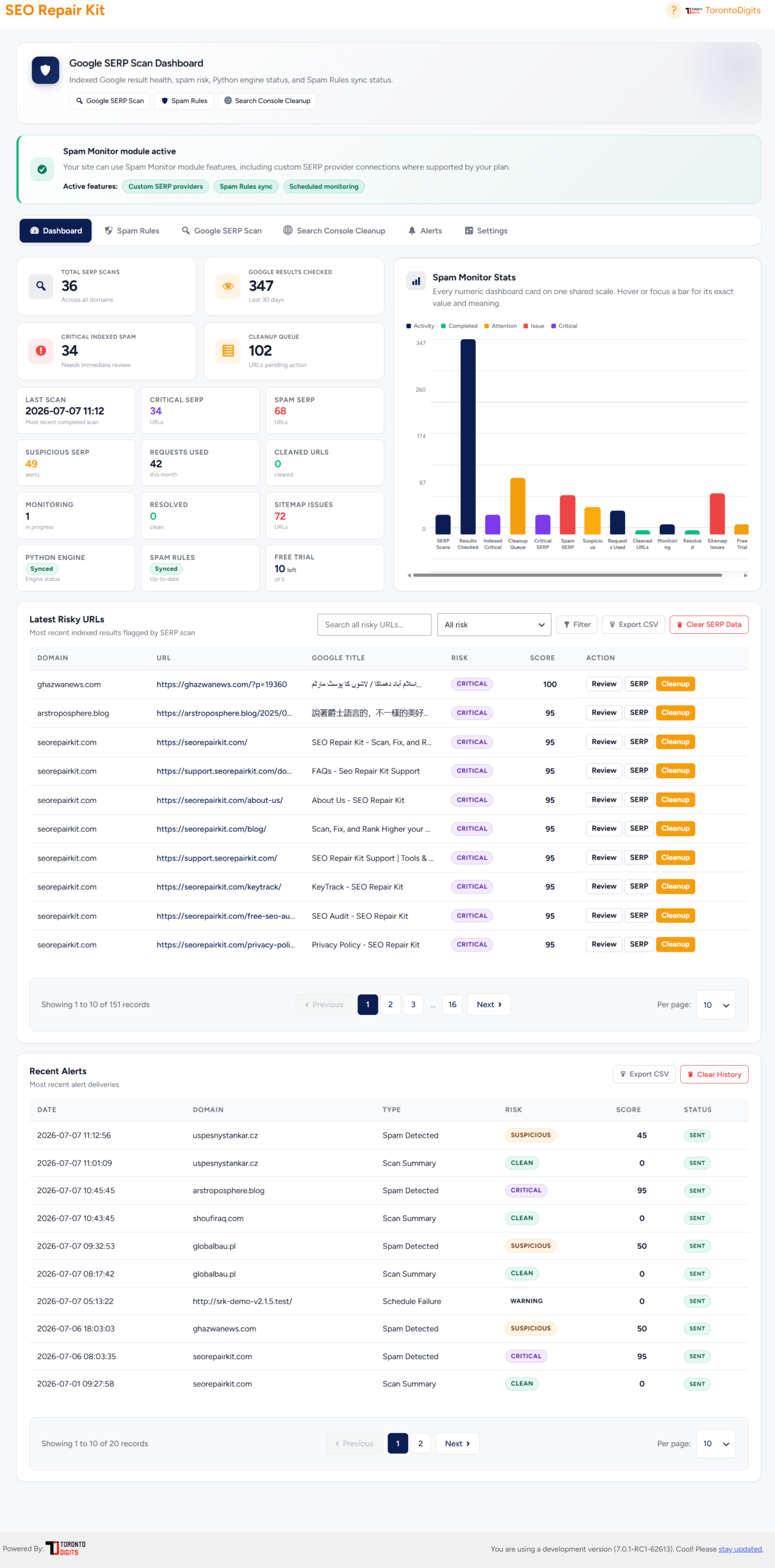
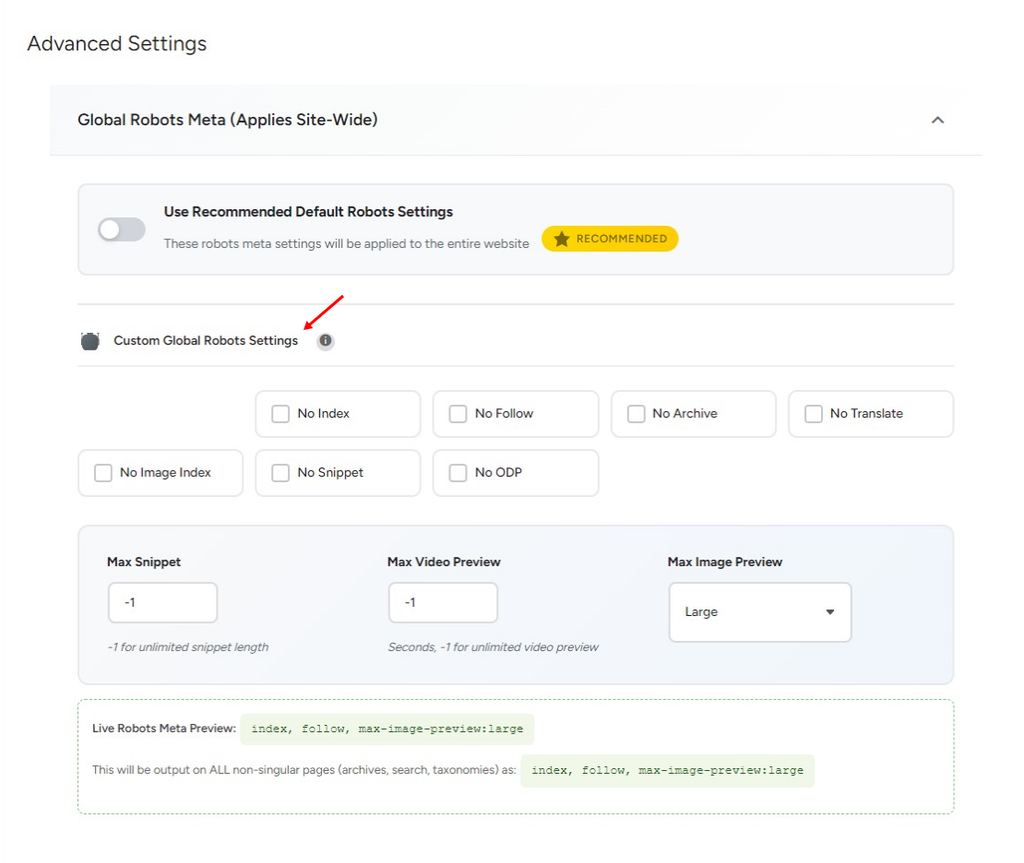
Getting started with Bot Manager takes just a few minutes:

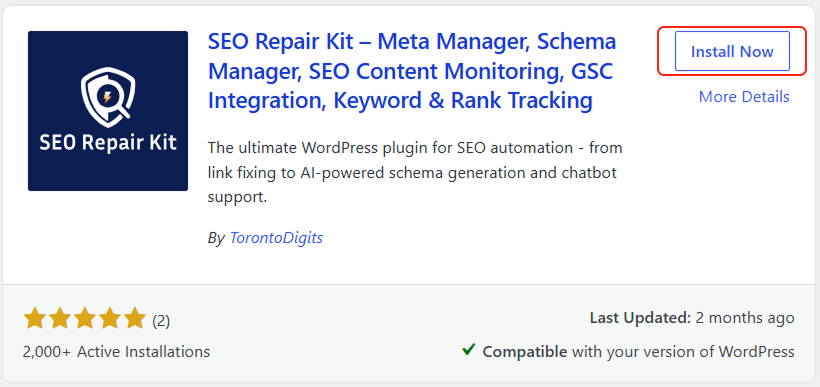
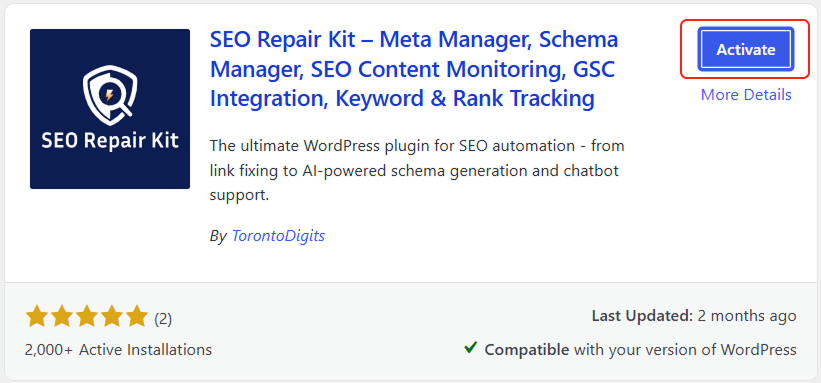
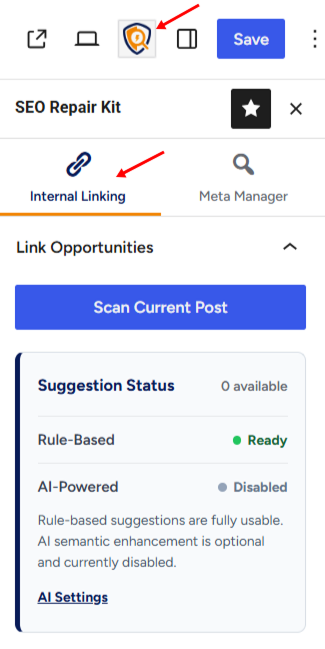
  1. Install and activate SEO Repair Kit
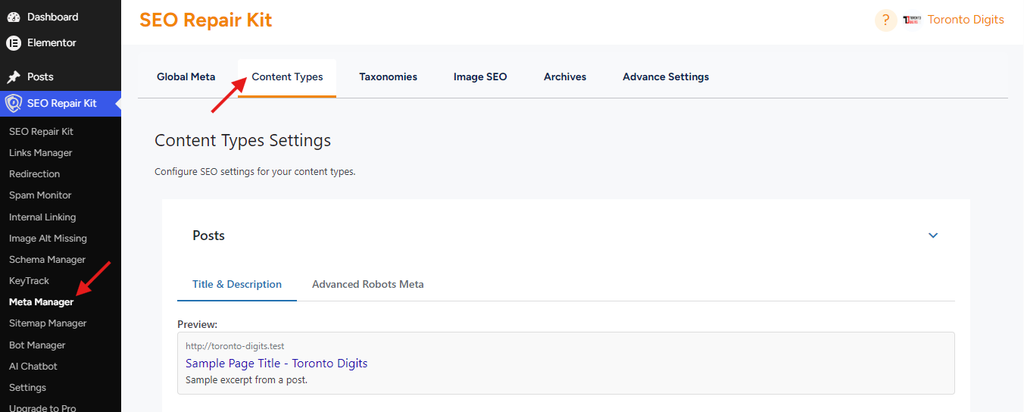
  2. Navigate to Bot Manager from your dashboard
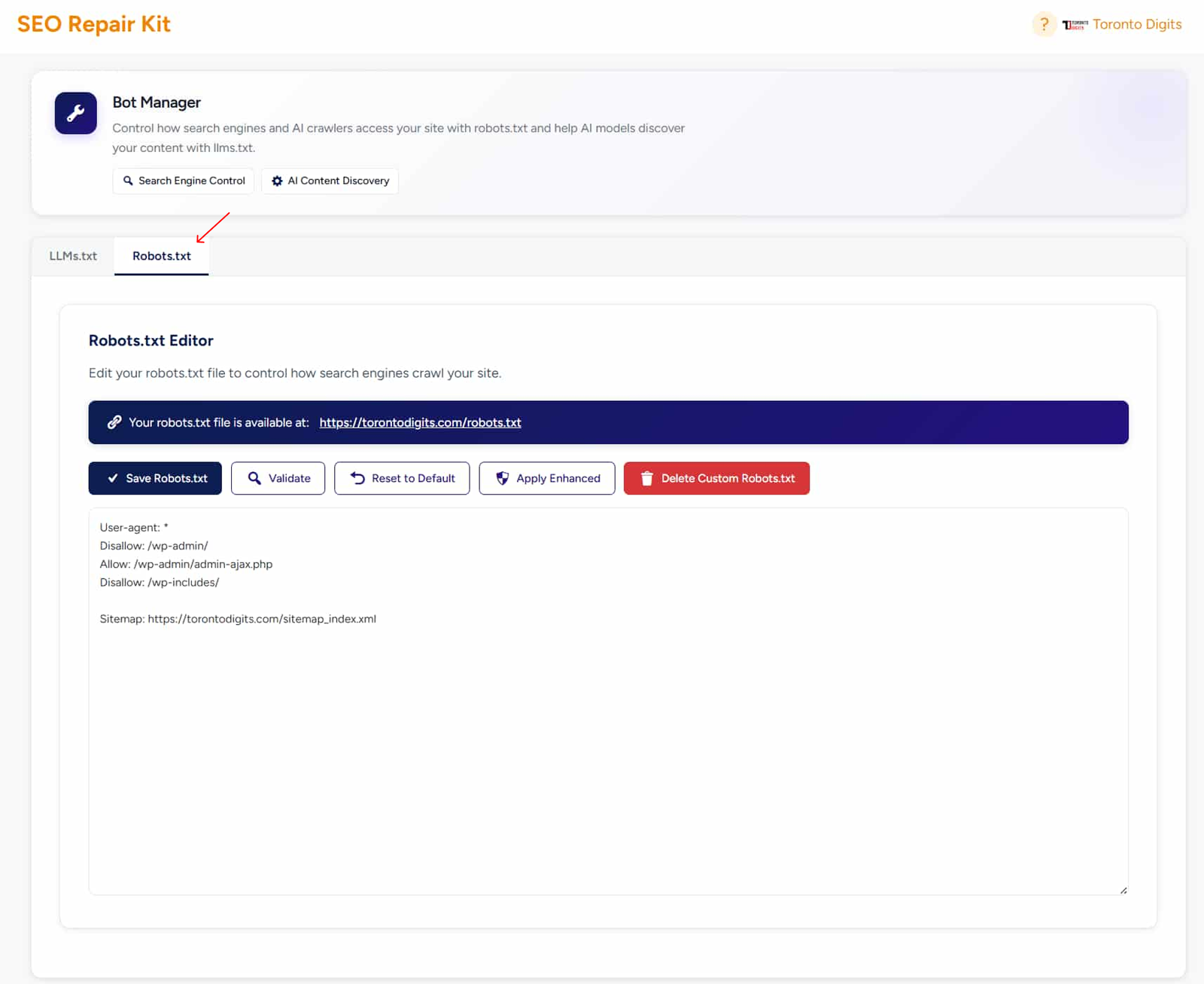
  3. Review your current robots.txt status
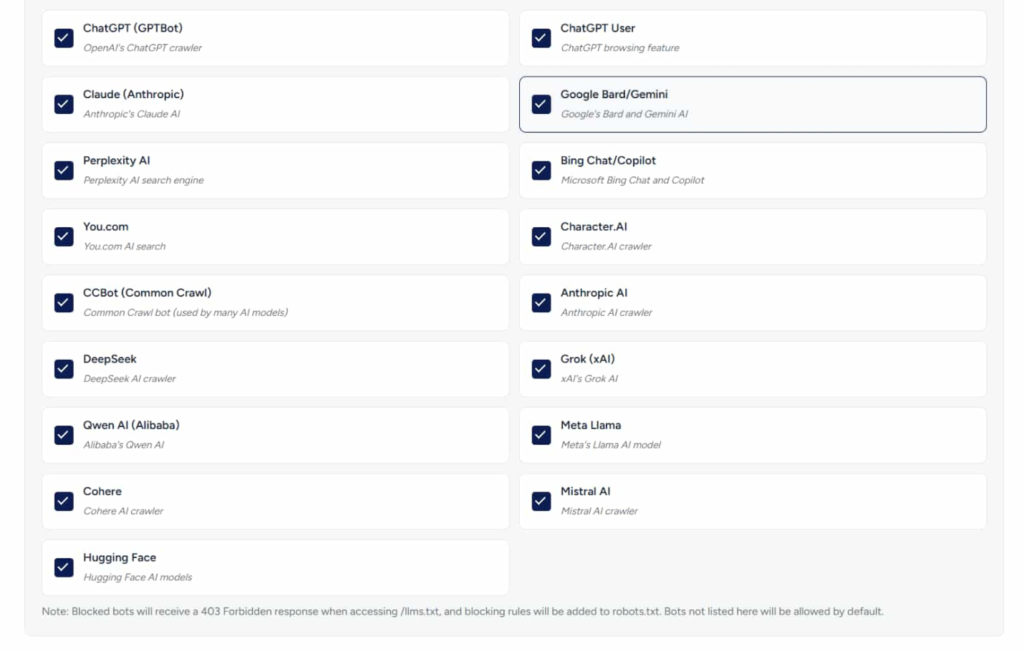
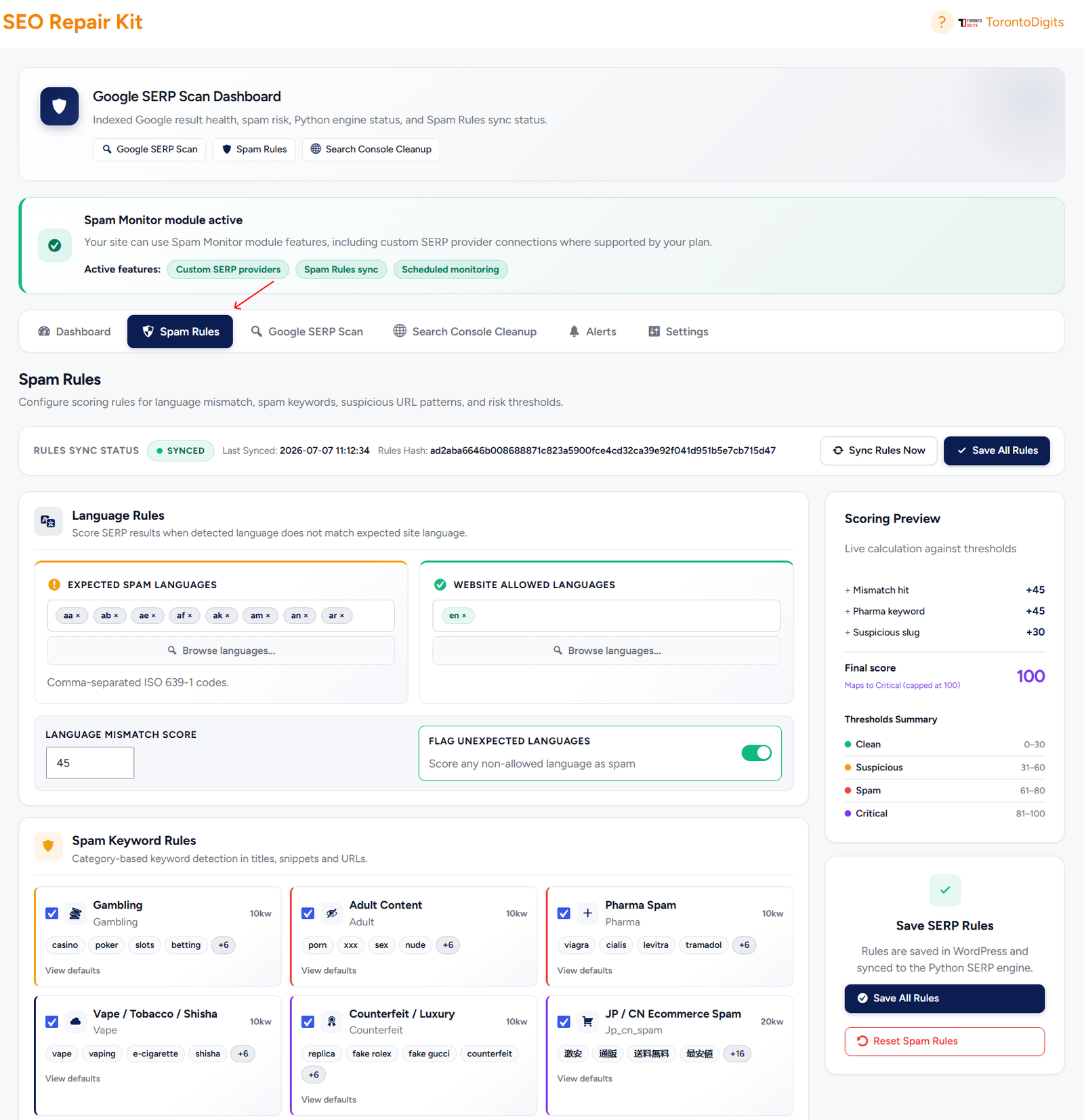
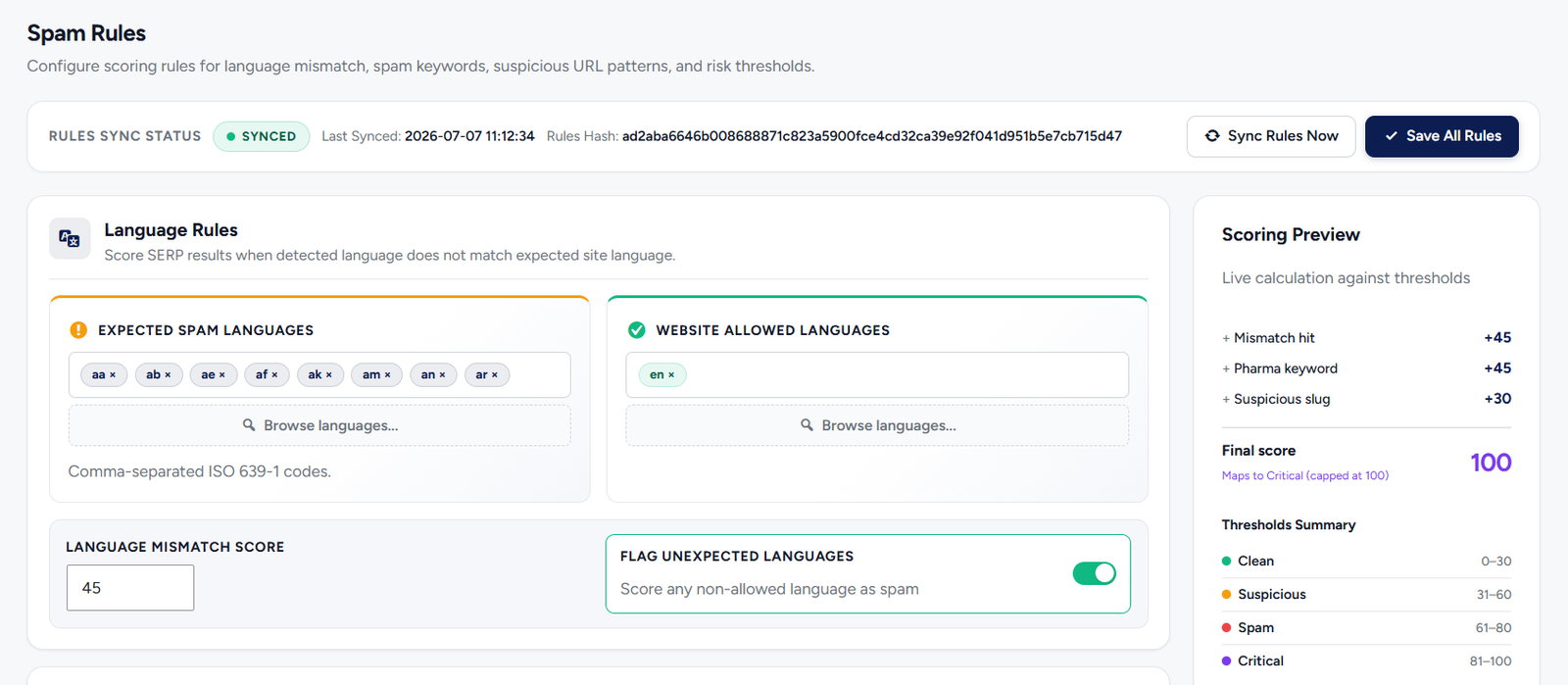
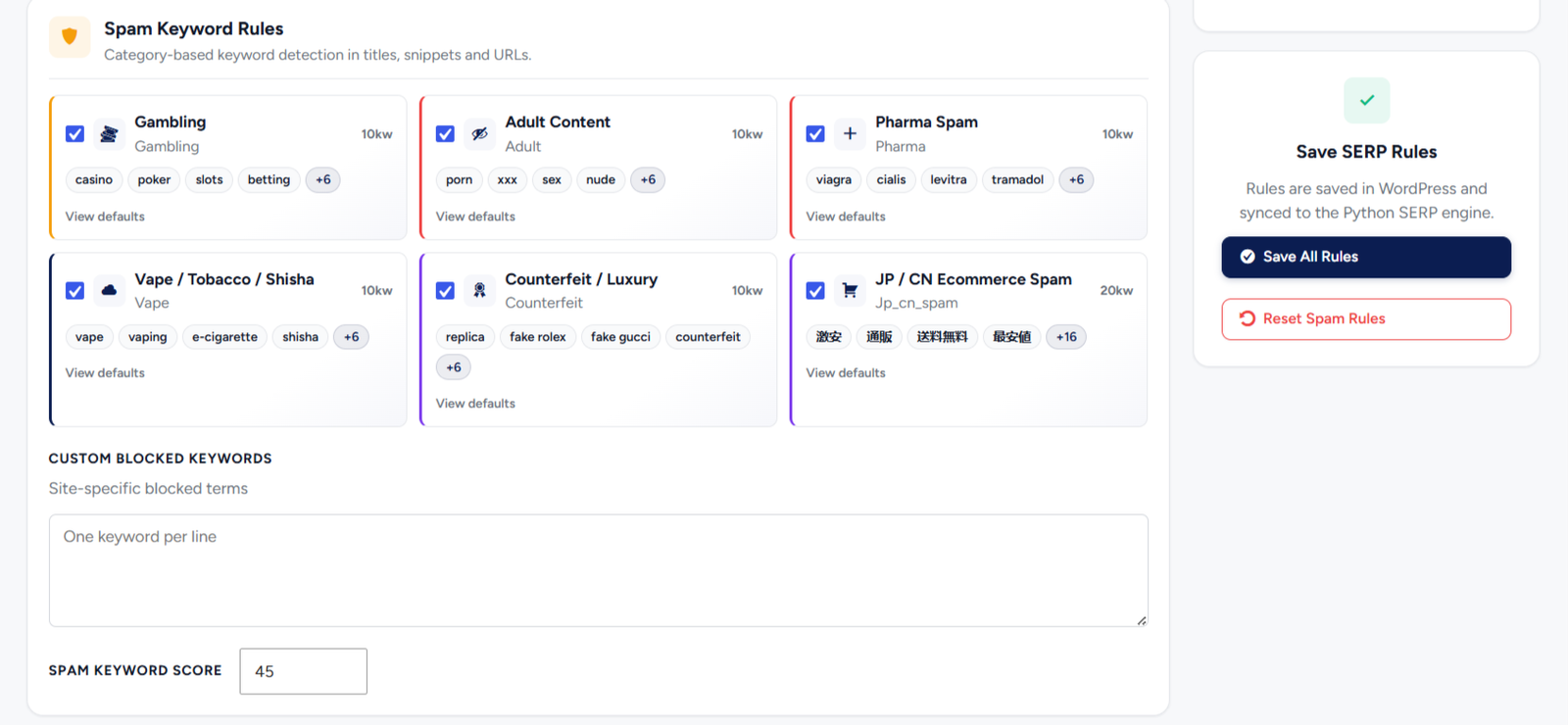
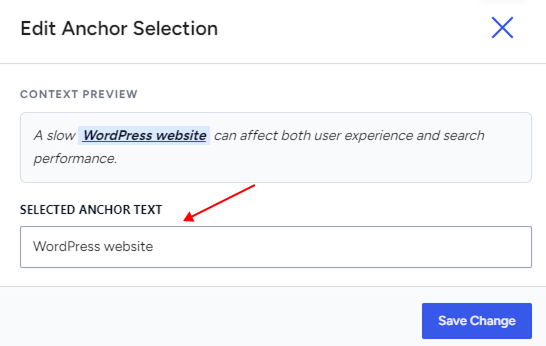
  4. Choose which bots you want to allow or block
  5. Save changes — your rules are applied instantly at the server level

No manual file editing. No technical setup. Everything is handled for you.

Getting Started

Introduction of Redirection:

Redirection is the process of automatically sending visitors and search engines from one URL to another. This is especially important when pages are deleted, URLs are changed, or content is moved. Without proper redirection, users may land on error pages, and valuable SEO equity can be lost.

SEO Repair Kit’s Redirection feature allows you to create and manage redirects easily, ensuring a smooth user experience and protecting your site’s search engine rankings.

Requirements:

  • SEO Repair Kit plugin installed and activated
  • WordPress admin access
  • Existing or planned URL changes
  • No coding knowledge required

Access:

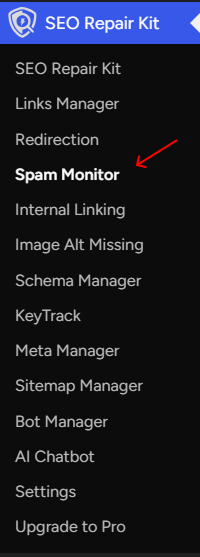
You can access the Redirection feature by navigating to:

WordPress Dashboard → SEO Repair Kit → Redirection

This opens the Redirection Manager, where all redirect rules, logs, and analytics are managed.

Why Use the Redirection Tool?

Using the Redirection tool helps you:

  • Preserve SEO value when URLs change
  • Prevent visitors from landing on 404 error pages
  • Maintain a clean and crawlable site structure
  • Track redirect usage and performance
  • Manage redirects professionally without plugin conflicts

What You’ll Learn

In the following sections, we will guide you through:

  • Installation & Setup: Get started by installing and activating the Redirection feature
  • How It Works: Understand how redirects are created and managed
  • Step-by-Step Guide: Learn how to create, monitor, and manage redirects
  • FAQs: Find answers to common questions and troubleshooting tips

Getting Started

Welcome to Your Complete SEO Solution for WordPress

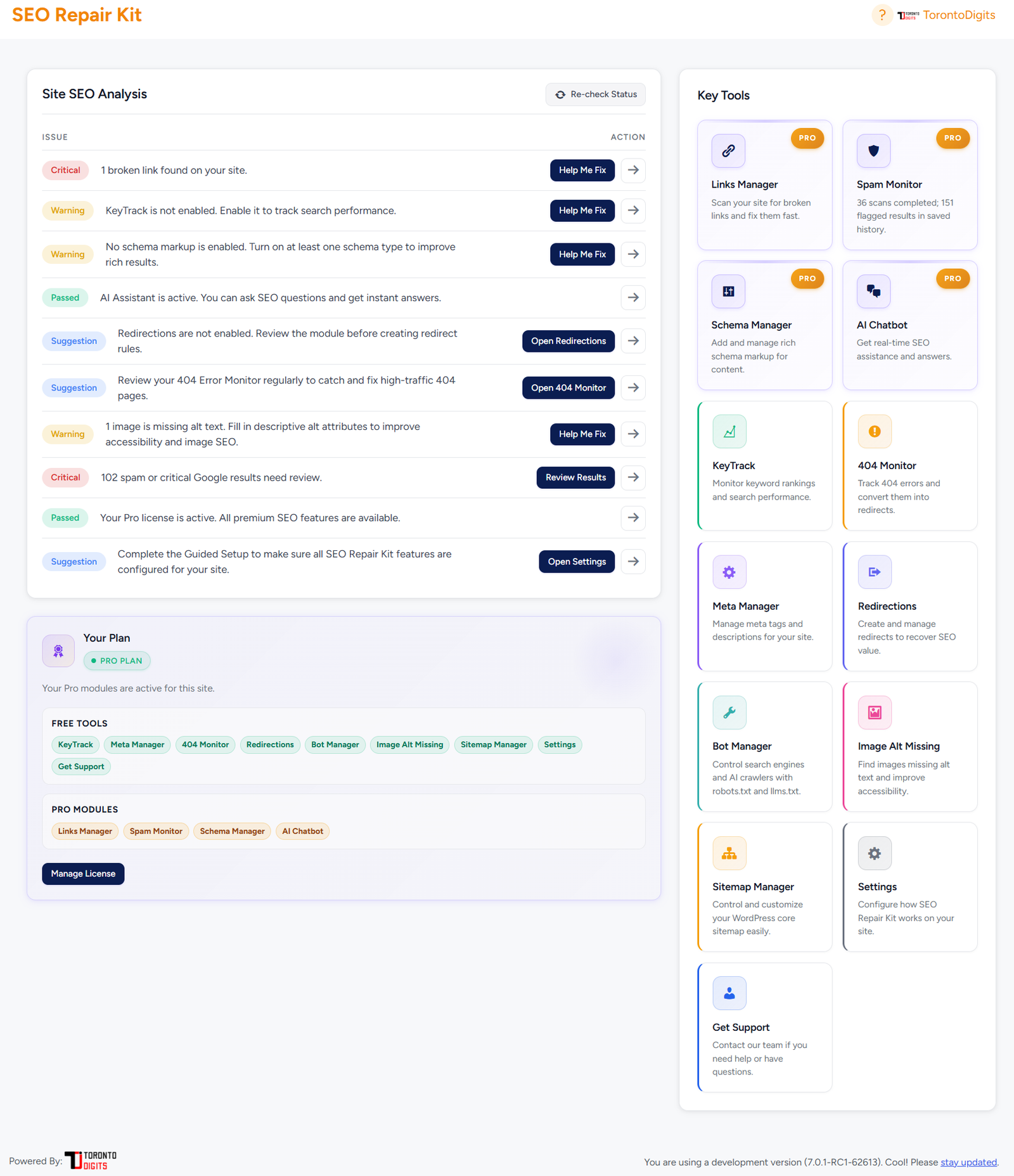
SEO Repair Kit is a comprehensive plugin for WordPress, designed to help you optimize your website by fixing broken links, managing redirections, and tracking keyword performance with ease. With this powerful tool, you can keep your website healthy, enhance your SEO rankings, and track keyword journeys – all from one centralized dashboard.

SEO Repair Kit saves time and reduces the complexity of manual SEO work, helping users take control of their website’s SEO performance. Whether you’re dealing with broken links, setting up URL redirections, or monitoring keyword journeys, SEORepairKit has got you covered.

Installation:

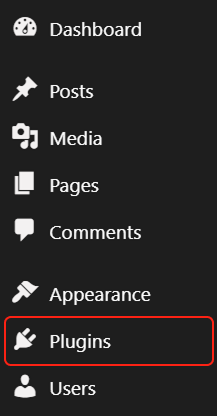
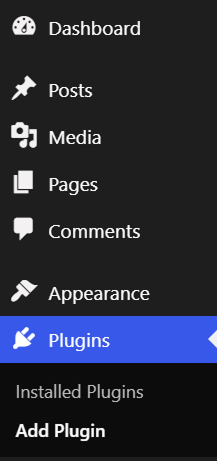
SEORepairKit is available at seorepairkit.com for direct download. Alternatively, you can navigate to your WordPress admin dashboard, go to the Plugins tab, search for “SEORepairKit,” and install and activate it.

For more detail, please visit this article Installation of SEORepairKit

Broken Links:

Broken links can negatively impact both user experience and SEO. With SEORepairKit, you can quickly scan your entire site for broken links and fix them from one easy-to-use interface. The plugin provides a report of all detected broken links, allowing you to manage them efficiently.

Redirection:

Managing redirects is essential for keeping your SEO intact, especially when pages are moved or deleted. SEORepairKit simplifies redirection management, allowing you to easily set up and monitor redirects for your website.

Threshold:

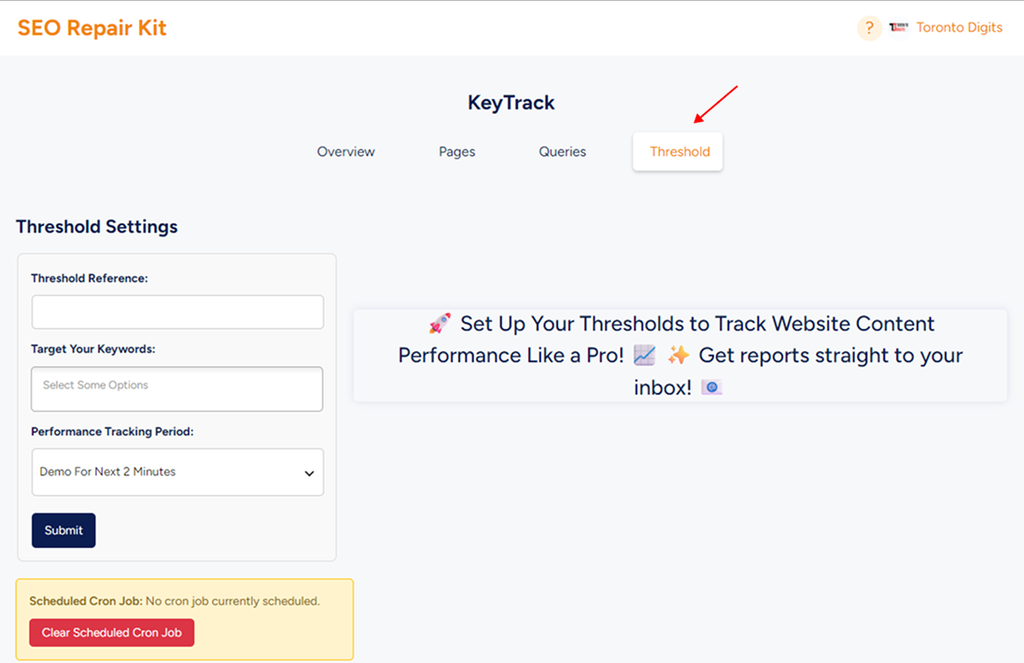
The Threshold feature allows users to track the performance of their keywords over time. This tool shows the journey of your keywords, helping you understand how they rank in search engines, how many clicks they receive, and their overall impressions.

Introduction

For instance, if you want to optimize your website for search engines or manage broken links effectively, the best approach is to utilize specialized tools like SEORepairKit. This plugin empowers users to streamline their SEO efforts without requiring any coding knowledge, making it easy to manage critical aspects of your website’s performance.

What to Expect from SEORepairKit?

SEORepairKit is a comprehensive plugin designed to help you enhance your WordPress site’s SEO.

Here are the key features included with SEORepairKit:

  • Broken Link Checker: Automatically scans your site for broken links and provides an easy-to-use interface for managing them.
  • Redirection Management: Simplifies the setup and monitoring of redirects to maintain SEO integrity when pages are moved or deleted.
  • Keyword Tracking: Monitor your keywords’ performance over time, including clicks, impressions, and average positions.
  • Customizable Settings: Tailor the plugin’s functionality to meet your specific SEO needs with user-friendly options.
  • Alt Text Generation: Automatically generates SEO-friendly alt text for your images to improve accessibility and search engine optimization.

Installation

Introduction

For instance, if you want to optimize your website for search engines or manage broken links effectively, the best approach is to utilize specialized tools like SEORepairKit. This plugin empowers users to streamline their SEO efforts without requiring any coding knowledge, making it easy to manage critical aspects of your website’s performance.

What to Expect from SEORepairKit?

SEORepairKit is a comprehensive plugin designed to help you enhance your WordPress site’s SEO.

Here are the key features included with SEORepairKit:

  • Broken Link Checker: Automatically scans your site for broken links and provides an easy-to-use interface for managing them.
  • Redirection Management: Simplifies the setup and monitoring of redirects to maintain SEO integrity when pages are moved or deleted.
  • Keyword Tracking: Monitor your keywords’ performance over time, including clicks, impressions, and average positions.
  • Customizable Settings: Tailor the plugin’s functionality to meet your specific SEO needs with user-friendly options.
  • Alt Text Generation: Automatically generates SEO-friendly alt text for your images to improve accessibility and search engine optimization.

How It Works

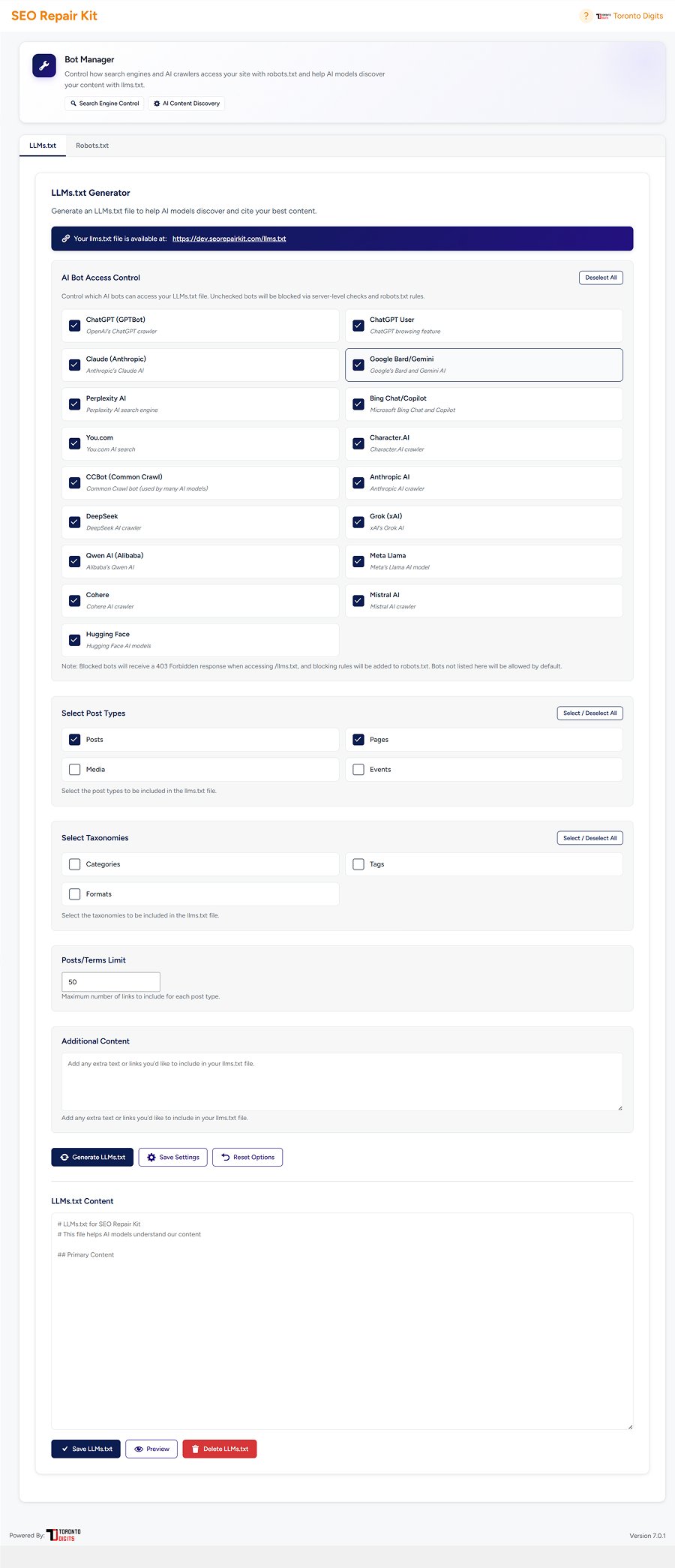
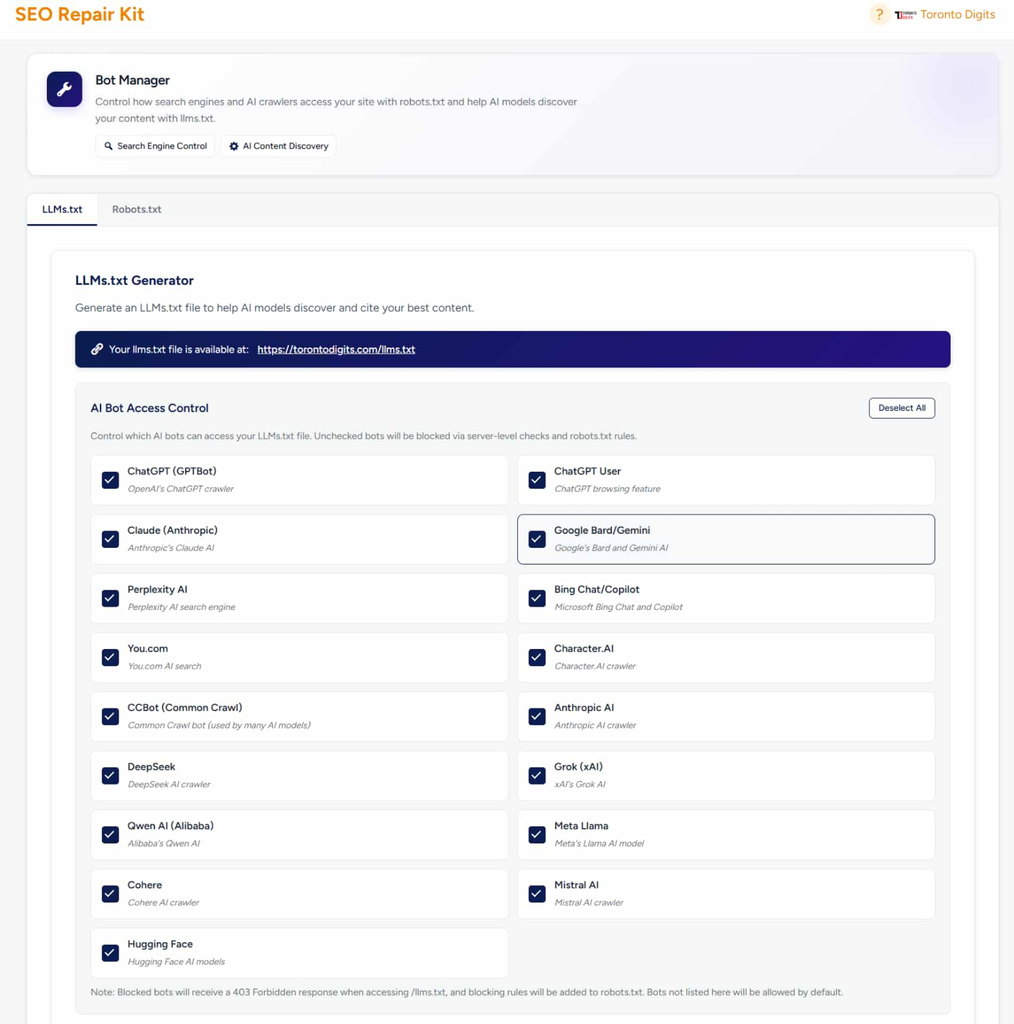
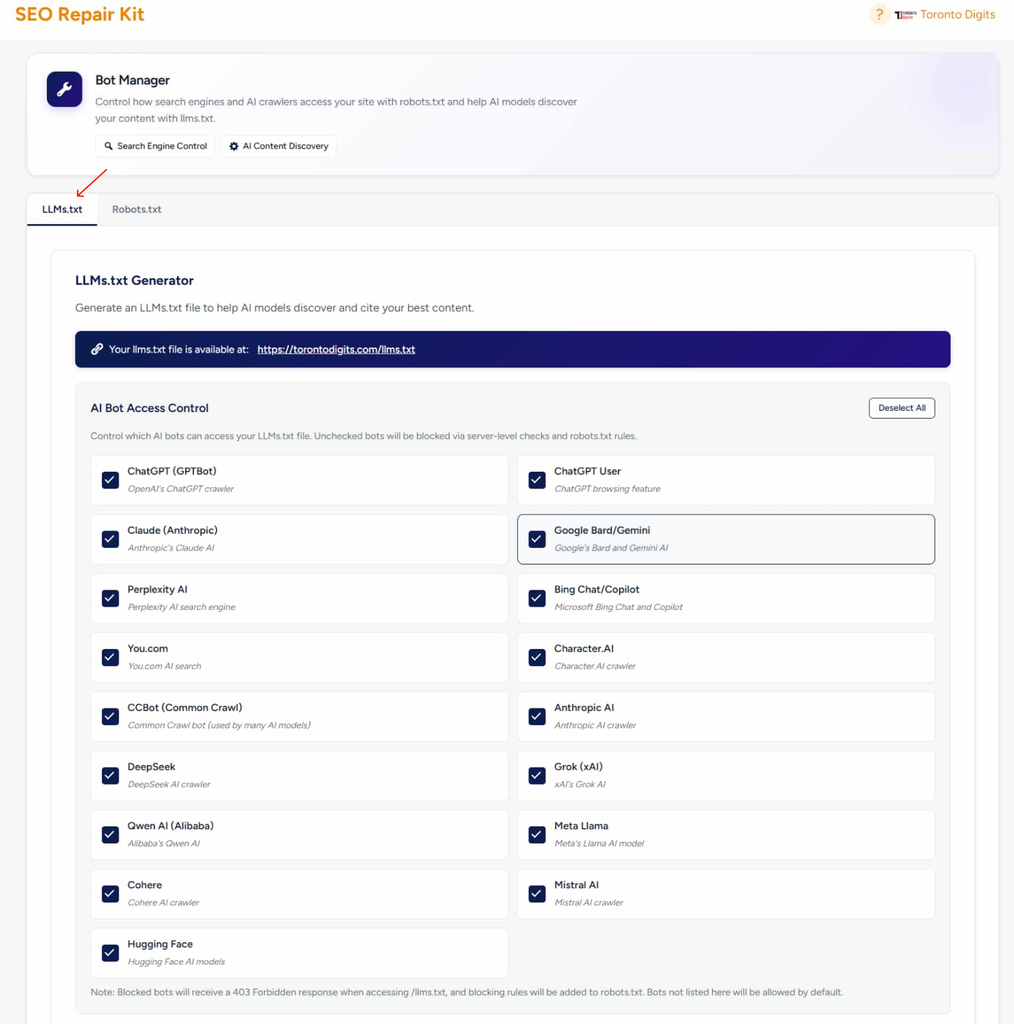
Bot Manager works by intelligently managing crawler access at both the file level and the server level:

  • robots.txt Visual Editor
    Edit and manage your robots.txt file using a clean, visual interface with built-in best practices.
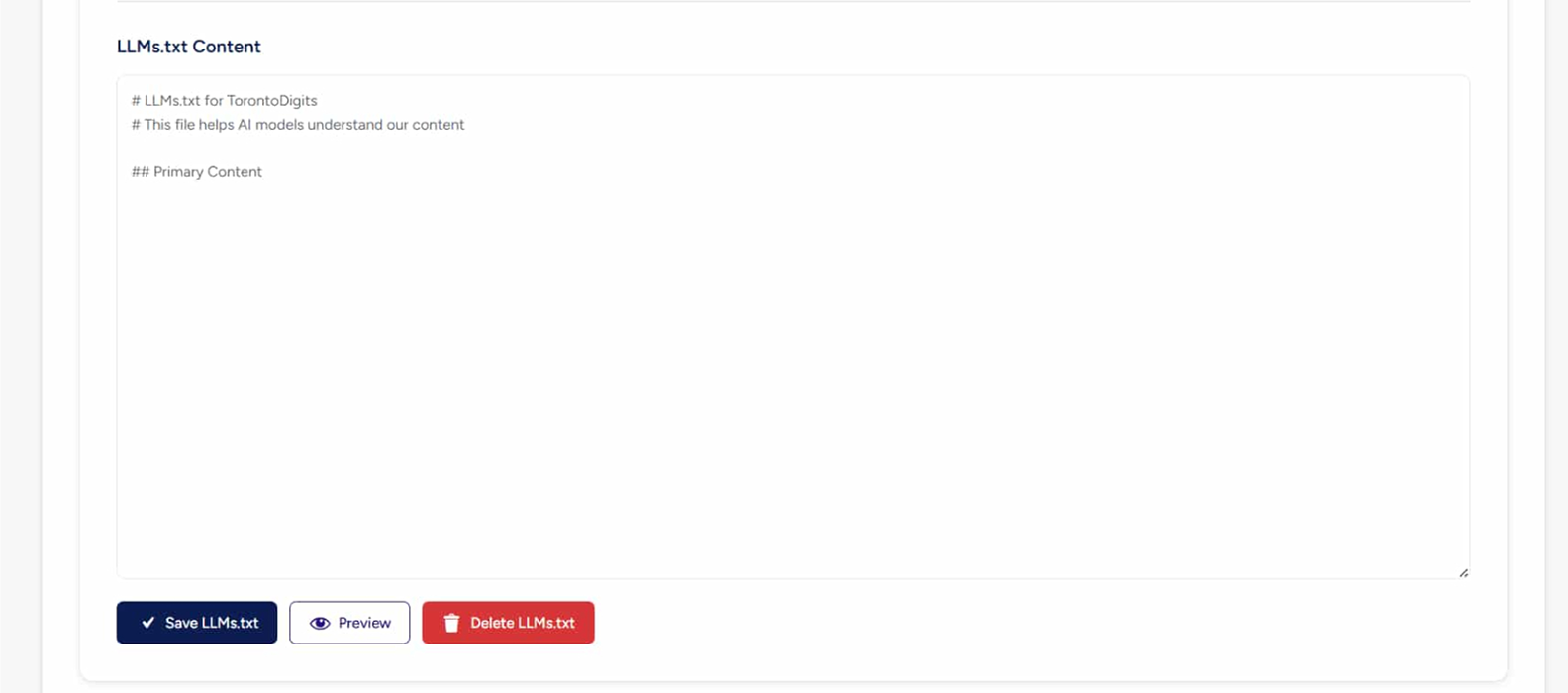
  • LLMs.txt Generator
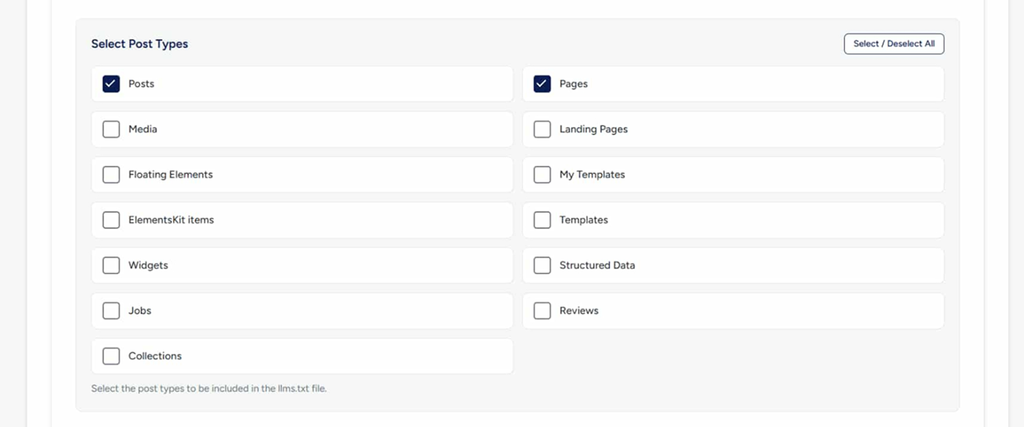
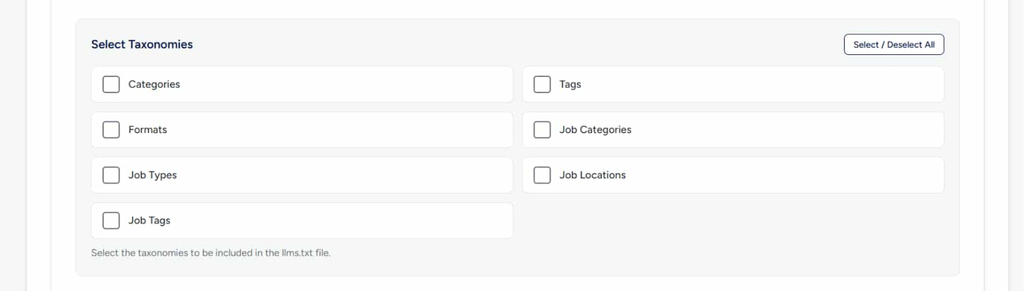
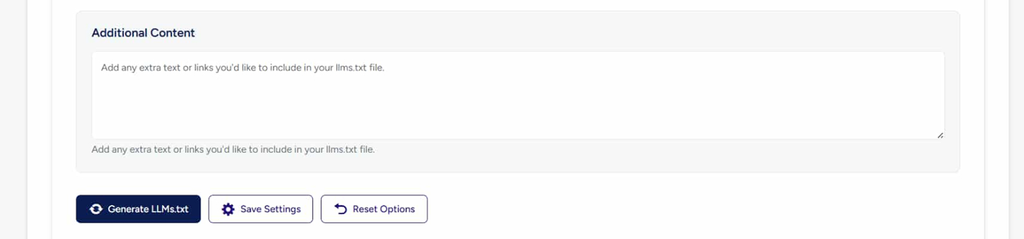
    Create and manage an llms.txt file to help AI models understand what content they can discover and use.
  • AI Bot Access Control
    Allow or block specific AI crawlers like ChatGPT, Claude, Google Bard, and others.
  • Server-Level Blocking
    Block unwanted bots with 403 responses, preventing access before they reach your content.
  • Automatic Rule Syncing
    When you block a bot, Bot Manager automatically updates your robots.txt rules.

Real-Time Preview & Validation
Instantly see how your rules will behave before applying them live.
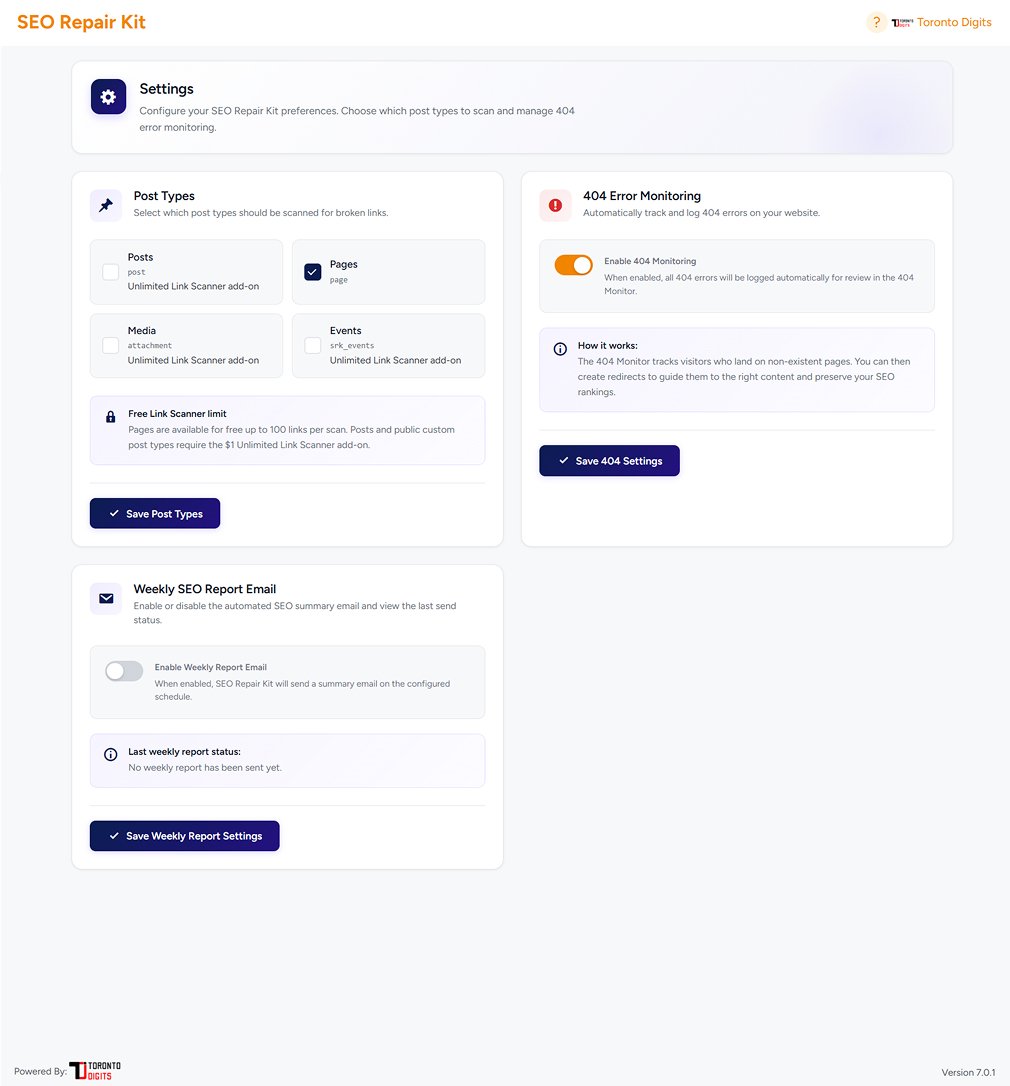
Getting Started

Broken Links:

Broken links are URLs on your website that no longer lead to a valid destination. These can be internal links pointing to removed pages or external links leading to websites that no longer exist. While they often go unnoticed, broken links can negatively impact both user experience and search engine performance.

Introduction to Broken Links:

As websites grow and content changes over time, links naturally become outdated. Pages get deleted, URLs change, and external websites shut down. Manually tracking these broken links is time-consuming and error-prone. This feature automates the entire process, ensuring no broken link goes undetected.

Why It Matters:

Broken links frustrate visitors, increase bounce rates, and signal poor site quality to search engines. They can silently weaken your SEO and reduce user trust. By identifying and fixing broken links early, you create a smoother browsing experience, improve crawlability, and maintain a healthy, professional website.

Requirements:

  • The plugin must be installed and activated
  • Permission to scan site pages and posts
  • An active internet connection for checking external links
  • No technical knowledge or coding skills required

Get Started

Overview

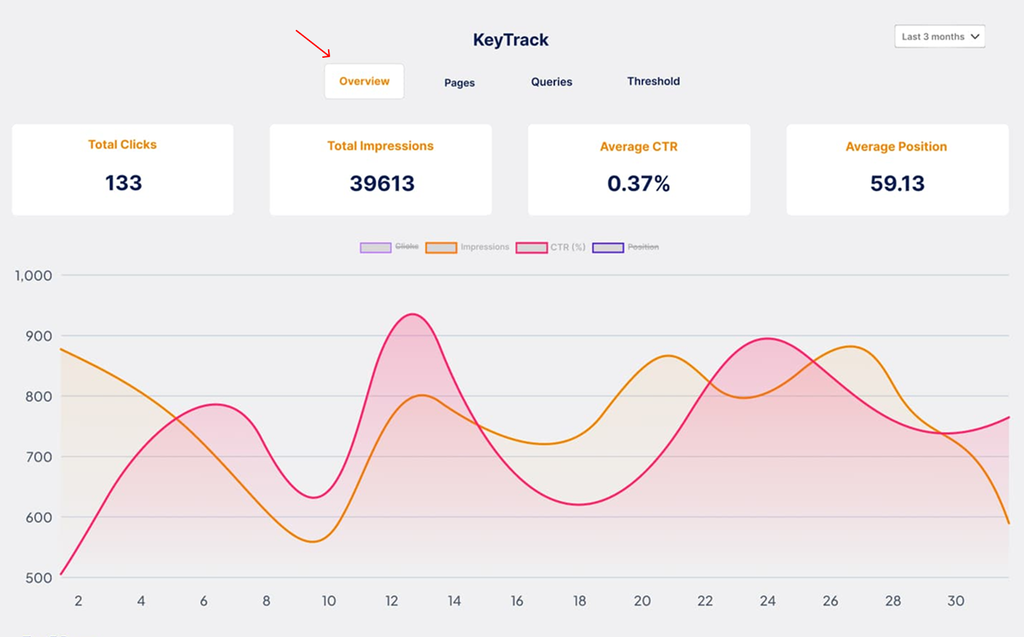
KeyTrack Configuration in the SEO Repair Kit enables you to track specific keywords’ performance metrics, helping you monitor and improve your site’s SEO over time.

Why Use KeyTrack Configuration?

  • Monitor changes in keyword rankings.
  • Set up notifications for significant shifts in keyword performance.
  • Make data-driven adjustments to improve content visibility and search engine rankings.

Requirements

  • SEO Repair Kit plugin installed and activated.
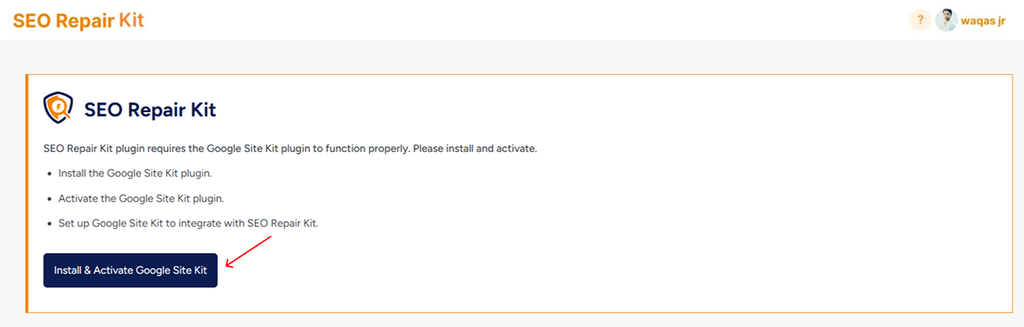
  • Google Site Kit integration (for fetching data directly from Google Search Console).

How It Works

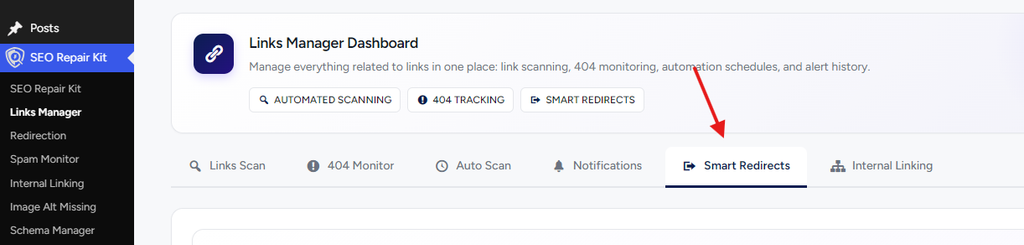
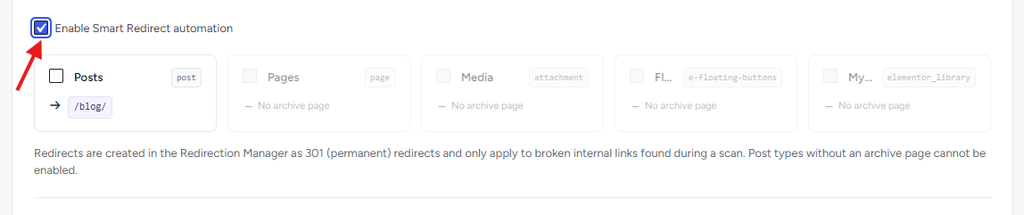
The Redirection feature works by mapping old or broken URLs to new, active ones. You can set up redirects manually or allow the system to automatically suggest redirects for deleted or moved pages.

Key Features:

  • Simple Setup: Allows you to create, edit, and delete redirects quickly.
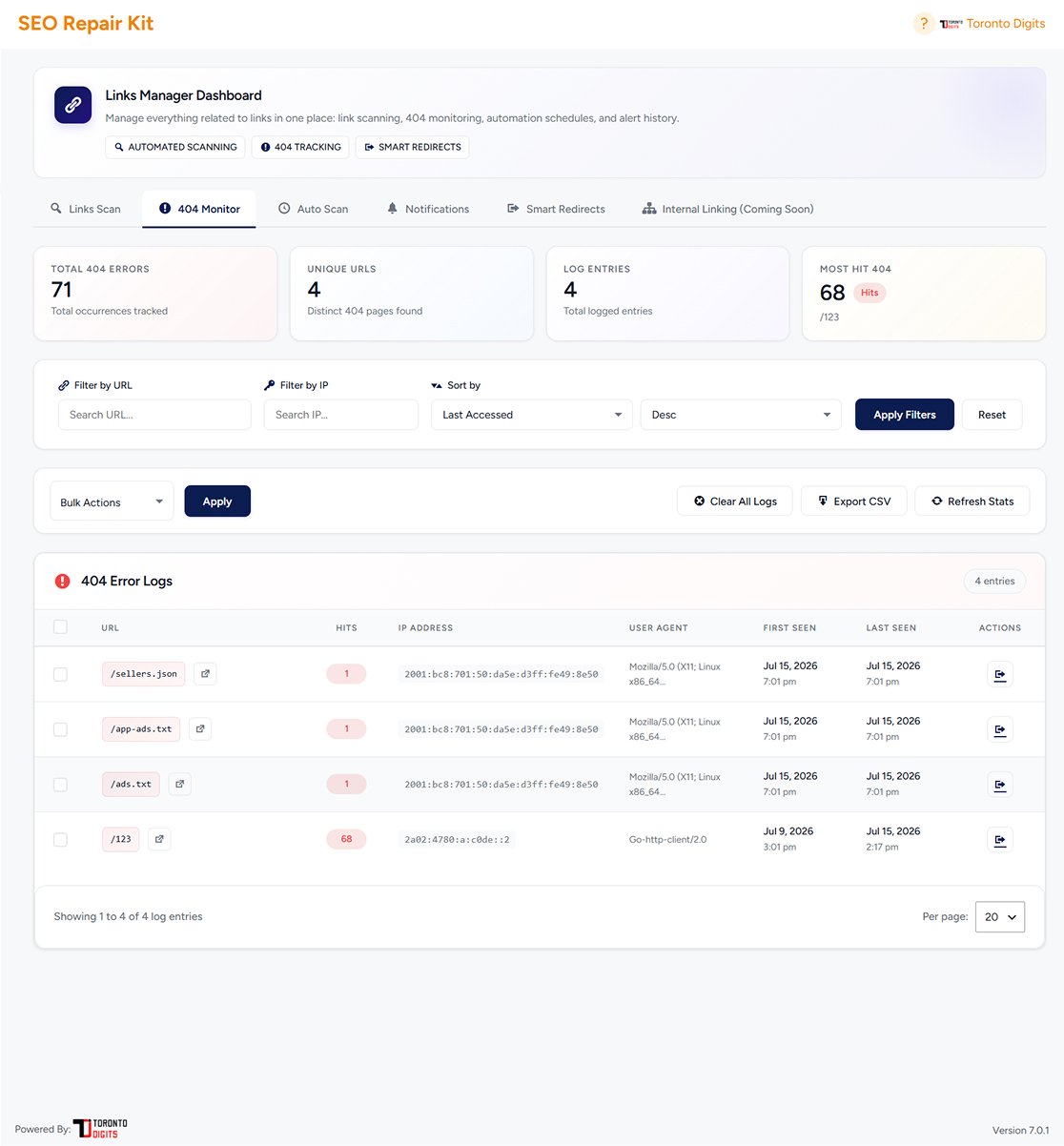
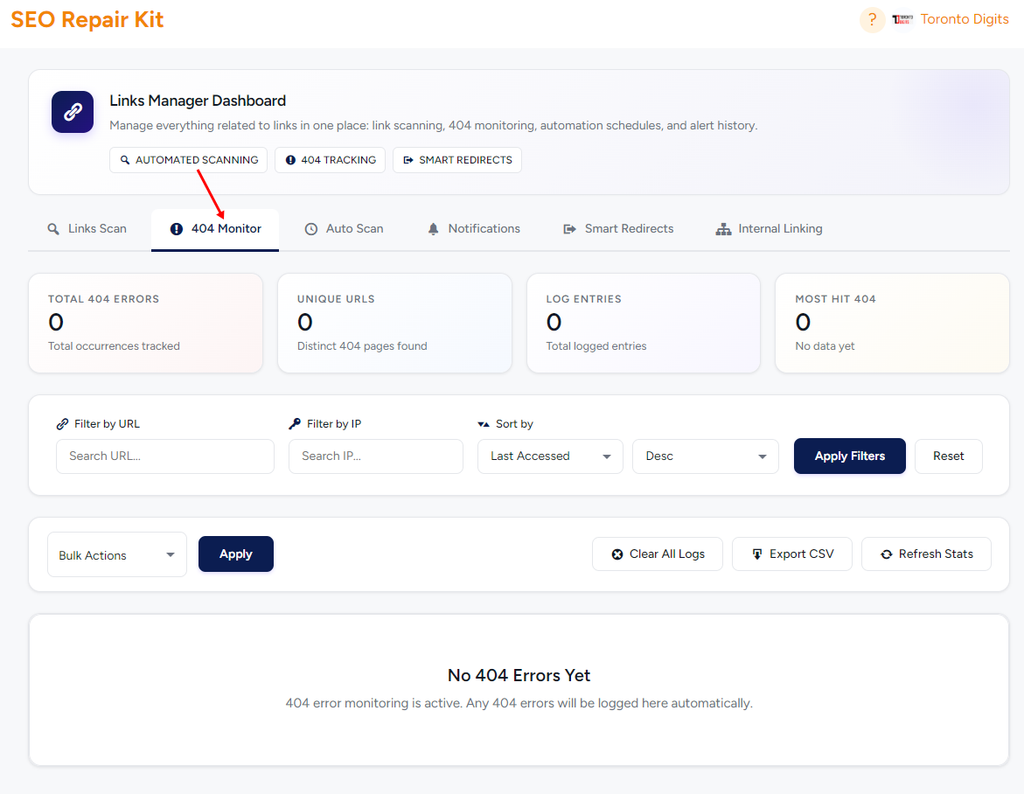
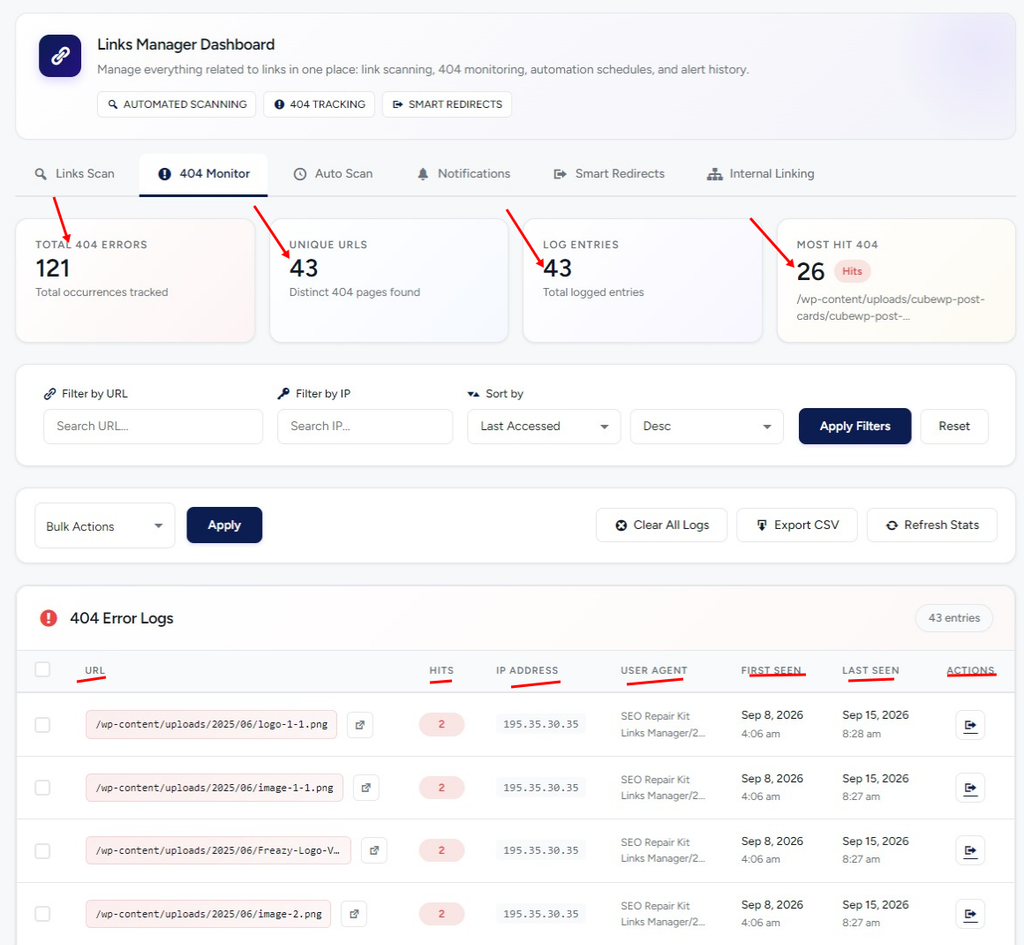
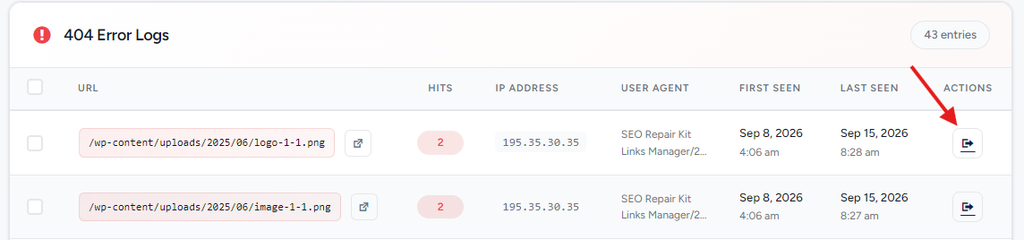
  • Automatic 404 Monitoring: Automatically detects 404 errors and allows you to redirect them to the appropriate pages.
  • Manual Redirects: You have the flexibility to create manual redirects by entering both the old and new URLs.
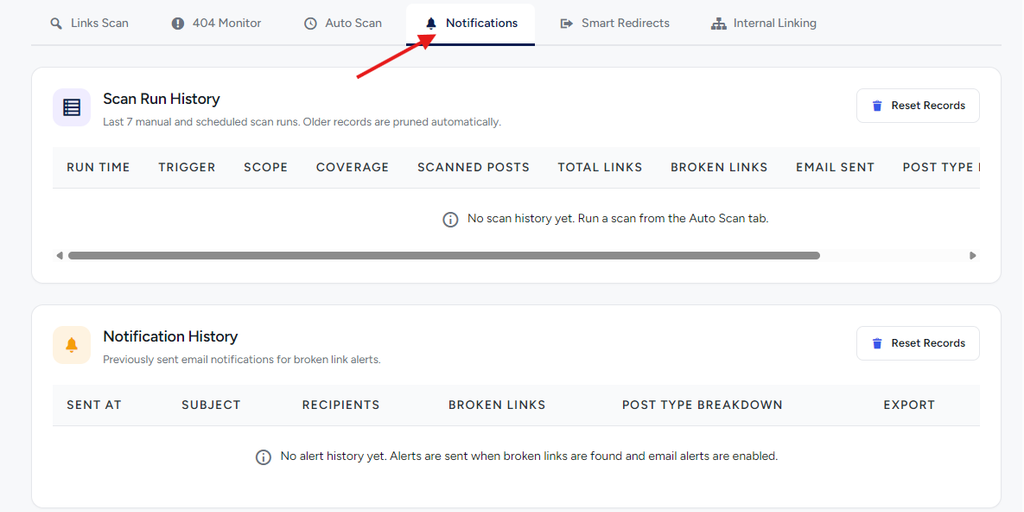
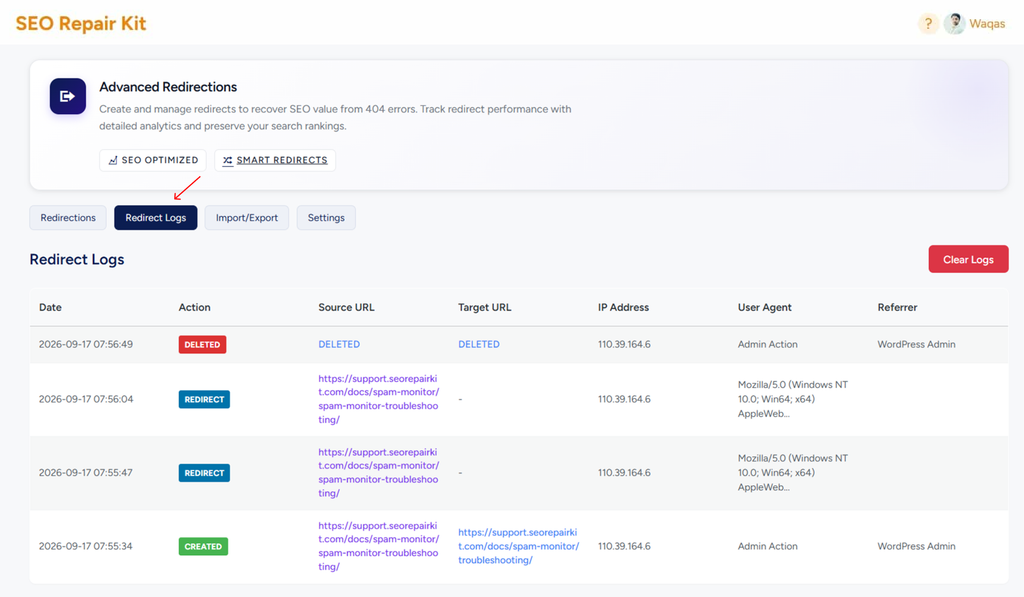
  • Redirect Logs: The system keeps track of all your redirects, giving you a history of changes.
  • Error Tracking: It can also notify you when an error occurs, ensuring your site is always in top shape.

This system ensures that users always find the content they’re looking for, even when the original page has been moved or deleted

How It Benefits SEO:

  • Preserves Link Equity: Ensures that link value (PageRank) from old URLs is passed on to the new URLs.
  • Prevents Duplicate Content: Redirecting duplicate pages to the main page avoids search engine penalties.
  • Improves Site Health: Regularly fixing broken links and redirecting them helps maintain a clean site architecture.

Redirection Works in WordPress:

Redirection involves setting up rules that automatically send users from one URL to another. When someone tries to visit an old URL, the redirection rules trigger, and they are taken to the correct page. There are different types of redirects that can be used:

  • 301 Redirect: Permanent redirect. It indicates that the URL has been moved permanently to a new location. This is the most common type used for SEO.
  • 302 Redirect: Temporary redirect. It tells search engines that the content is temporarily located at a different URL.
  • 307 Redirect: Another temporary redirect, used when the request method should not change.
  • 404 Redirect: A default redirect that occurs when the URL is not found. It’s good to set up custom 404 redirects to guide users to a helpful page instead.

Getting Started

Image ALT Text:

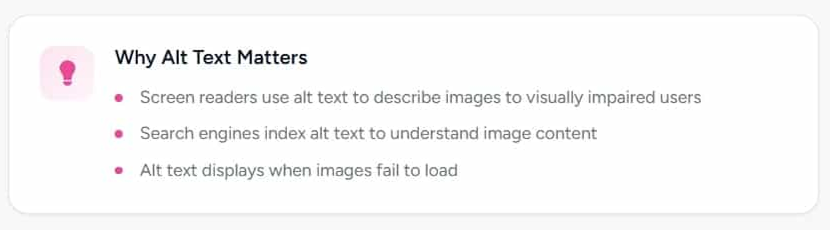
Image ALT text (alternative text) is a short, descriptive text added to images that explains their content. It helps search engines understand what an image represents and allows screen readers to describe images to visually impaired users.

Introduction to Image ALT Text:

Images enhance visual appeal, but without ALT text, they remain invisible to search engines and assistive technologies. The Image ALT Text feature in SEO Repair Kit automatically identifies images missing ALT attributes. It provides an easy way to add or update them—without manual searching or technical effort.

Why It Matters:

Missing ALT text can negatively affect both SEO and accessibility. Search engines rely on ALT text to index images properly, while users with screen readers depend on it to understand visual content. By optimizing image ALT text, you:

  • Improve image search visibility
  • Enhance accessibility compliance
  • Strengthen on-page SEO signals
  • Create a better experience for all users

Requirements:

  • SEO Repair Kit plugin installed and activated
  • Access to the WordPress Media Library
  • Images uploaded to your website
  • No coding or technical skills required

Introduction

Image Alt Text is an essential feature for improving both the accessibility and SEO of your website. By adding descriptive alternative text to your images, you help search engines index your content more effectively and ensure that users with visual impairments can understand what the images represent.

In the SEO Repair Kit plugin, you can easily review images that lack alt text and manually assign descriptive text to them, making sure your website adheres to SEO best practices.

Introduction

Image Alt Text is an essential feature for improving both the accessibility and SEO of your website. By adding descriptive alternative text to your images, you help search engines index your content more effectively and ensure that users with visual impairments can understand what the images represent.

In the SEO Repair Kit plugin, you can easily review images that lack alt text and manually assign descriptive text to them, making sure your website adheres to SEO best practices.

Getting Started

What is Schema Markup?

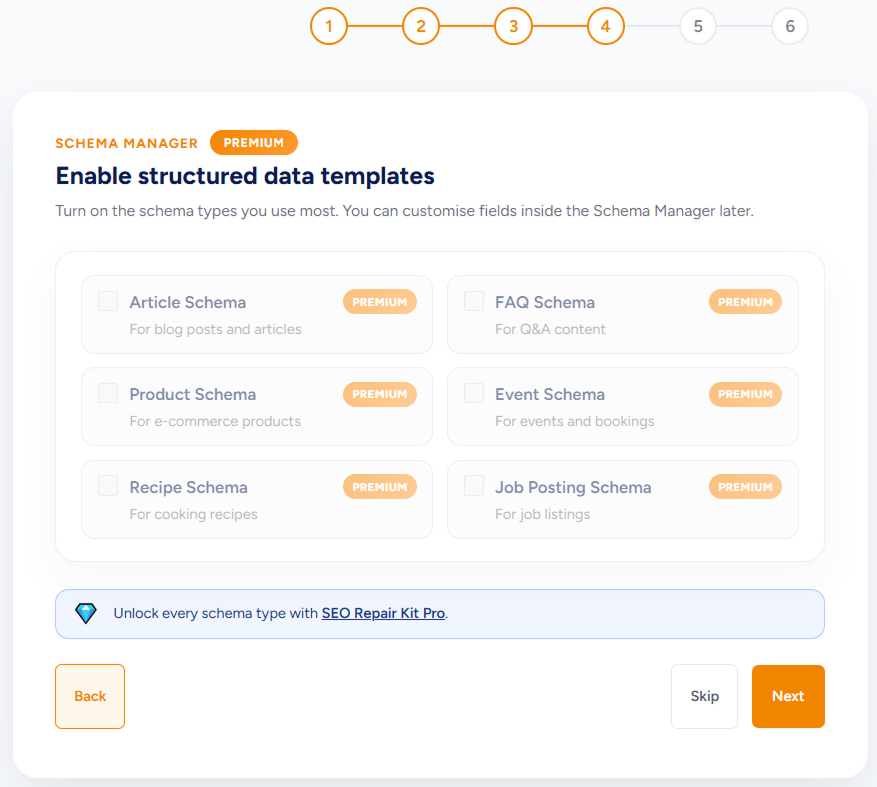
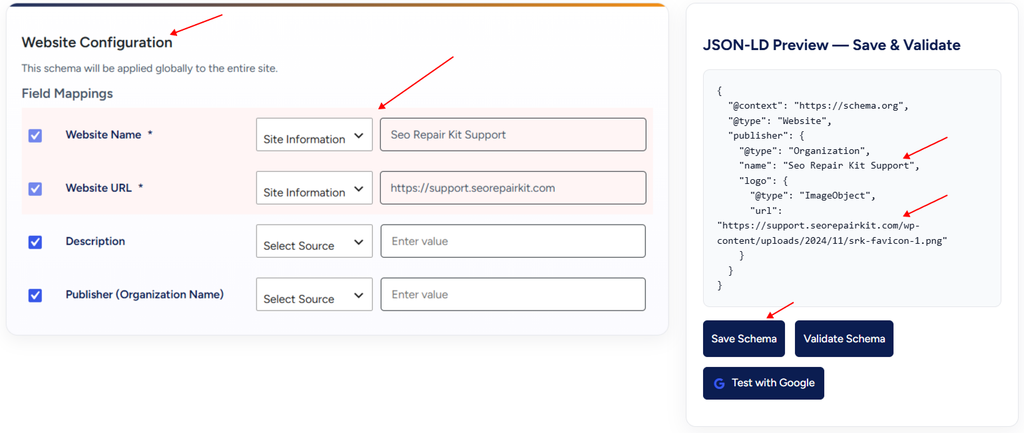
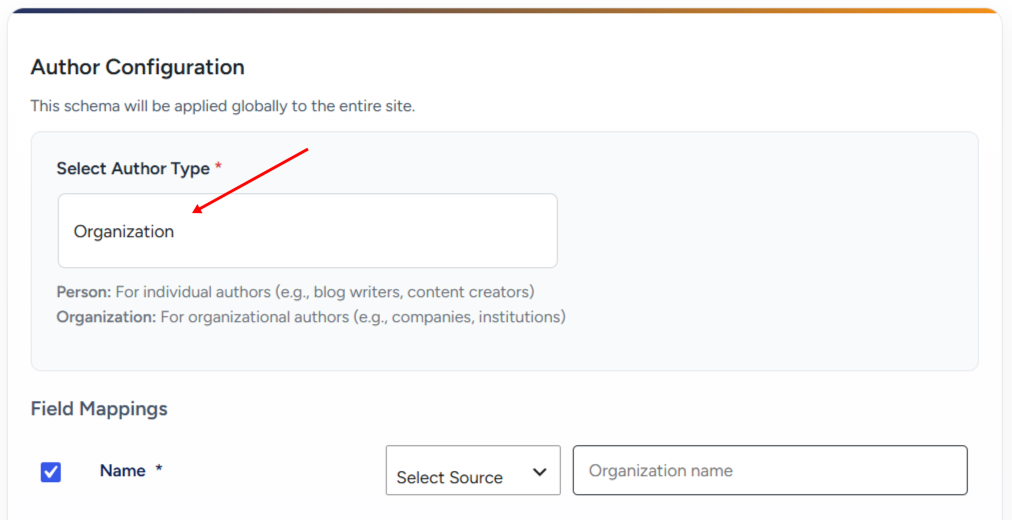
Schema Support in SEO Repair Kit helps you add structured data to your website in a simple, accurate, and SEO-friendly way. It allows search engines like Google to better understand your content and display enhanced results such as FAQs, reviews, products, jobs, events, and business details directly in search results.

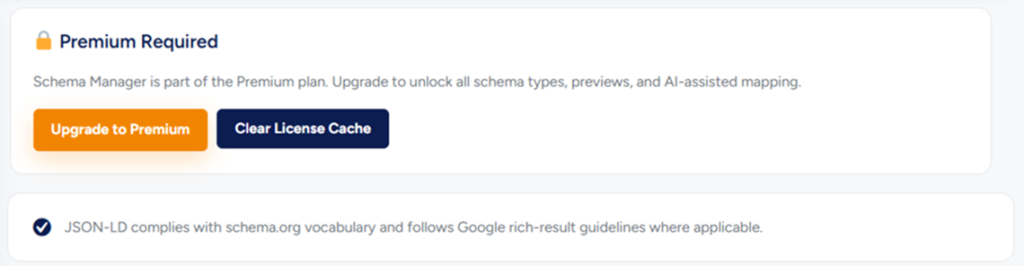
With the built-in Schema Manager, you can create, manage, and apply schema markup without writing any code. The system uses JSON-LD, Google’s recommended format, and follows schema.org standards to ensure maximum compatibility and reliability.

SEO Repair Kit’s schema support is designed for both beginners and advanced users. You can use pre-built schema templates, dynamically map WordPress fields, preview the generated schema in real time, and validate it to avoid errors before publishing.

Whether you want to apply schema globally across your site or customize it for individual posts and pages, Schema Support in SEO Repair Kit gives you full control—helping improve search visibility, eligibility for rich results, and overall SEO performance.


Why Use Schema Manager?

Schema Manager simplifies the process of adding structured data to your website. With Schema Manager, you can:

  • Automatically generate JSON-LD schema (Google-recommended format)
  • Use pre-built schema templates
  • Apply schema to any post type (posts, pages, or custom post types)
  • Preview schema before publishing
  • Validate schema to detect errors or missing fields
  • Improve eligibility for Google Rich Results
  • Maintain SEO-friendly and clean output

No coding knowledge is required.


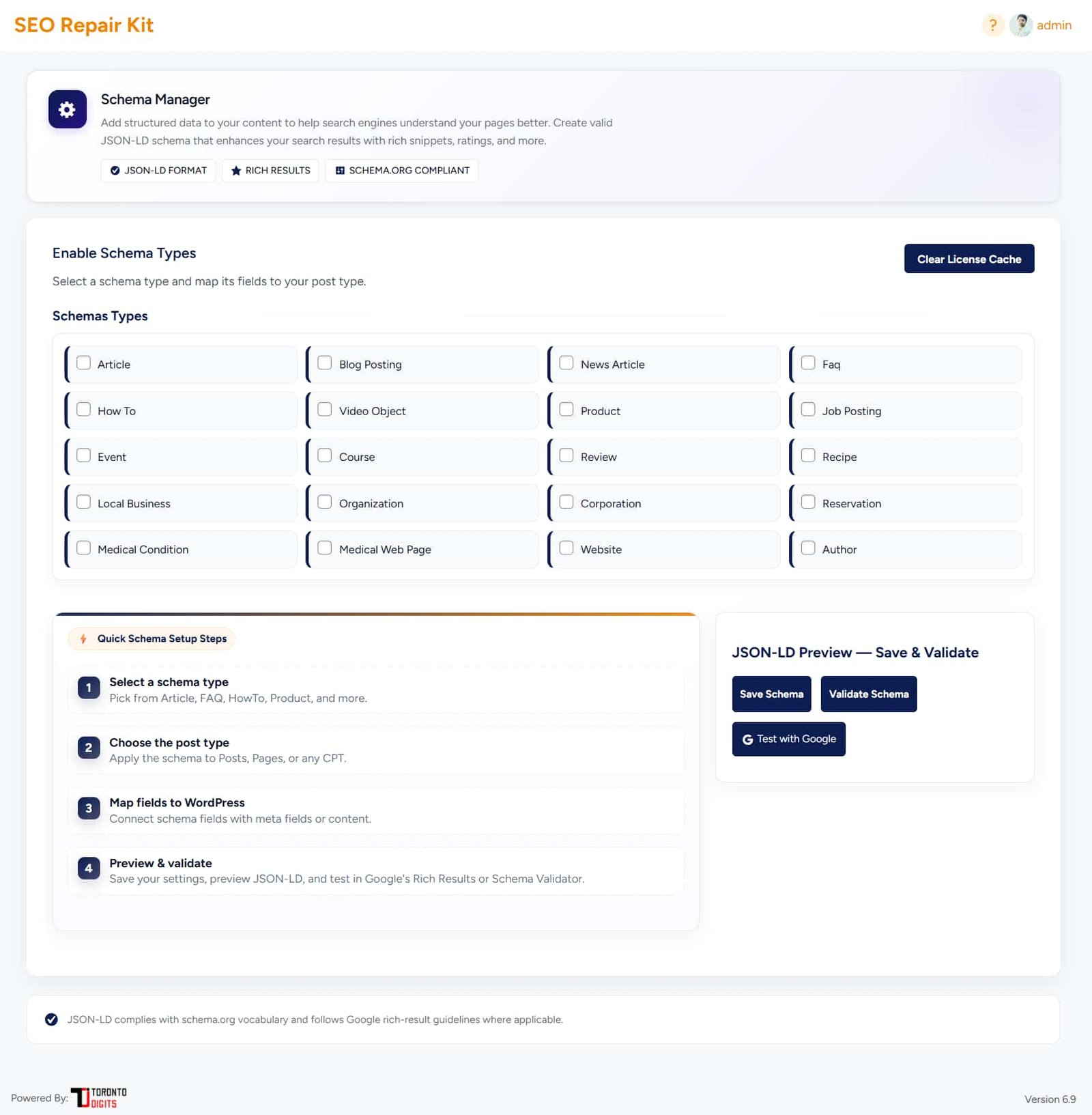
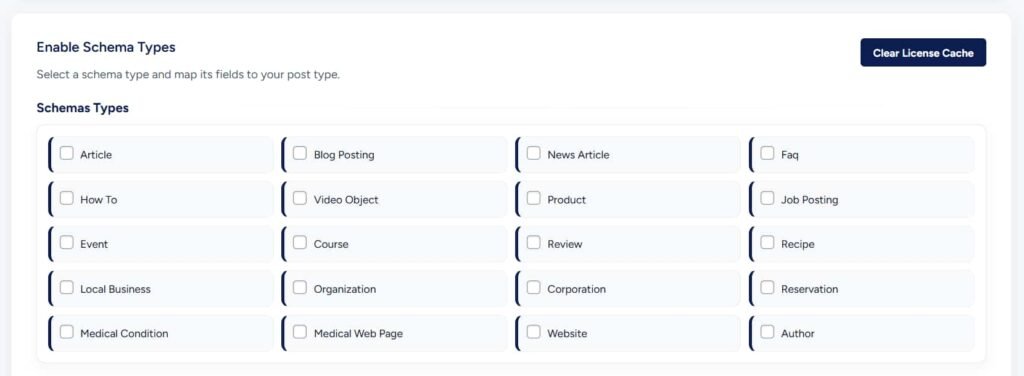
Supported Schema Types

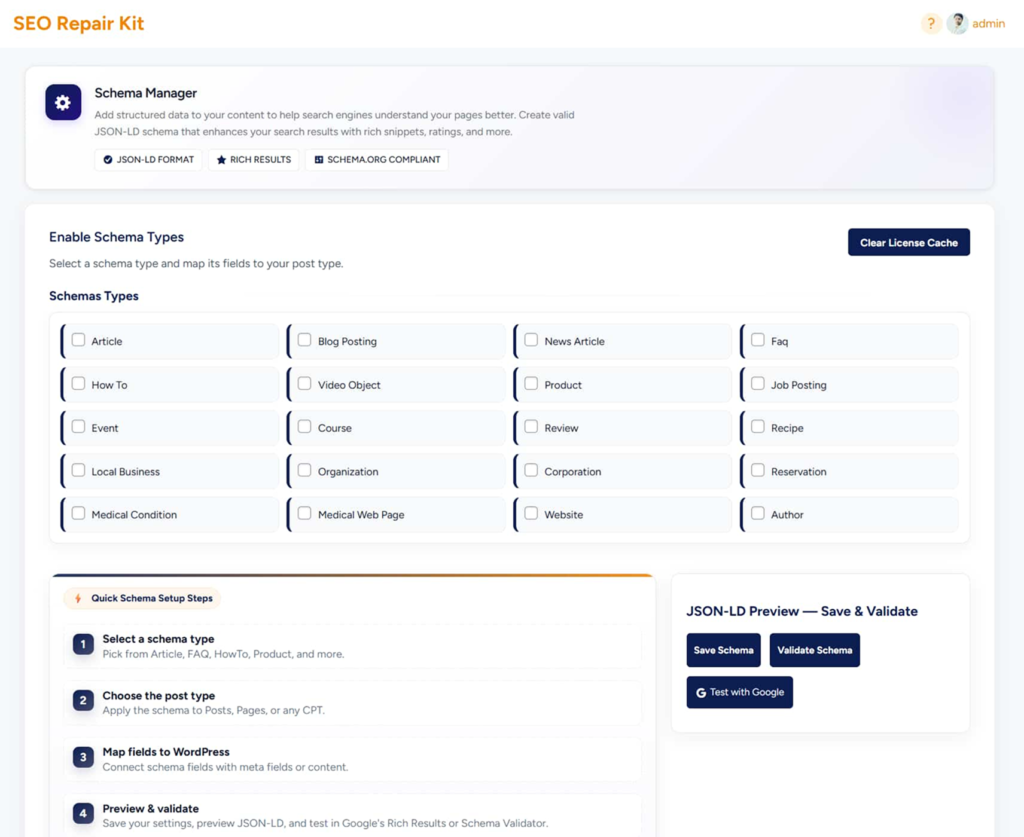
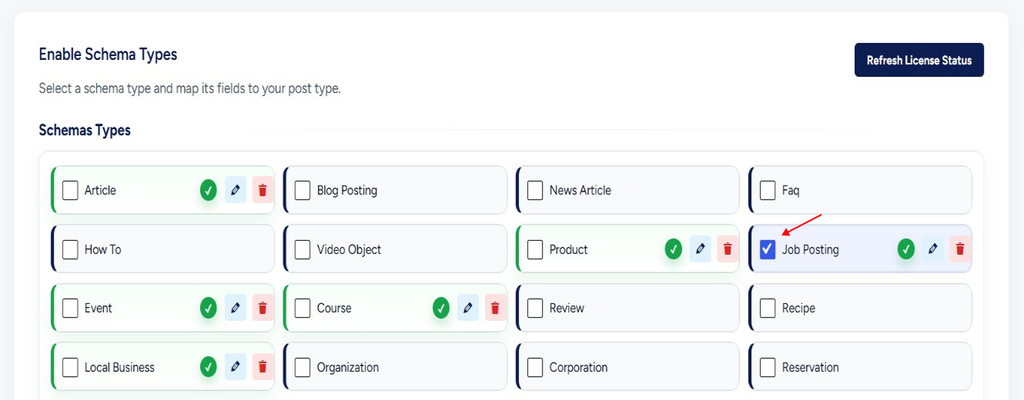
Schema Manager supports 20+ schema types, including:

  • Article
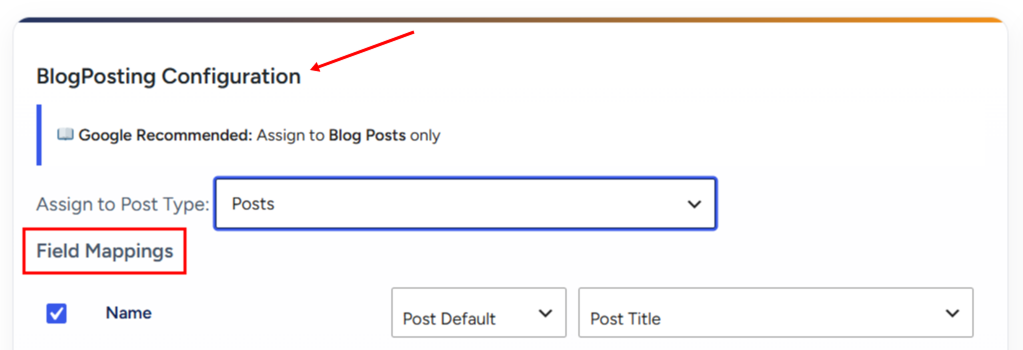
  • Blog Posting
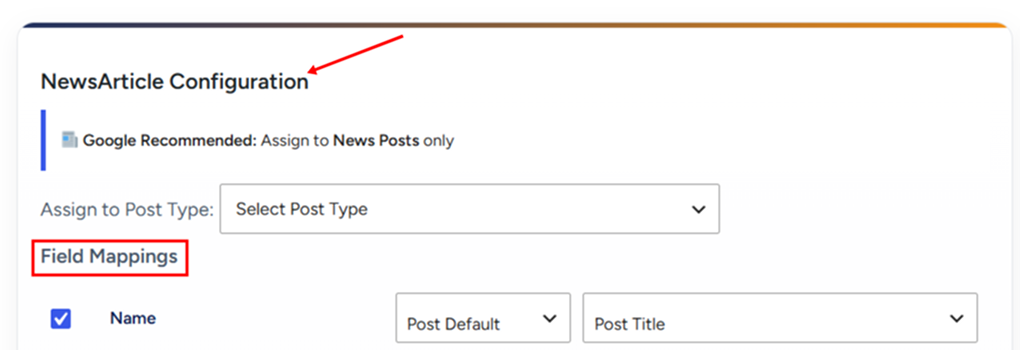
  • News Article
  • FAQ
  • HowTo
  • Video Object
  • Product
  • Job Posting
  • Event
  • Course
  • Review
  • Recipe
  • Local Business
  • Organization
  • Corporation
  • Reservation
  • Medical Condition
  • Medical Web Page
  • Website

(Additional schema types may be added in future updates.)

Getting Started

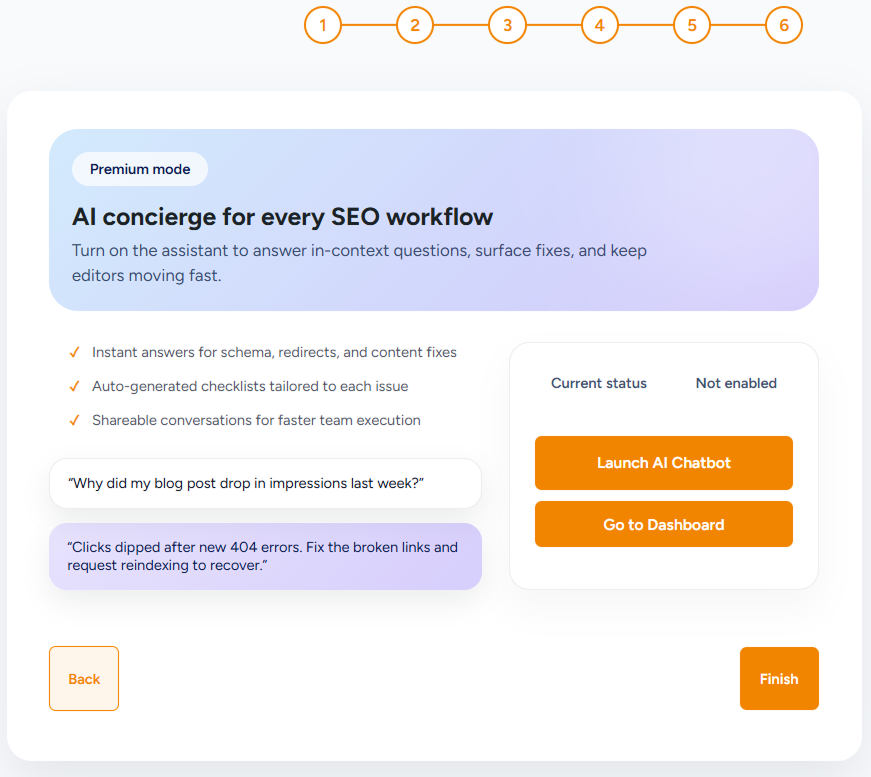
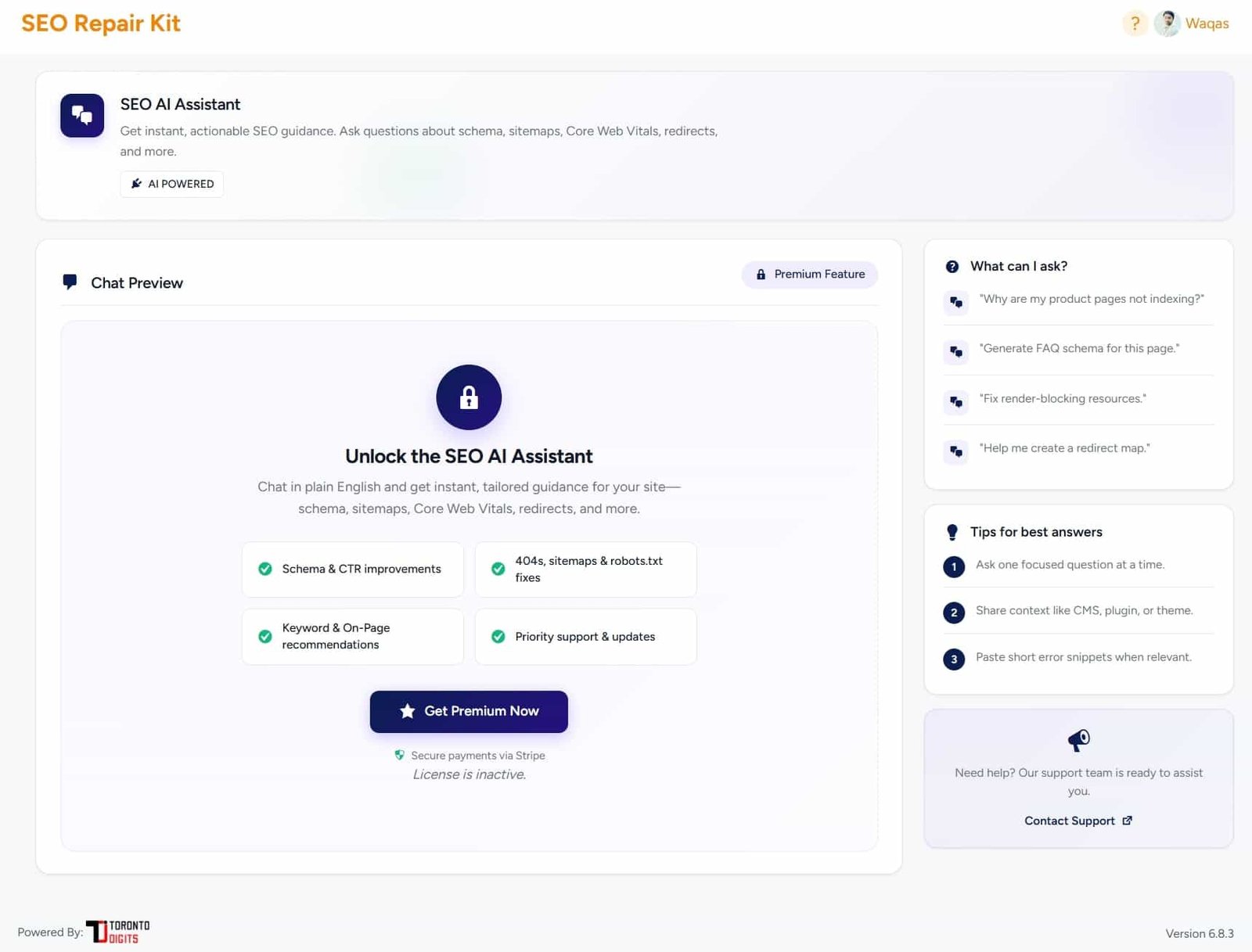
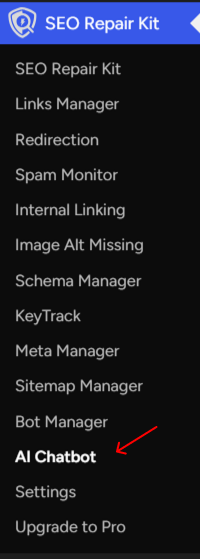
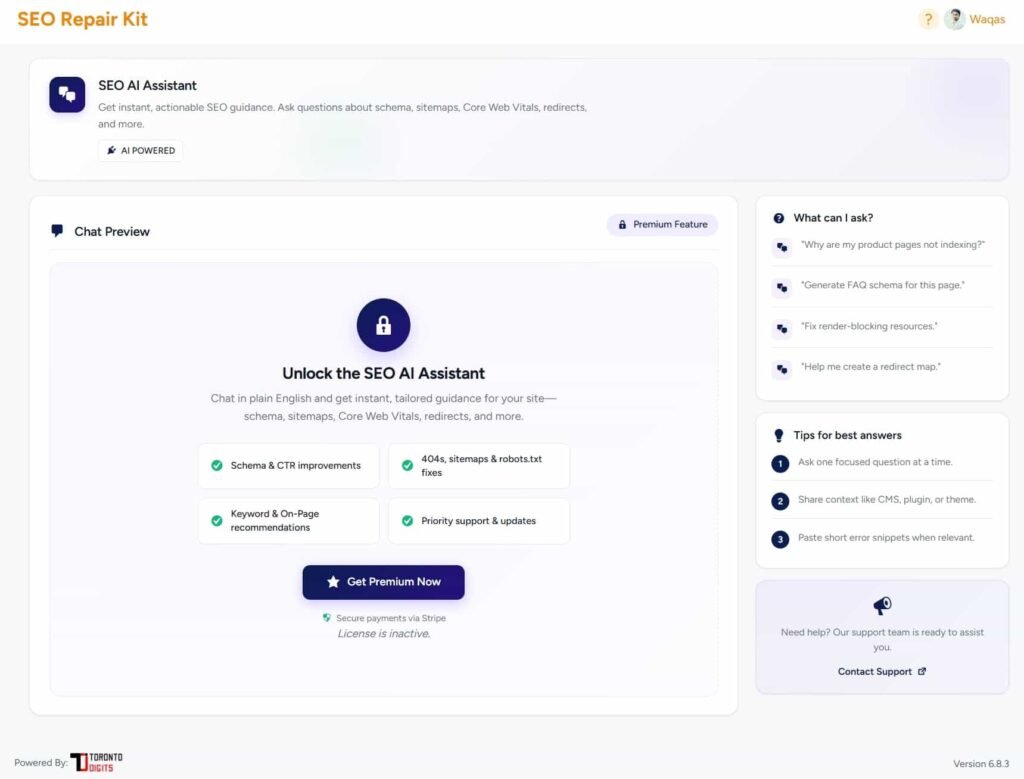
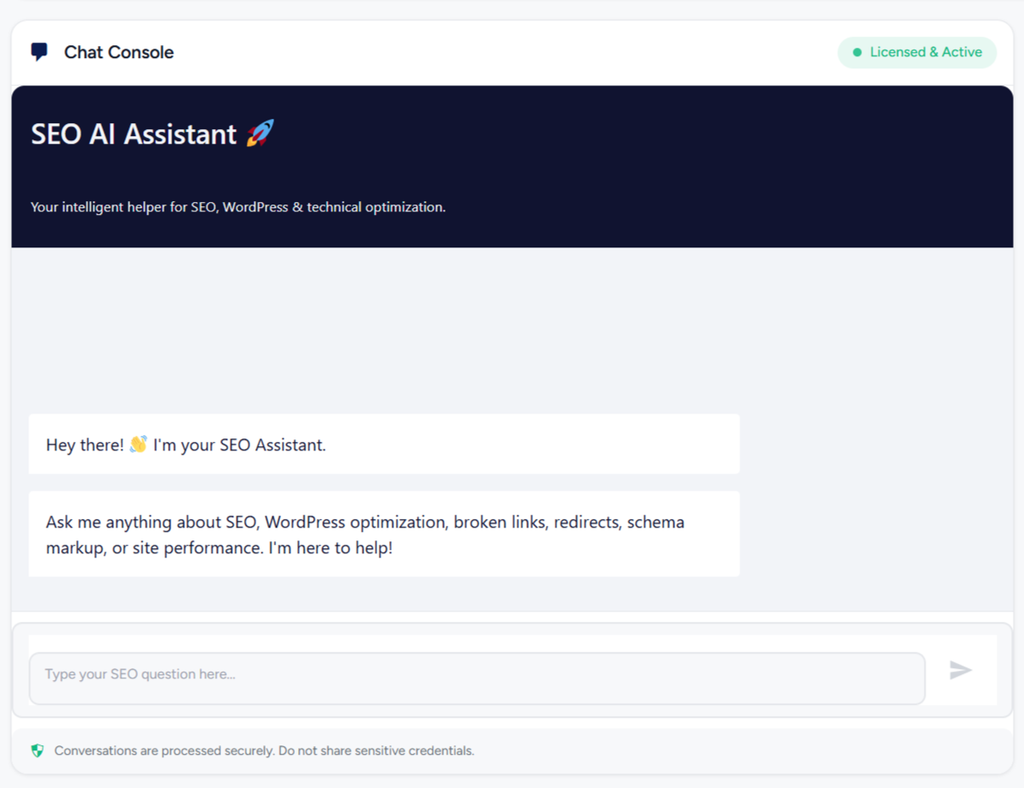
The AI Chatbot in SEO Repair Kit (Pro) is a built-in intelligent assistant that helps users understand, monitor, and fix SEO issues directly inside the WordPress dashboard. It acts as a real-time support agent, guiding users across all major SEO Repair Kit features.

Q1: What is the AI Chatbot in SEO Repair Kit?

A: The AI Chatbot is an in-dashboard SEO assistant that helps you:

  • Understand SEO issues
  • Fix content and technical problems
  • Learn how to use SEO Repair Kit features
  • Get instant answers without opening support tickets

It is available as a Pro feature.


Q2: Where can I access the AI Chatbot?

A: You can open the AI Chatbot from:

  • SEO Repair Kit Dashboard
  • Inside post or page editor
  • Feature pages like Schema Manager, Redirection Manager, KeyTrack, and Broken Links

Q3: Do I need to enable the AI Chatbot?

A: Yes. Go to:

WordPress Admin → SEO Repair Kit → Settings → AI Chatbot → Enable

Once enabled, the chatbot icon becomes available across the plugin.

Installation

How It Works

Link Scanning:

The feature automatically scans your entire website, including pages, posts, and embedded links. It checks each link’s status to determine whether it’s active, redirected, or broken—covering both internal and external URLs.

Link Reporting:

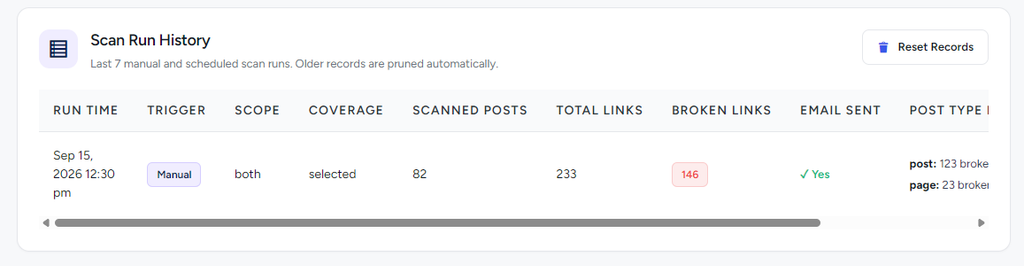
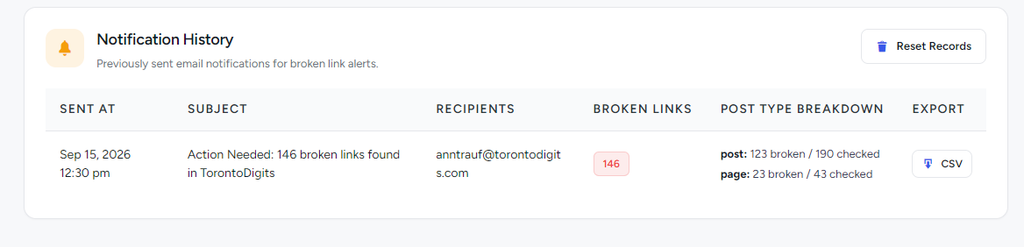
Once the scan is complete, all detected broken links are organized into a clear, easy-to-read report. Each entry shows where the broken link appears, its destination, and its status, allowing you to quickly understand and prioritize fixes.

Manual Detection:

In addition to automated scans, you can manually trigger a scan at any time. This is especially useful after publishing new content or making major updates, ensuring broken links are caught immediately.

Fixing Broken Links:

From the report dashboard, you can fix broken links in just a few clicks. Update the URL, remove the link, or redirect it to a working page—no coding or technical setup required.

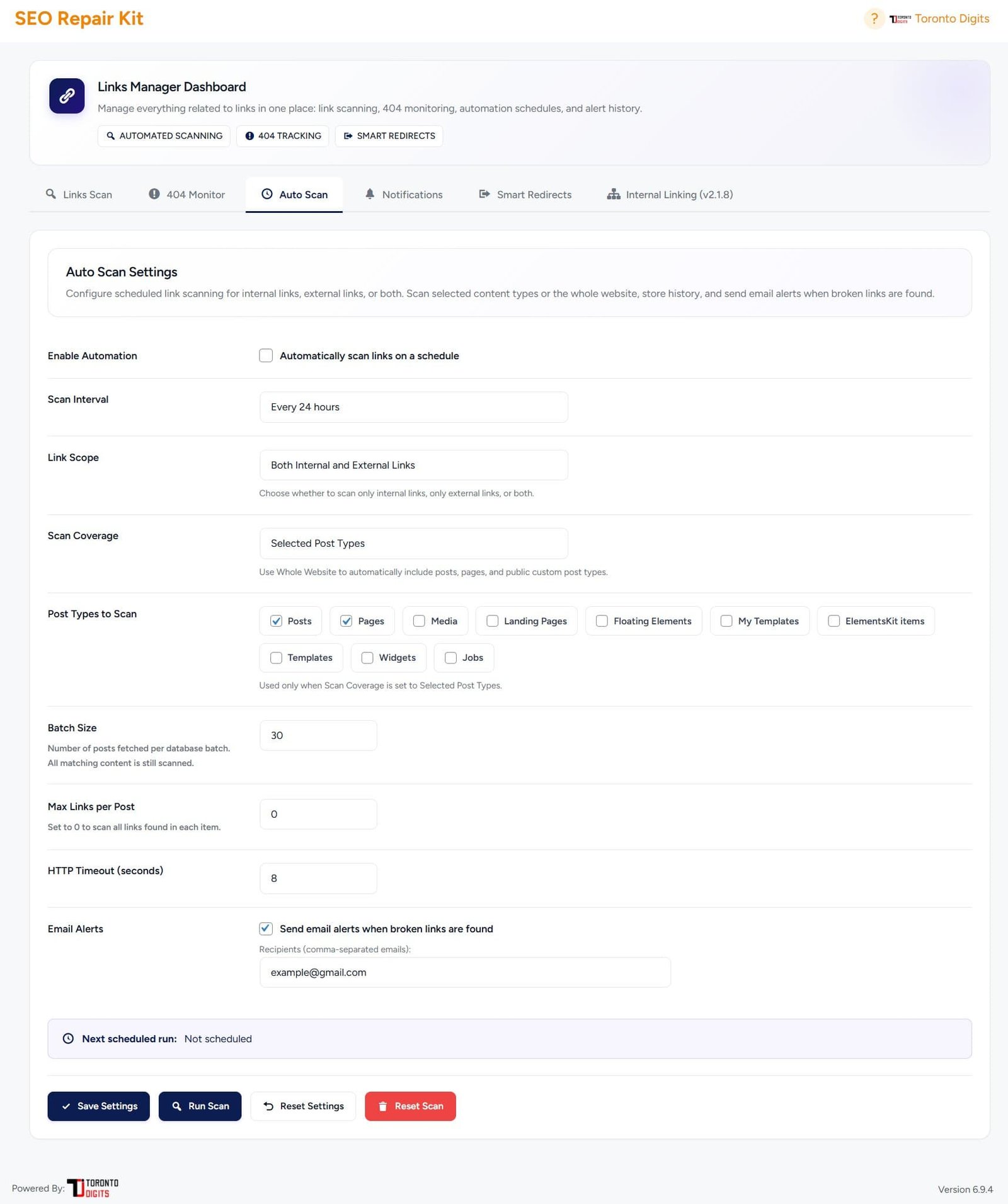
Proactive Monitoring:

The feature works proactively to help prevent future issues. Regular scans ensure new broken links are identified early, keeping your website healthy, user-friendly, and SEO-optimized without constant manual checks.

How it works

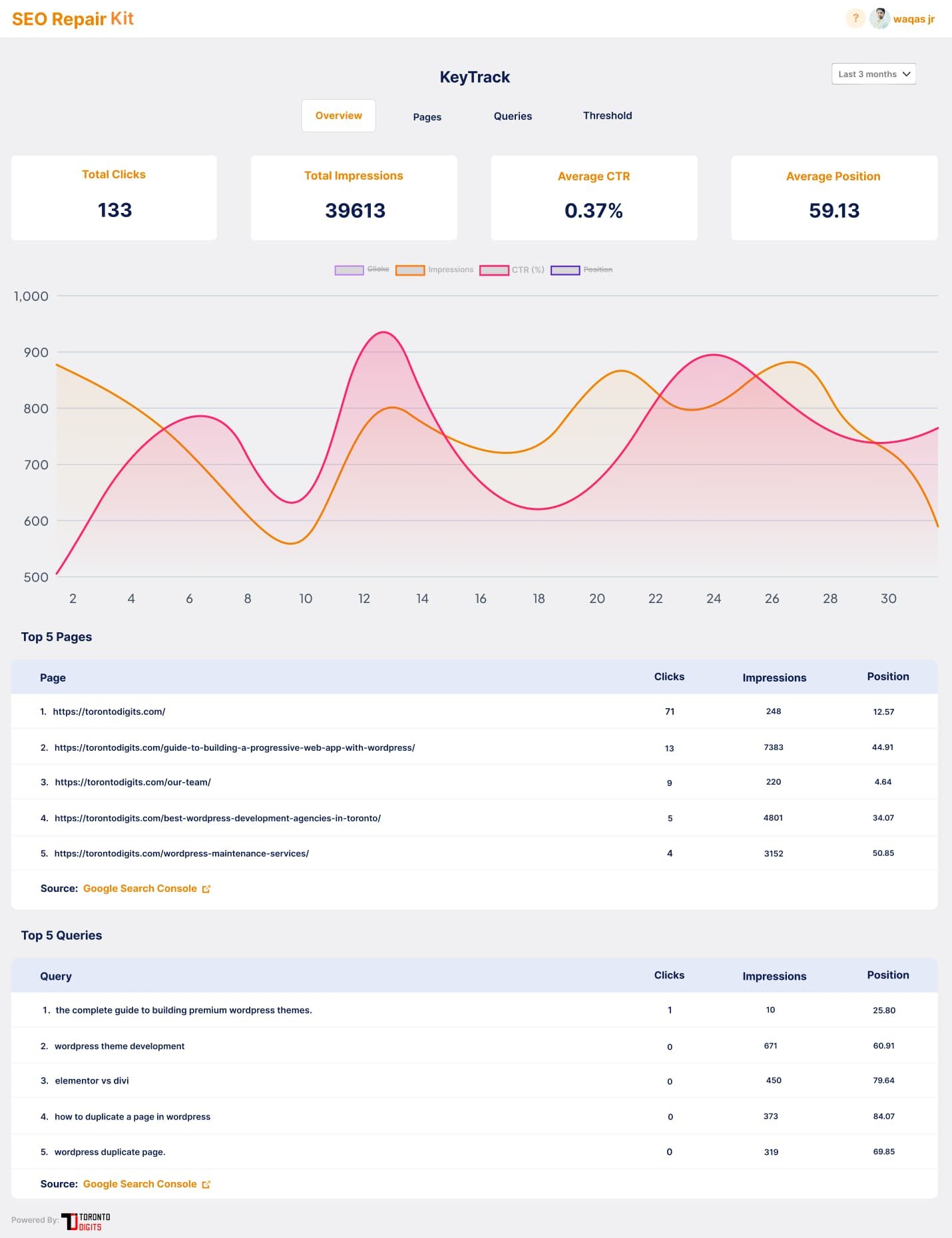
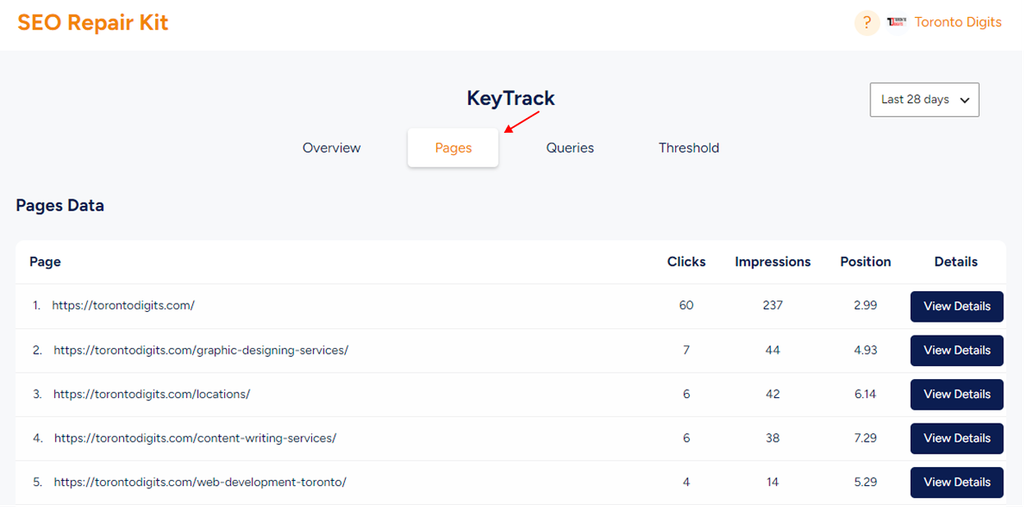
The KeyTrack Configuration feature in the SEO Repair Kit provides streamlined keyword tracking by collecting key metrics and notifying you of any significant changes. Here’s how it operates:

  • Keyword Selection: Choose specific keywords you want to monitor. This could include core keywords for your site or high-priority terms that impact your SEO strategy.
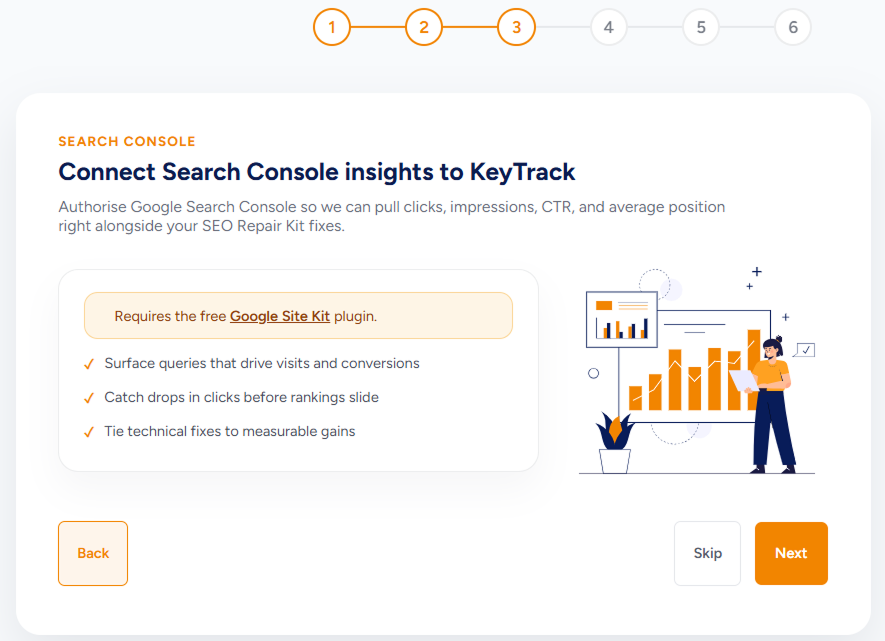
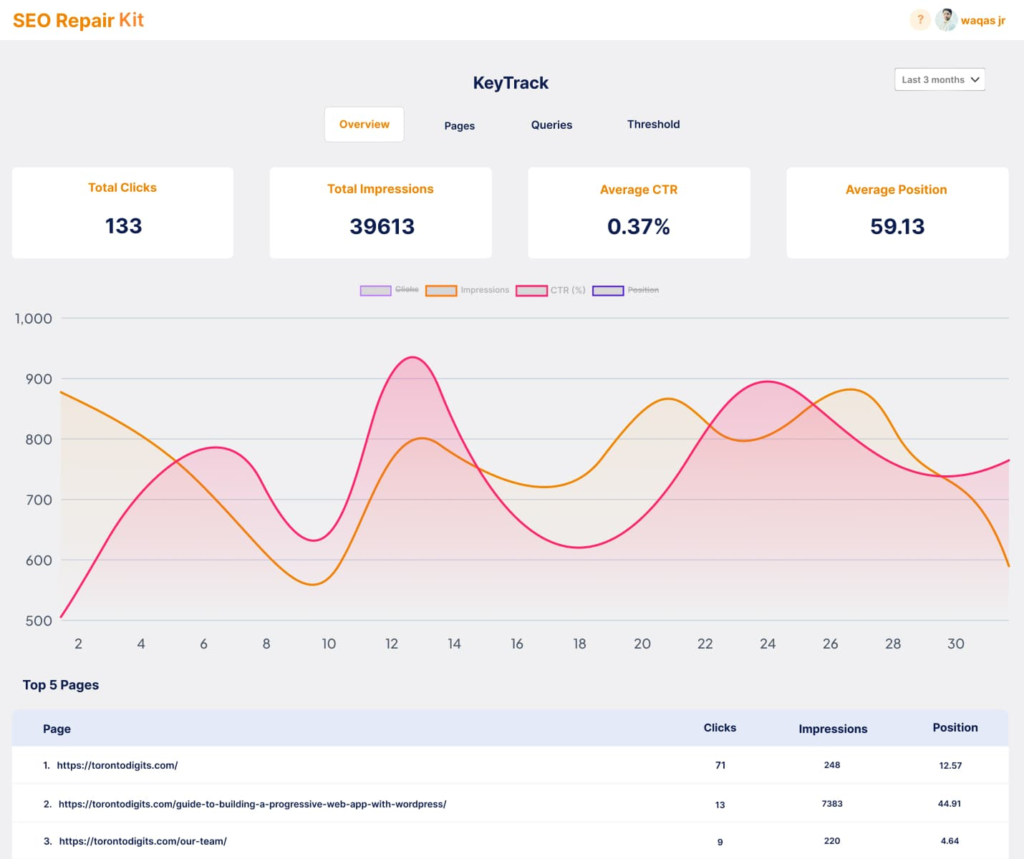
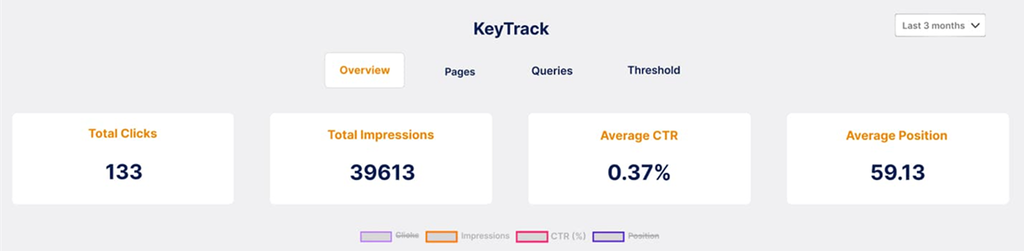
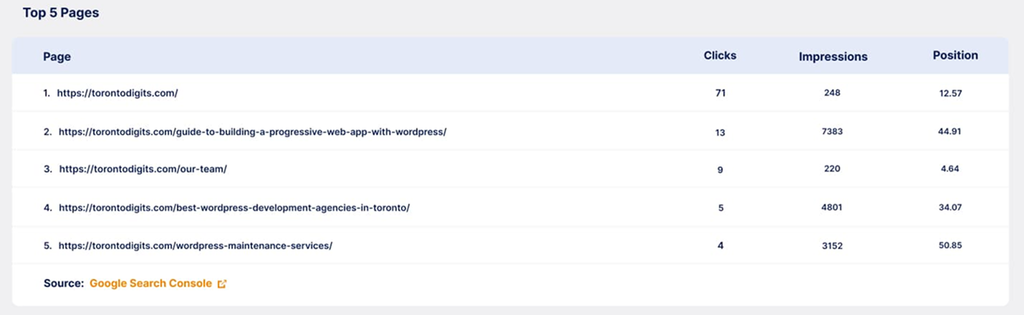
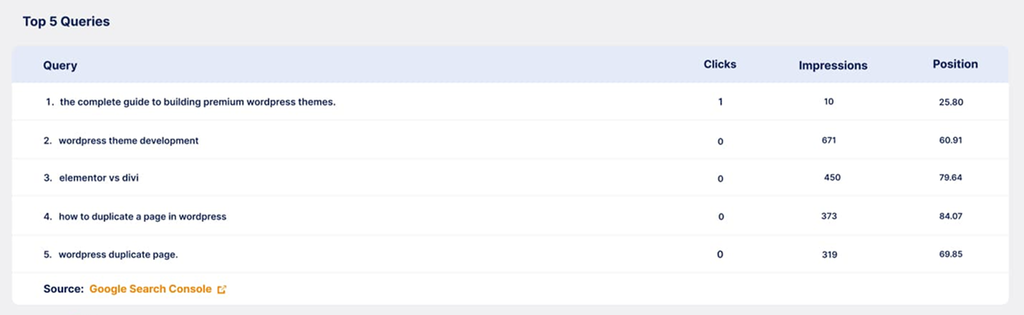
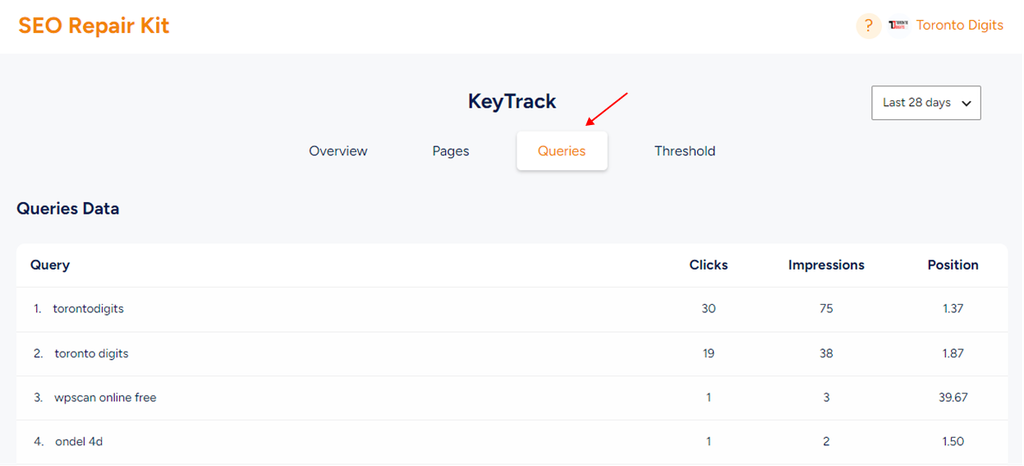
  • Data Collection: KeyTrack pulls essential data for each keyword—such as ranking, impressions, clicks, and CTR—directly from Google Search Console and any other linked sources, providing comprehensive insights into performance.
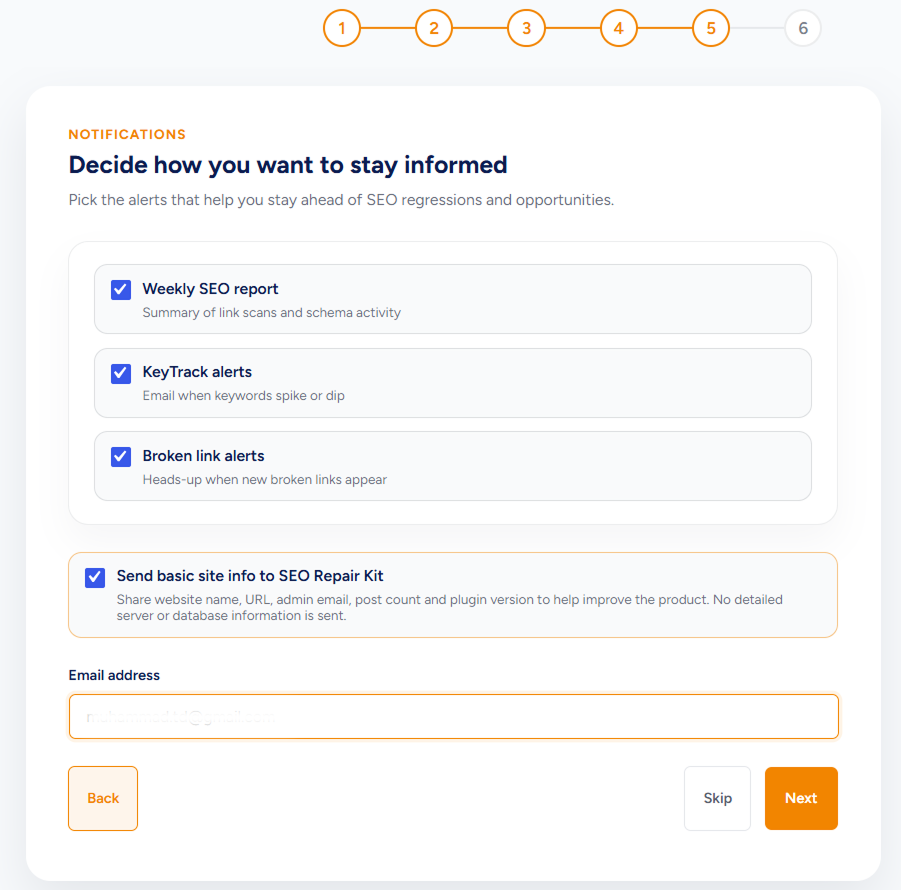
  • Threshold-Based Alerts: Set custom thresholds, like receiving alerts for position changes, declines in CTR, or any shifts in impressions. These notifications keep you informed and allow you to take action when performance changes occur.
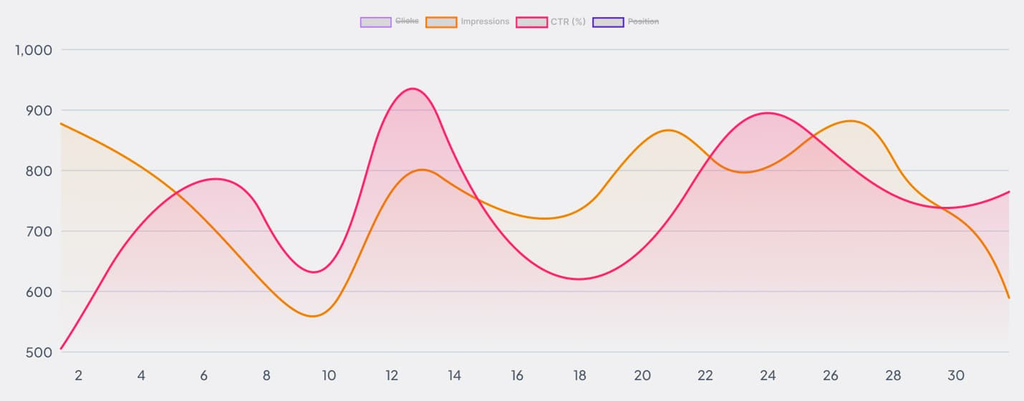
  • Clear Performance Visualization: The interactive KeyTrack dashboard shows each keyword’s performance history in a user-friendly view, making it easy to see trends and patterns. You can analyze shifts over time, measure the success of your SEO efforts, and make strategic adjustments.

Step By Step Guide

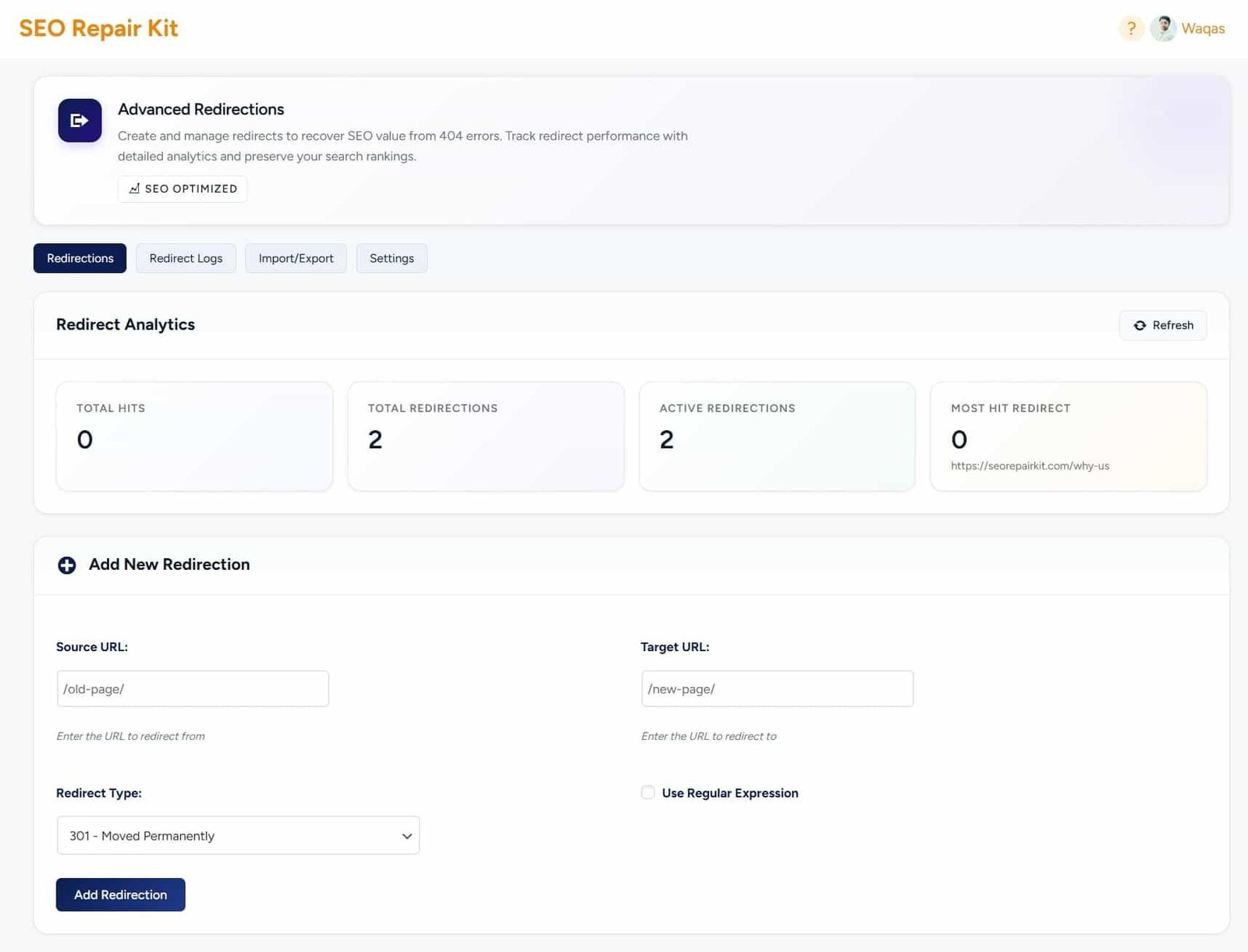
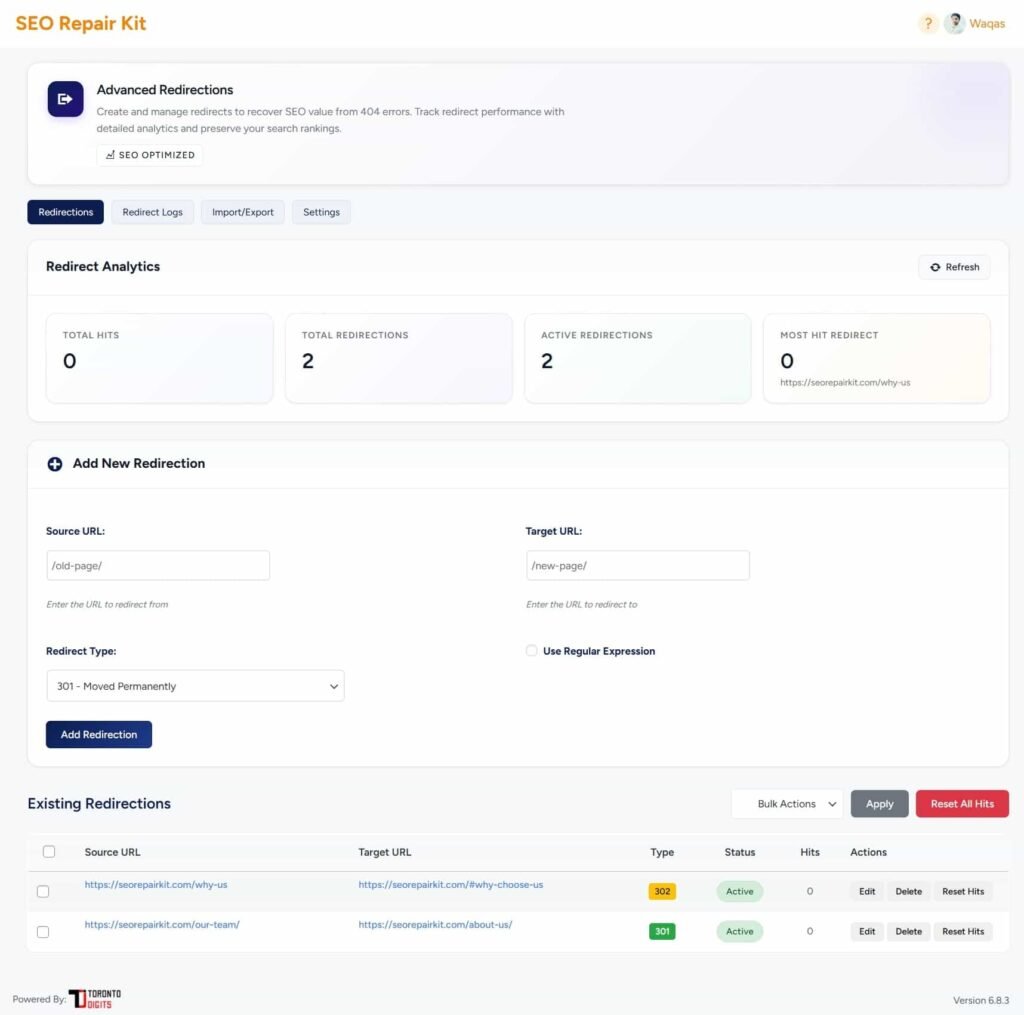
Step 1: Open the Redirection Dashboard

From your WordPress admin panel, go to:

SEO Repair Kit → Redirection

This opens the Redirection Manager dashboard, where all redirect rules are listed.

Step 2: Review Existing Redirects

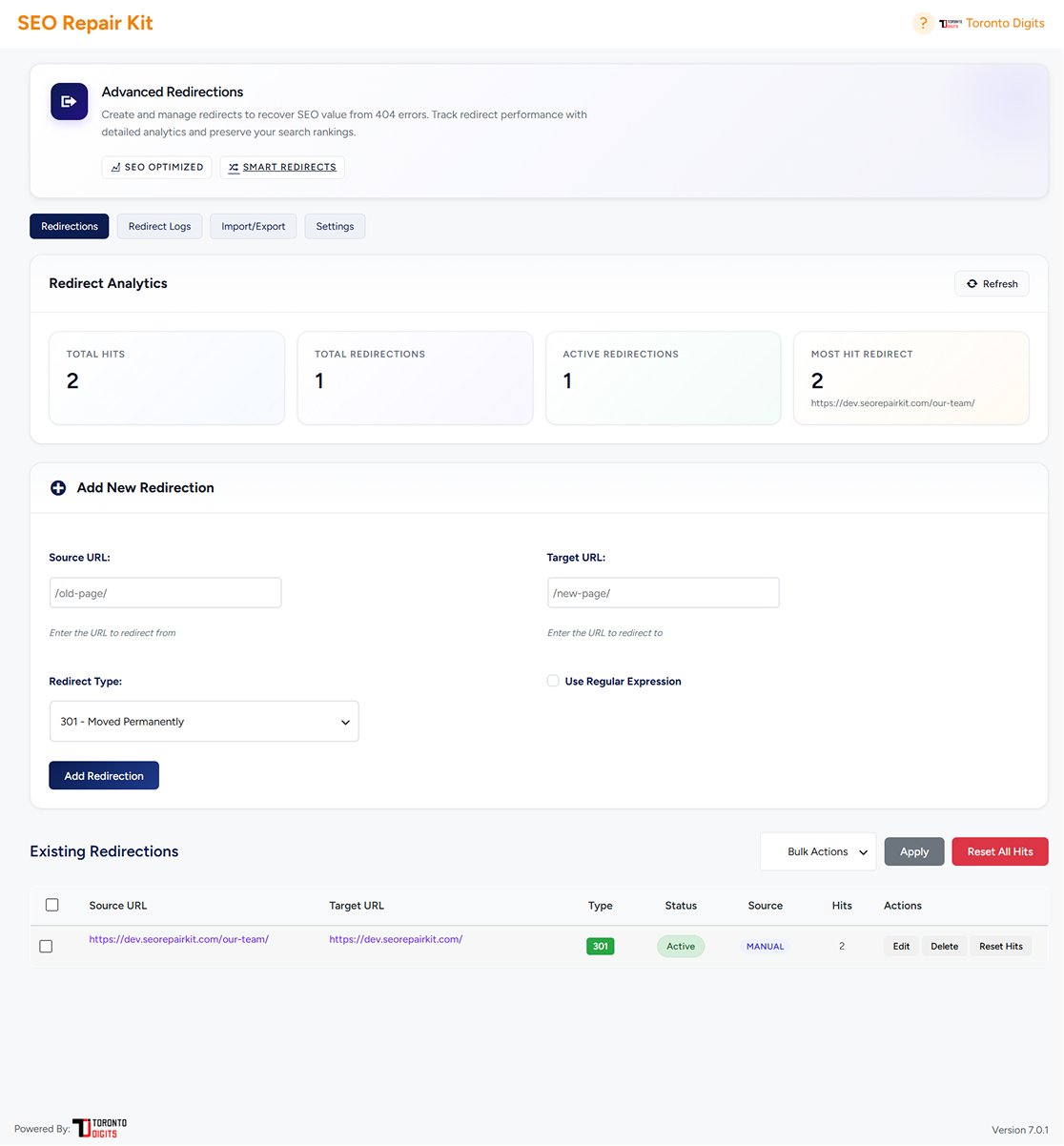
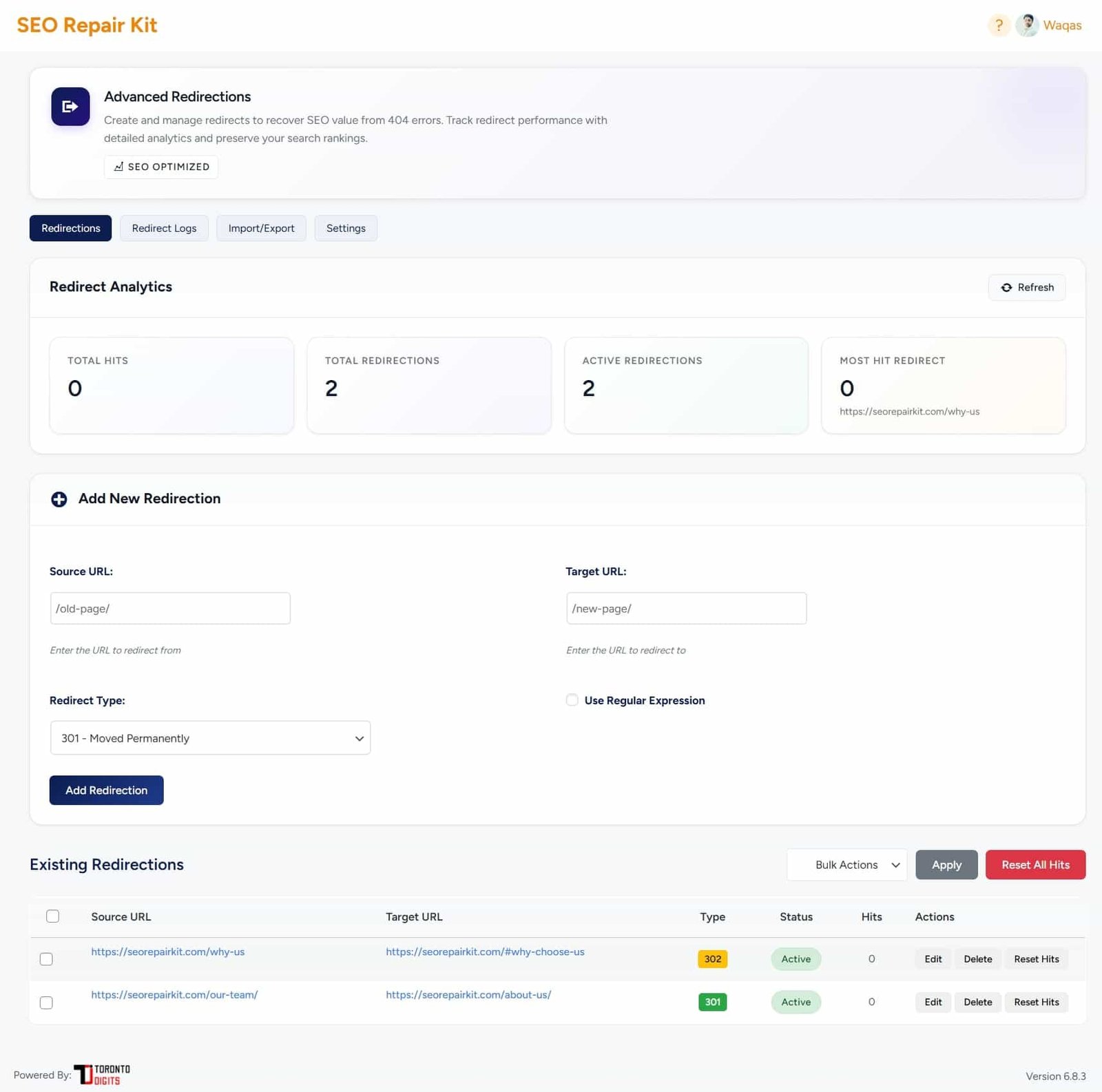
On the dashboard, you will see a list of existing redirects with details such as:

  • Source URL
  • Target URL
  • Redirect type (301 / 302)
  • Status (Active / Inactive)
  • Hit count

This gives you a quick overview of your current redirection setup.

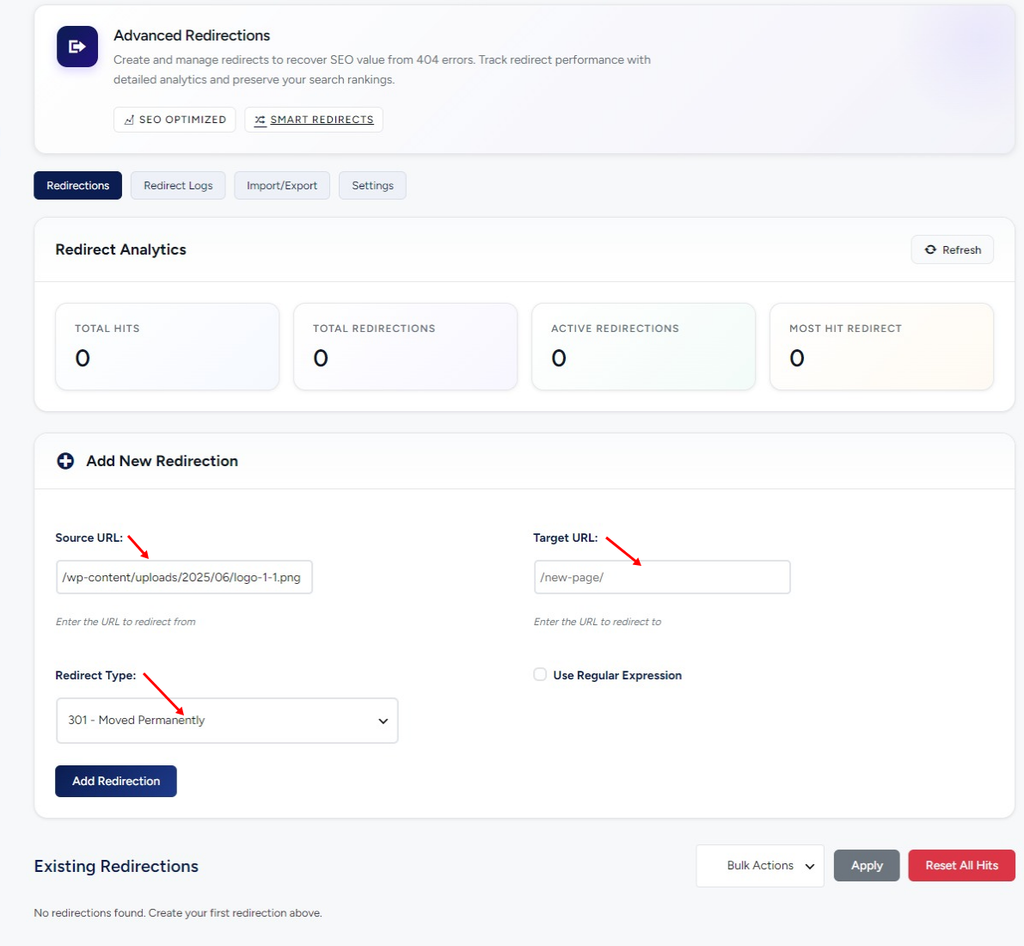
Step 3: Create a New Redirect

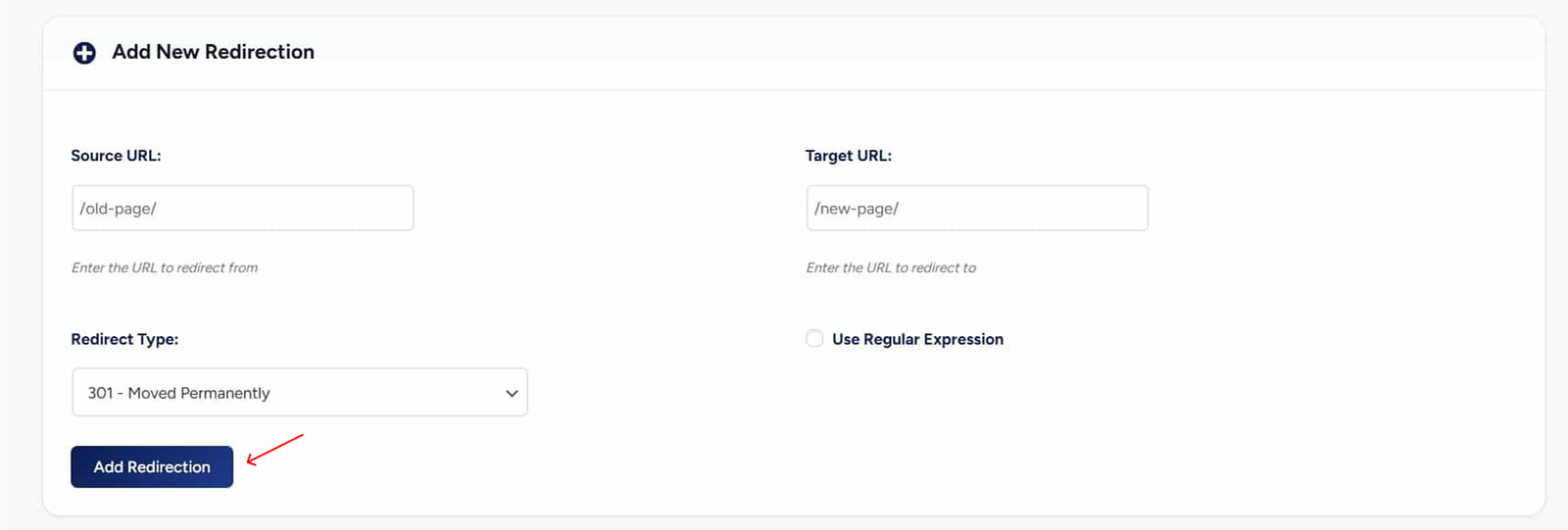
Click the Add New Redirect button.

Fill in the required fields:

  • Source URL: The old or broken URL
  • Target URL: The destination URL
  • Redirect Type: Choose 301 or 302
  • Status: Set as Active

Save the redirect to apply it immediately.

Step 4: Enable Advanced Redirect Options (Optional)

For advanced use cases, you can:

  • Enable Regex pattern matching
  • Set position-based redirect priority
  • Manage redirect order to avoid conflicts

These options are ideal for large websites and dynamic URLs.

Step 5: Monitor Redirect Hits & Performance

Each redirect tracks how many times it has been used.

You can:

  • Identify most-hit redirects
  • Analyze redirect effectiveness
  • Detect unnecessary or outdated redirects

This helps optimize both SEO and performance.

Step 6: Manage Redirect Status

You can:

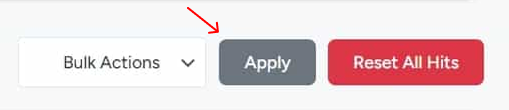
  • Activate or deactivate redirects
  • Edit source or target URLs
  • Delete unused redirects

This keeps your redirection system clean and efficient.

Step 7: Handle 404 Errors Proactively

The system automatically detects 404 errors.

You can:

  • View broken URLs
  • Create redirects directly from detected errors
  • Prevent repeated crawl issues

How It Works

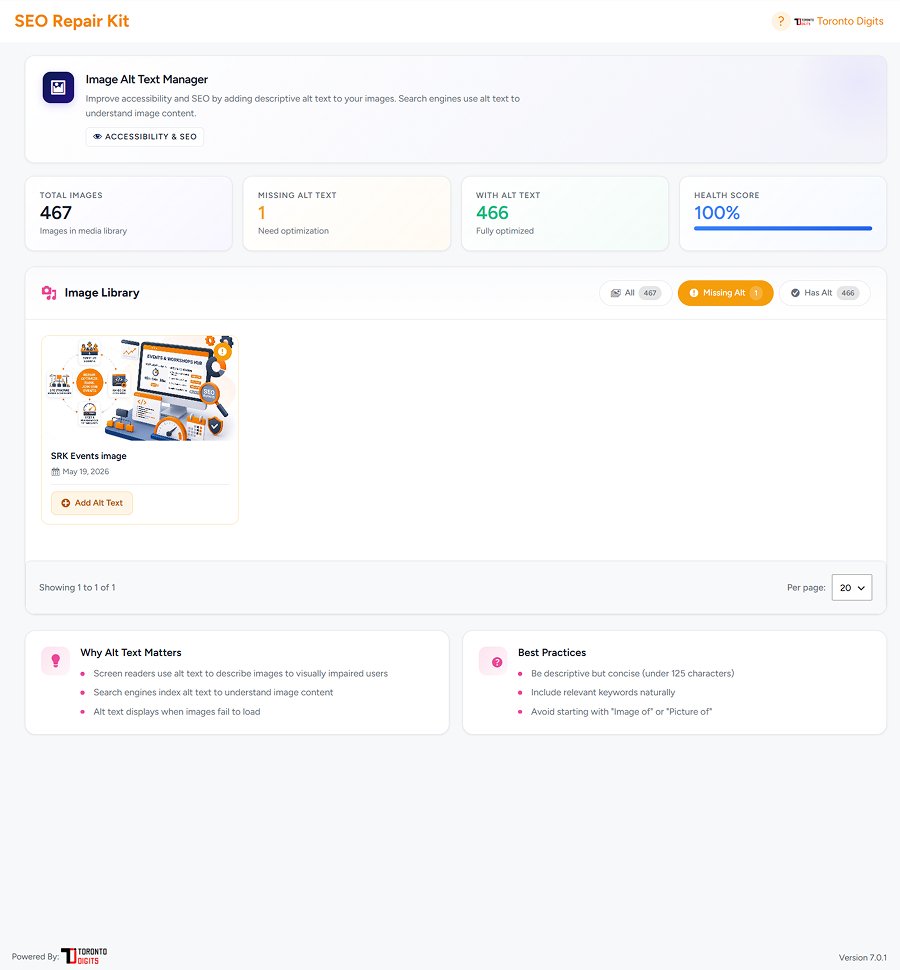
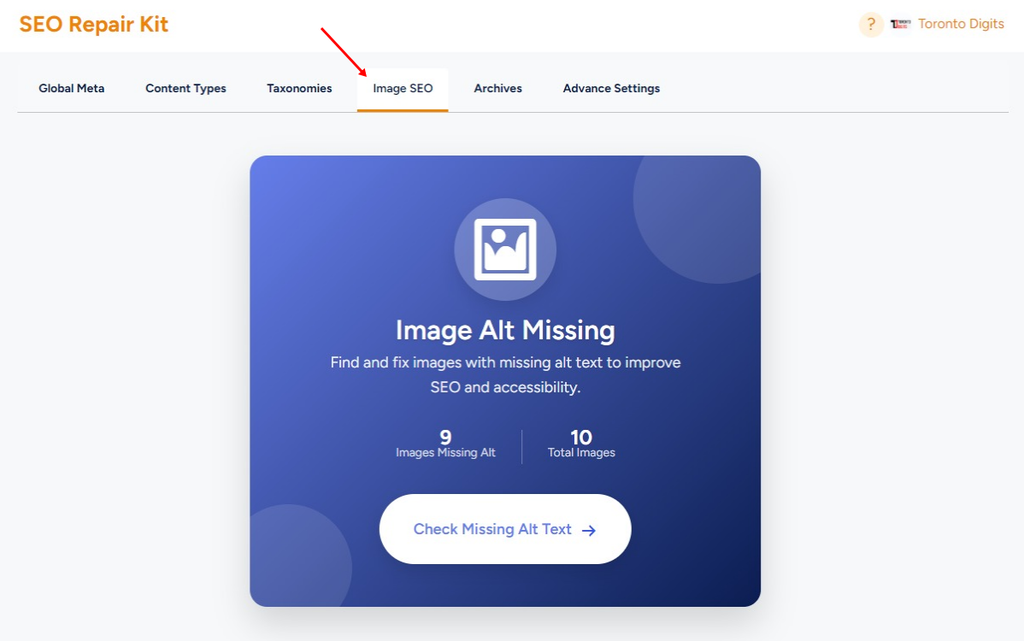
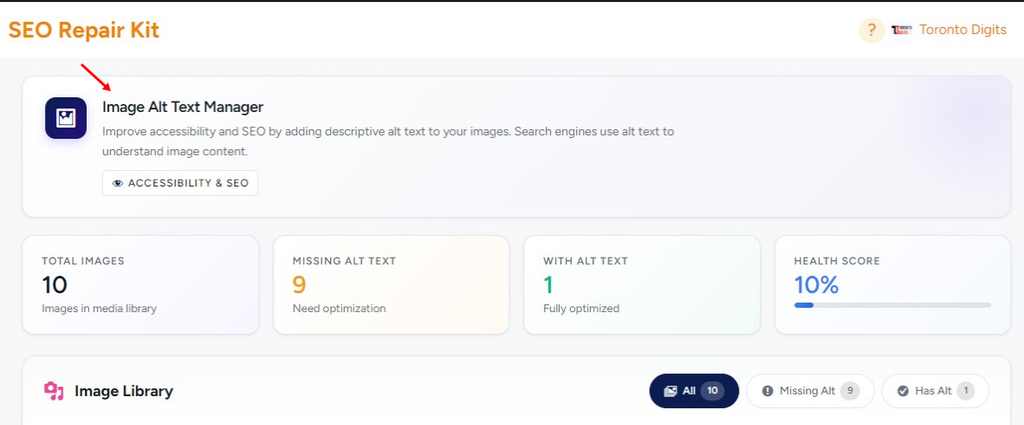
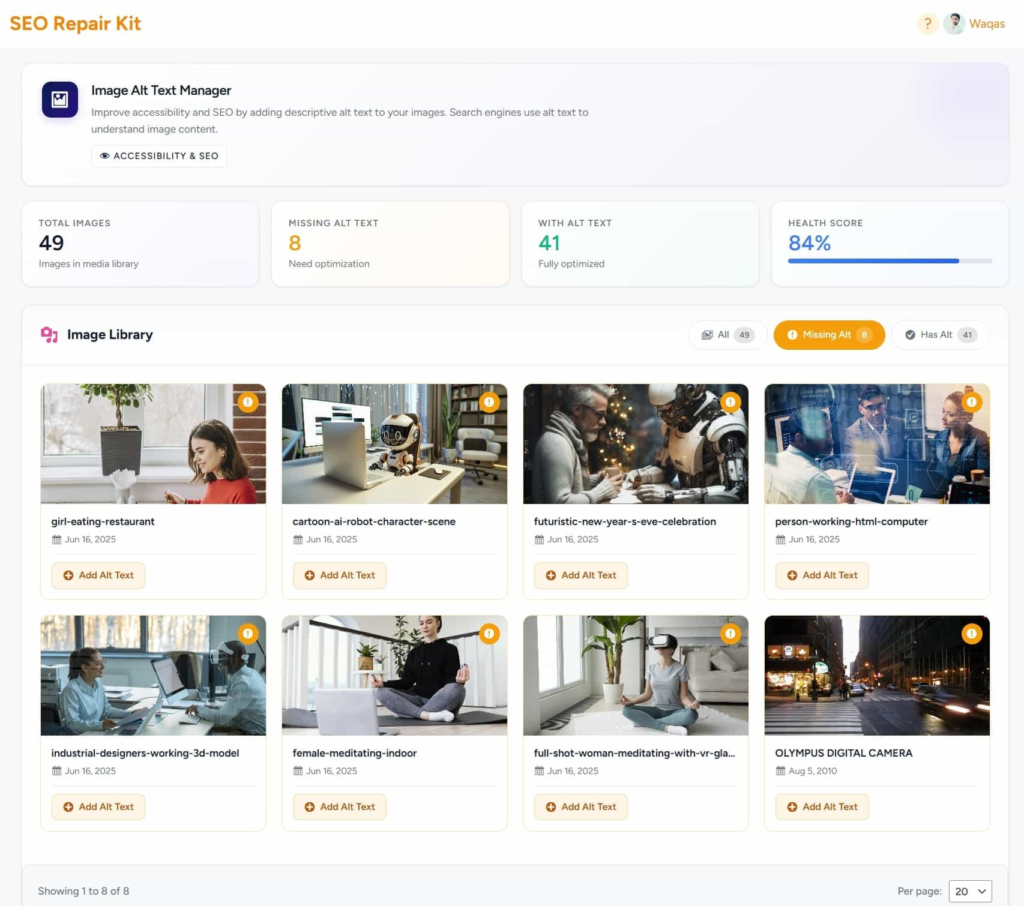
The Image ALT Text Manager continuously scans your media library to detect images missing ALT attributes. It organizes results into a dedicated dashboard where you can:

  • View total images and ALT health status
  • Identify images without ALT text
  • Add or update ALT text individually or in bulk
  • Track overall optimization progress with a health score

All actions are performed through a clean, visual interface designed for non-technical users.

Redirection

FAQs

Q1: What is a Bot Manager?

A: Bot Manager is a tool that lets you control how search engines and AI crawlers access your website — without editing files manually.


Q2: What is robots.txt?

A: robots.txt tells search engines which pages they can or cannot crawl. Bot Manager lets you manage it visually with SEO and security best practices.


Q3: What is llms.txt?

A: llms.txt is a discovery file for AI models, helping them understand what content they’re allowed to access and learn from.


Q4: Can I block AI bots like ChatGPT or Claude?

A: Yes. You can block or allow individual AI crawlers with one click — including ChatGPT, Claude, Google Bard, and more.


Q5: Does blocking bots affect SEO?

A: No. Blocking AI bots does not affect Google rankings. Bot Manager ensures search engines and AI crawlers are handled separately.


Q6: How does server-level blocking work?

A: Blocked bots receive a 403 Forbidden response, stopping them before they access your content — faster and more secure than file-based blocking alone.


Q7: Is this safe for non-technical users?

A: Absolutely. Everything is handled through a visual interface with real-time validation to prevent mistakes.


Q8: Will changes apply immediately?

A: Yes. Once saved, changes are applied instantly at the server and file level.

Step By Step Guide

Step 1: Access to the Plugin SEO Repair Kit

  • Go to the SEO Repair Kit Dashboard.
  • Select KeyTrack from the main menu.
  • Now Select Go to Site Kit Settings.

Step 2: Sign in With Google

  • Click on Sign in with Google for Connect with Site Kit.

Step 3: Email Selection

  • Set up Email alerts if you want to be notified of any significant changes.
  • Now Select Email and Continue to another Step.

Step 4: KeyTrack Configuration

  • Select all 3 Checkboxes to Configure.
  • Now Allow us to go another Step.
  • Now Select the Next button.
  • Now Select Go to my Dashboard.
  • Now you can select Go to SEO Kit KeyTrack.
  • Now you’ll enter in the KeyTrack Feature.

FAQs

1. What is the difference between 301 and 302 redirects?

301 redirects are permanent and pass SEO value, while 302 redirects are temporary and do not fully transfer link equity.

2. Will redirects affect my SEO?

Yes—in a positive way. Proper redirects protect rankings and prevent SEO loss.

3. Can I track how many times a redirect is used?

Yes. The Redirection Manager tracks hit counts and performance.

4. Do I need technical knowledge to use this feature?

No. The interface is beginner-friendly and requires no coding.

5. Can I disable a redirect without deleting it?

Yes. Redirects can be toggled between active and inactive status.

6. Does this support advanced redirects like regex?

Yes. Regex and position-based redirects are supported for advanced users.

Step By Step Guide

Step 1: Open the Image ALT Text Manager

From the WordPress admin panel, go to:

SEO Repair Kit → Image Alt Missing

This opens the Image ALT Text dashboard.

Step 2: Review the Overview Metrics

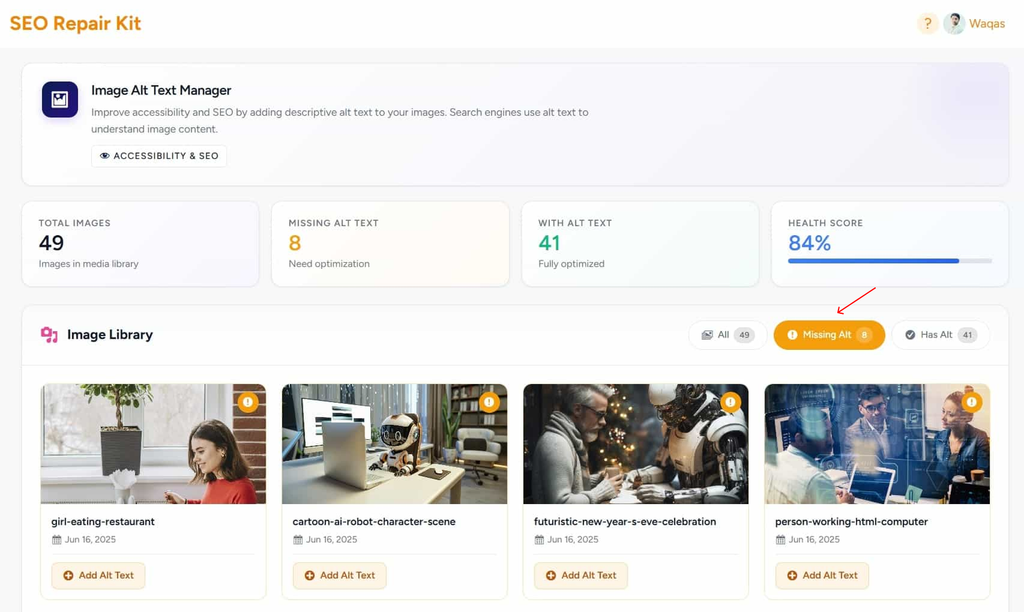
At the top of the dashboard, you’ll see key summary cards:

  • Total Images
    Displays the total number of images in your media library.
  • Missing ALT Text
    Shows how many images require optimization.
  • With ALT Text
    Confirms how many images are already optimized.
  • Health Score
    A percentage score representing your overall ALT text optimization status.

These metrics help you quickly assess image SEO health.

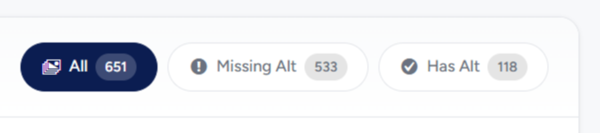
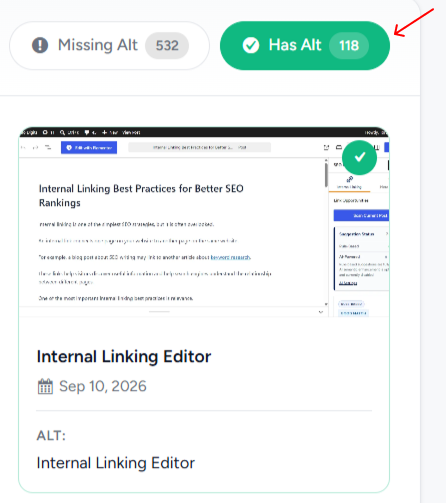
Step 3: Filter Images by ALT Status

Use the filter buttons to manage images efficiently:

  • All – View all images
  • Missing Alt – Show only images without ALT text
  • Has Alt – Display images already optimized

This allows you to focus only on images that need attention.

Step 4: Browse the Image Library

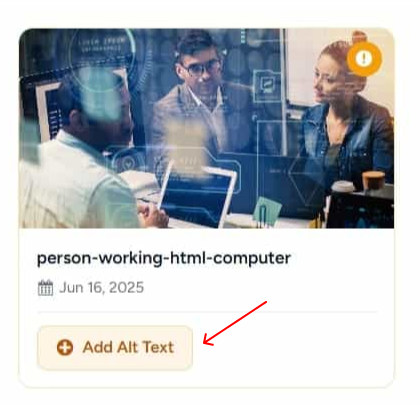
Scroll through the image cards in the Image Library section.
Each image card shows:

  • Image preview
  • Image title
  • Upload date
  • ALT text status indicator

Images missing ALT text are clearly highlighted.

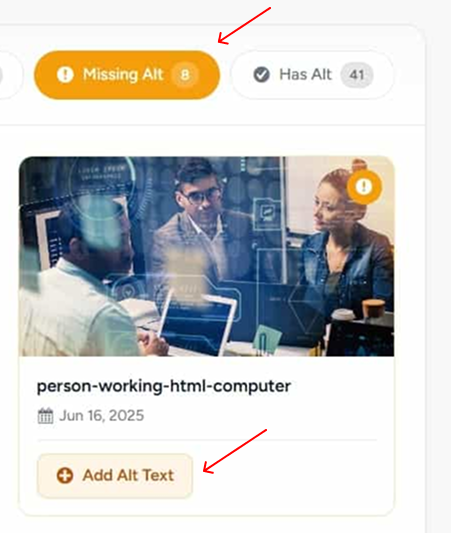
Step 5: Add ALT Text to an Individual Image

Click Add Alt Text on any image card.

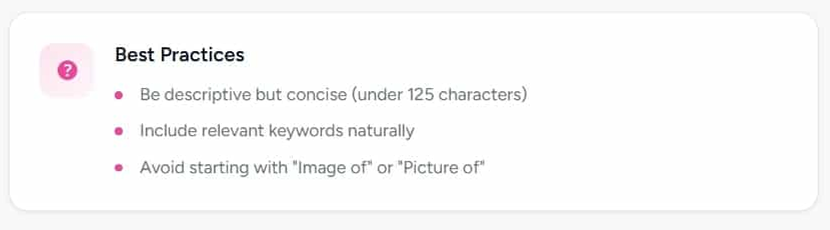
  • Enter a clear, descriptive ALT text
  • Keep it concise and relevant
  • Include keywords naturally where appropriate

Save the changes to instantly update the image.

Step 6: Monitor Optimization Progress

As ALT text is added:

  • The Missing ALT Text count decreases
  • The count of ALT Text increases
  • The Health Score improves in real time

This provides immediate feedback on your optimization progress.

Step 7: Maintain Ongoing Image Optimization

Revisit the Image ALT Text Manager regularly—especially after uploading new images—to ensure all visuals remain optimized for SEO and accessibility.

How It Works

2. How Schema Manager Works

Schema Manager works by generating and attaching structured data (JSON-LD) to your website content. JSON-LD is the format recommended by Google and is automatically injected into the page source, allowing search engines to clearly understand your content.


Core Workflow

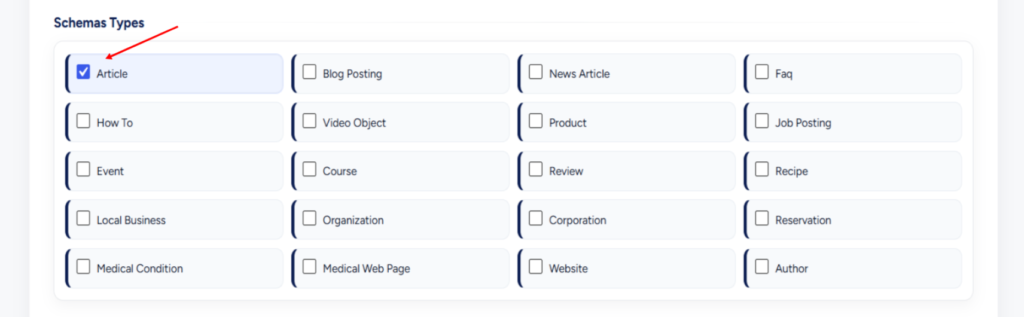
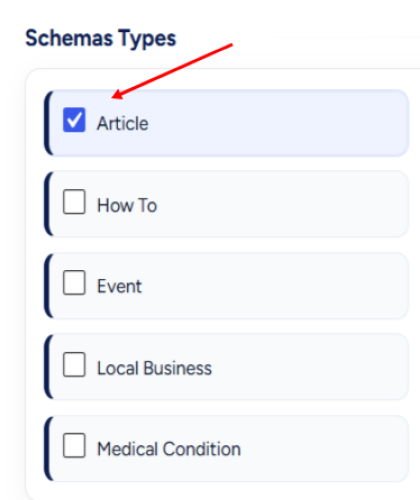
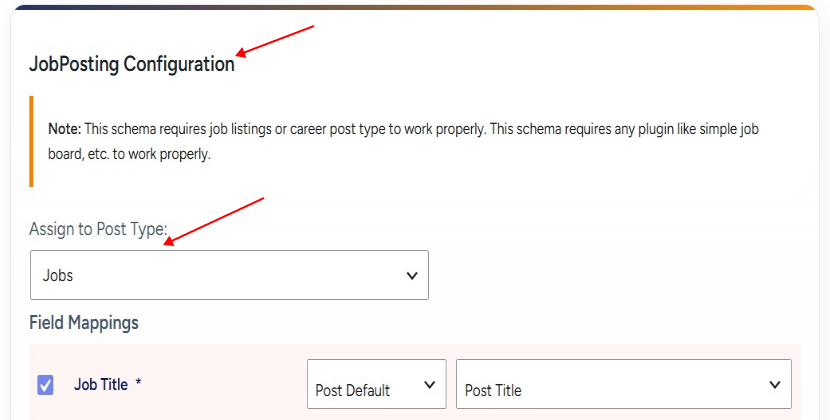
  1. Select a Schema Type
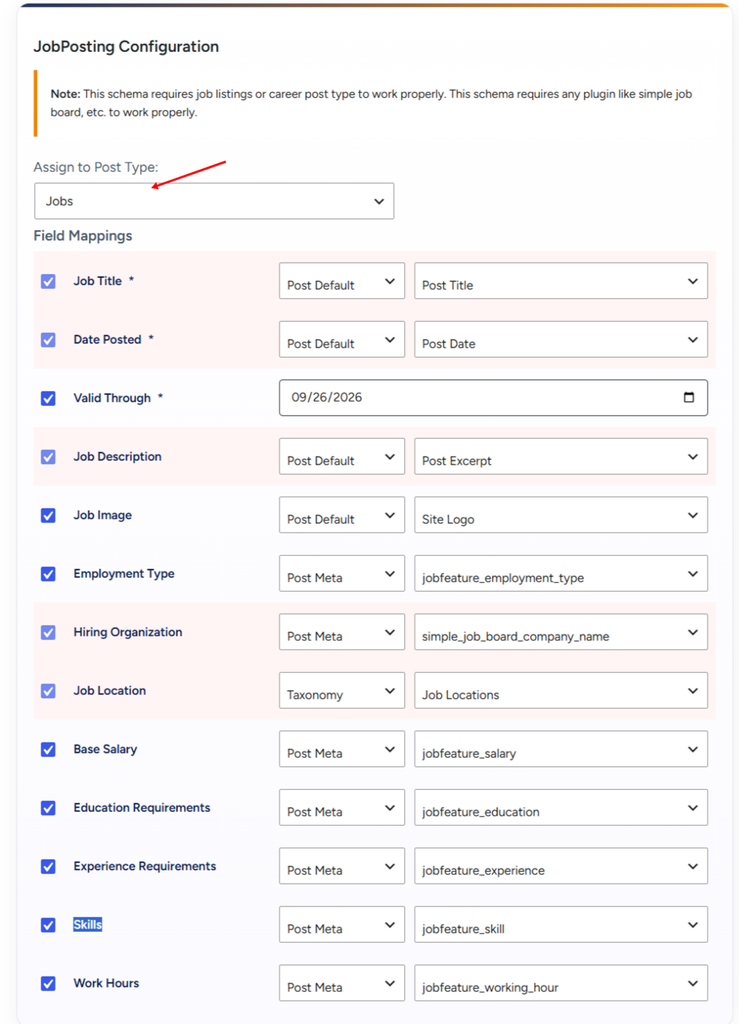
    Choose the schema type that best matches your content, such as Article, Product, FAQ, Job Posting, Event, or Local Business.
  2. Assign Content or Post Type
    Apply the schema to a specific post, page, or an entire custom post type.
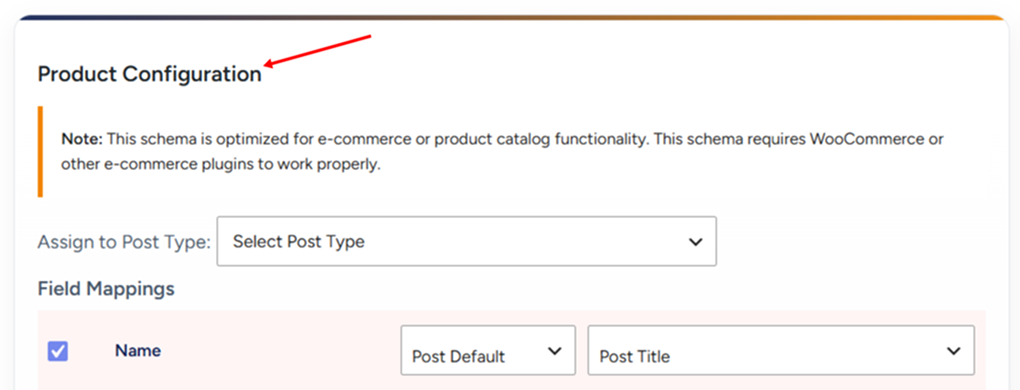
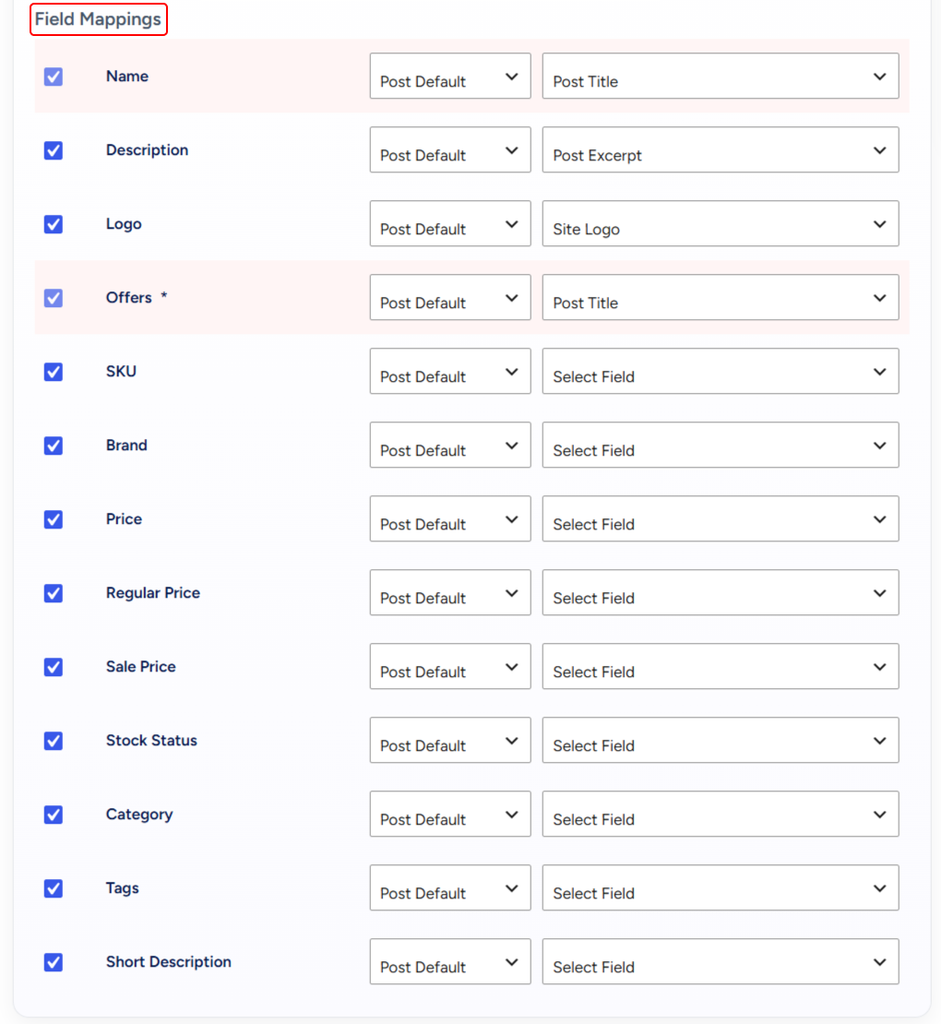
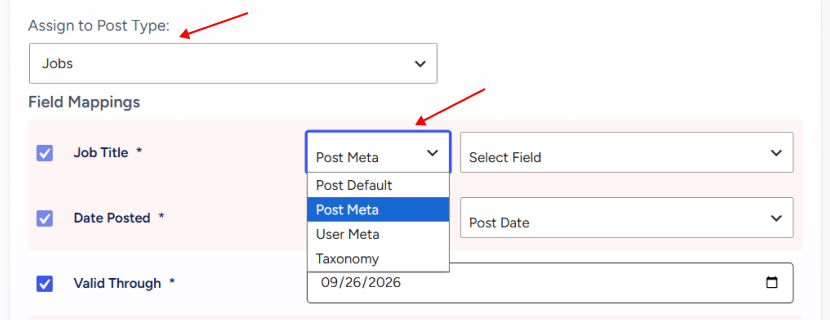
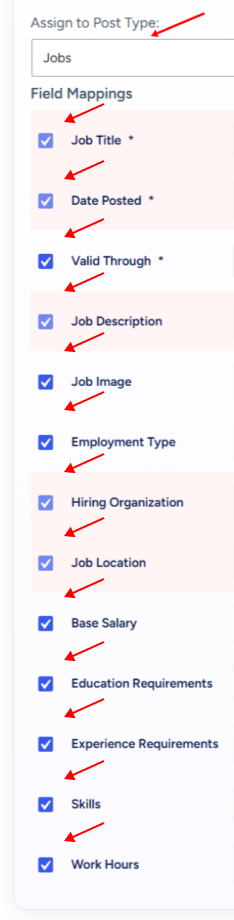
  3. Map and Fill Schema Fields
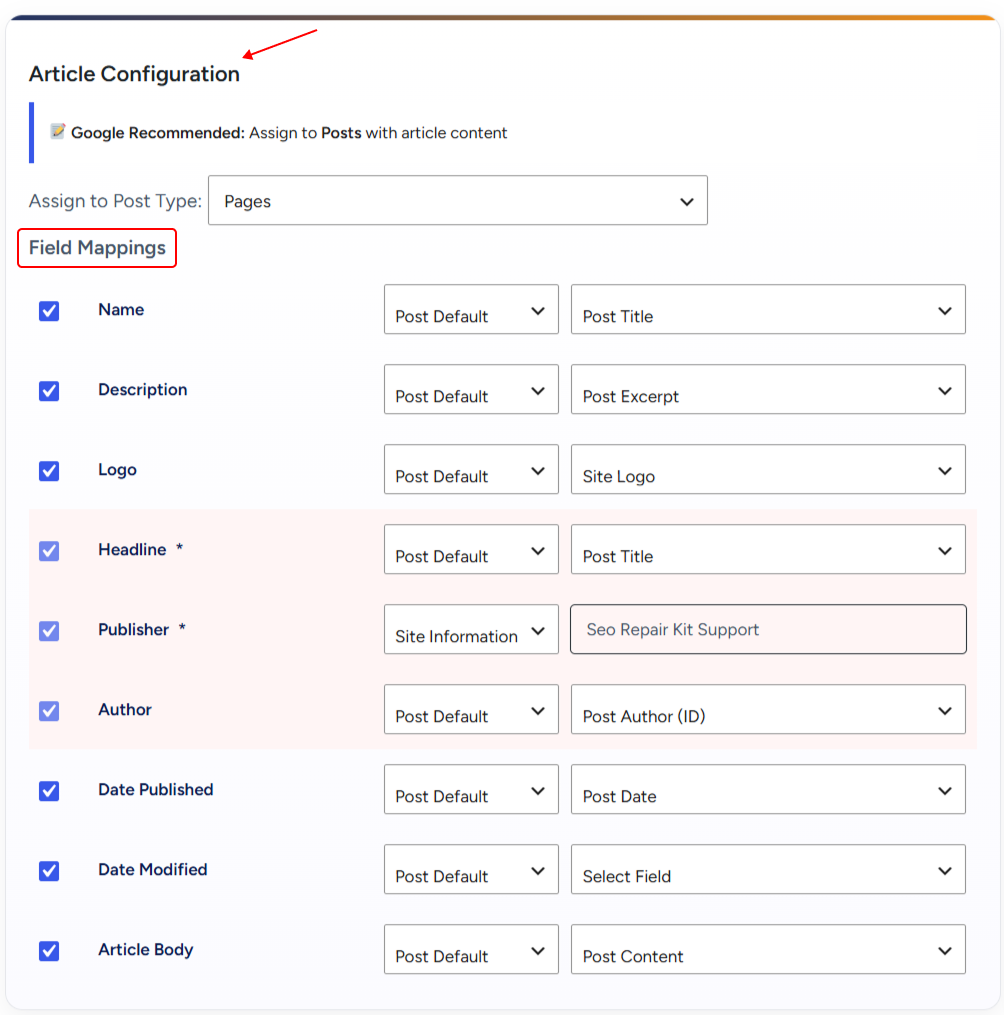
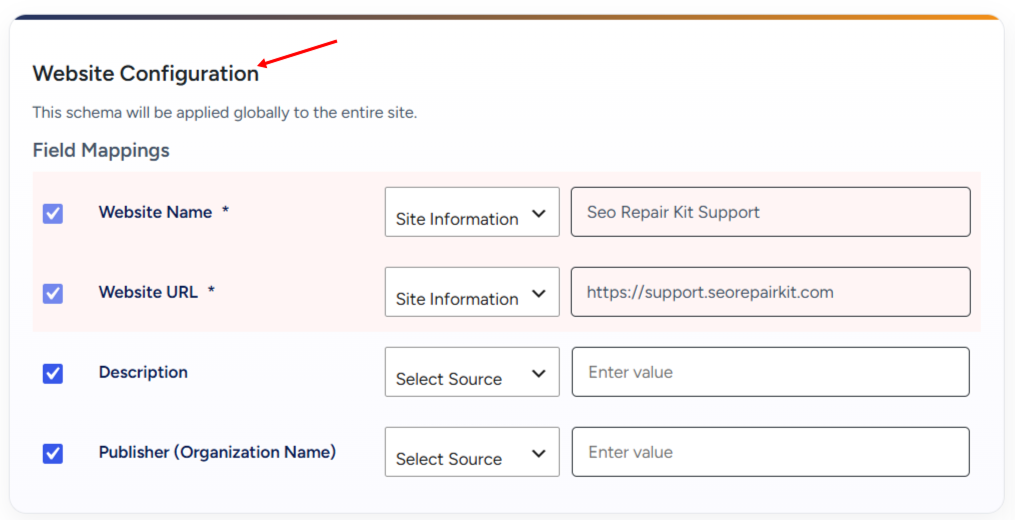
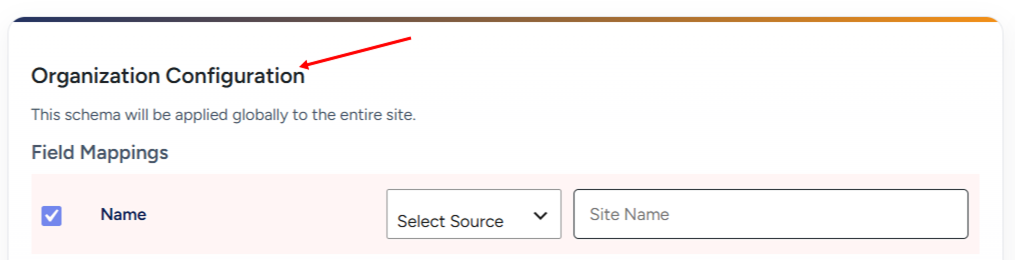
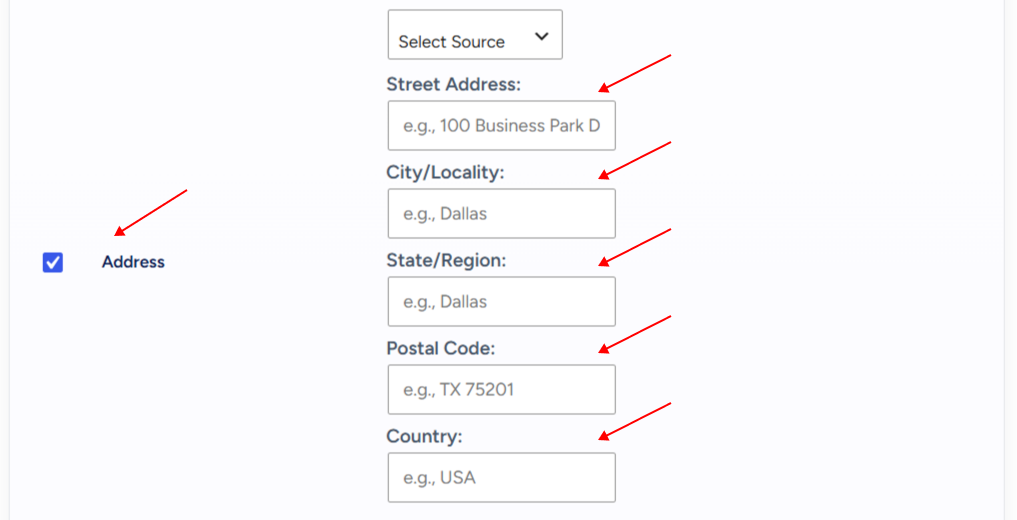
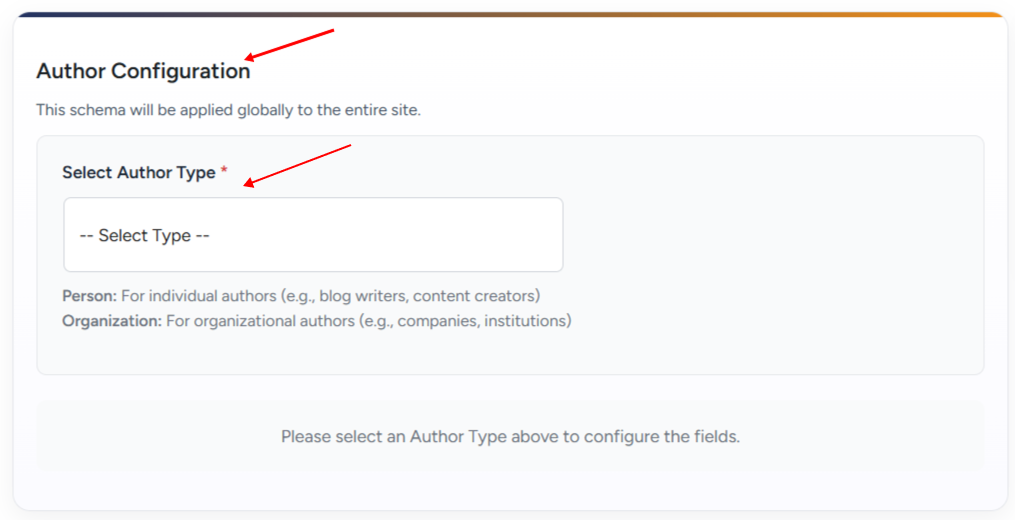
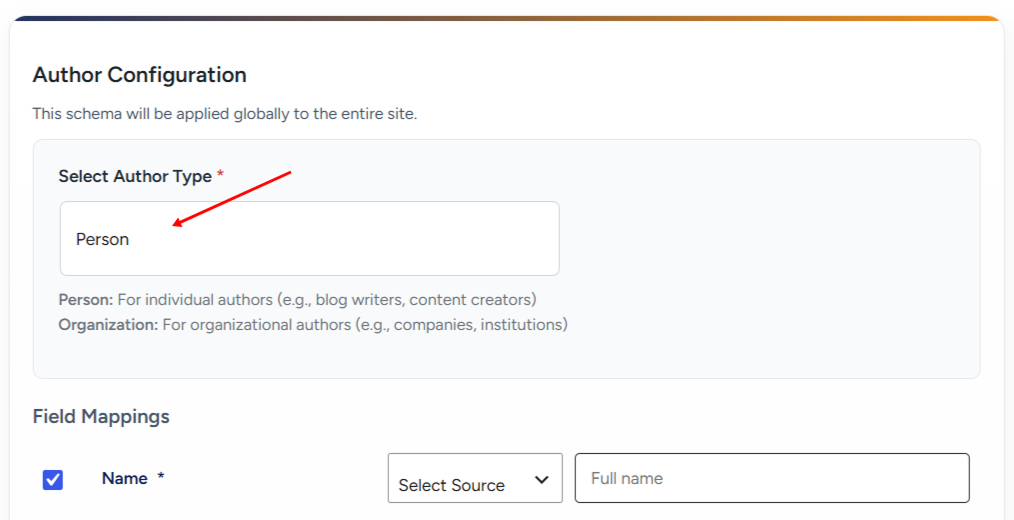
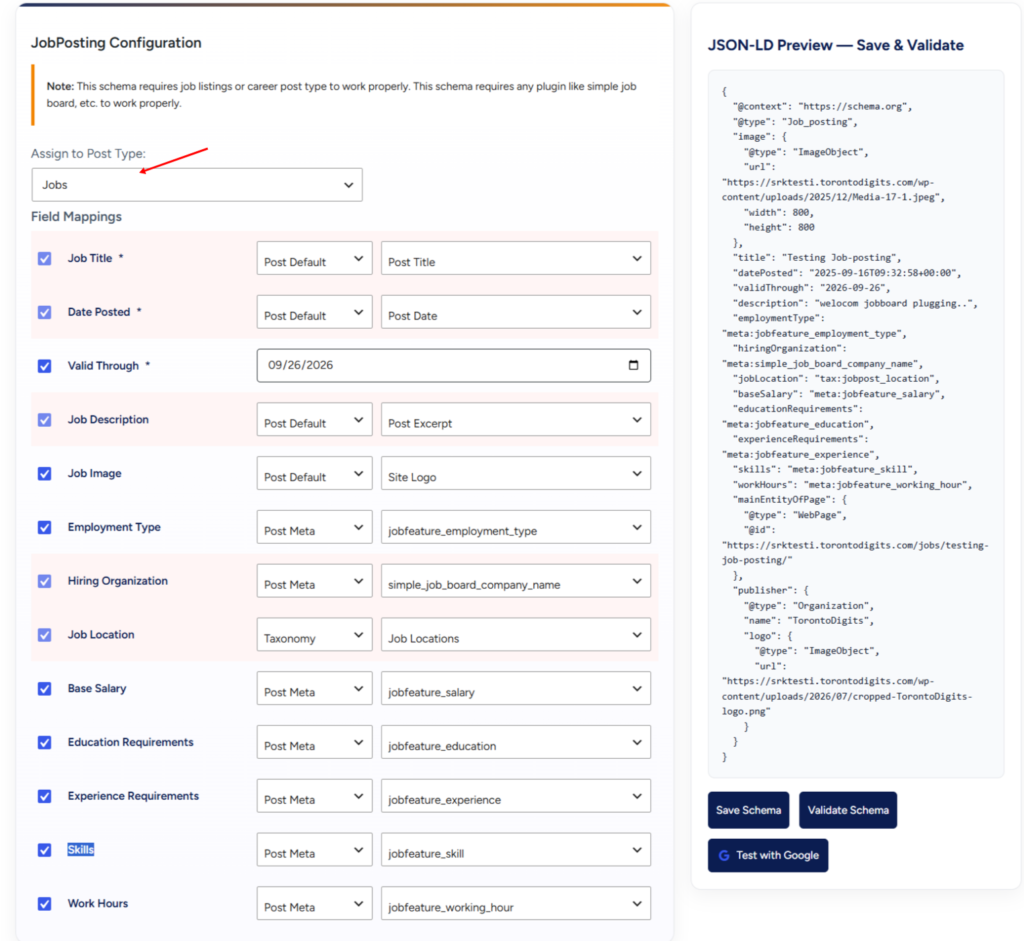
    Use the visual schema editor to map schema properties to WordPress fields (e.g., Post Title, Author, Featured Image) or enter custom values where required.
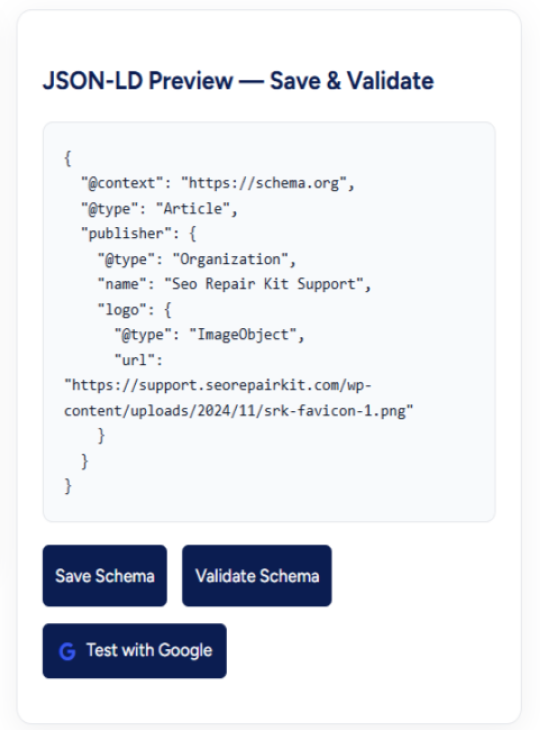
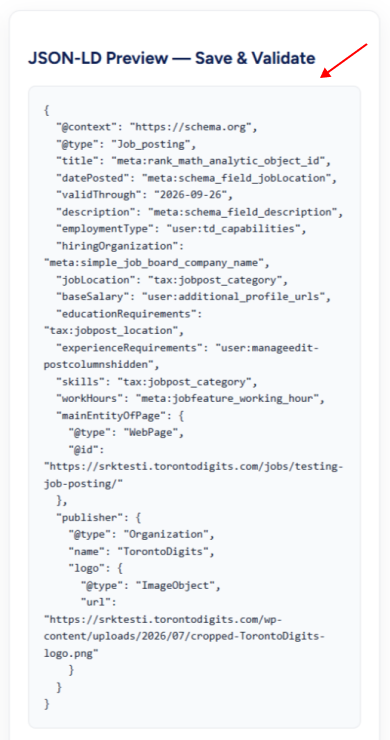
  4. Live JSON-LD Preview
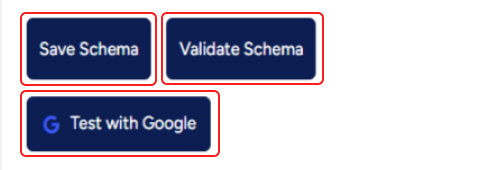
    Instantly preview the generated JSON-LD schema to see how the structured data will be output.
  5. Validate Schema Data
    The built-in validation engine checks for missing, invalid, or unsupported properties based on the selected schema type.
  6. Save and Apply Schema
    Once saved, the schema configuration is stored and automatically applied to the assigned content.
  7. Automatic Frontend Output
    The schema is injected into the page <head> or page source dynamically when the page is loaded.

Key Highlights

  • Visual Schema Builder
    Create and manage schema without writing any code.
  • Dynamic Data Mapping
    Automatically fetch values such as post title, author name, publish date, featured image, custom fields, and taxonomy data.
  • Real-Time Validation
    Ensures schema compliance with schema.org standards and Google Rich Results requirements.
  • Live Preview
    View the exact JSON-LD output before publishing.

Global & Page-Level Control

  • Apply schema globally to all posts of a selected post type
  • Override or customize schema individually on specific posts or pages
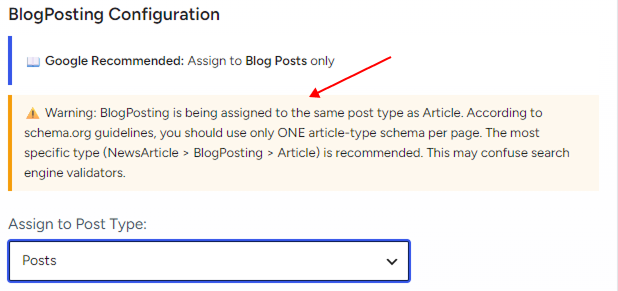
  • Manage multiple schema types without conflicts

SEO-Friendly Output

  • Clean and optimized JSON-LD
  • Follows schema.org specifications
  • Compatible with Google Rich Results Test and Schema Validator
  • Designed to improve eligibility for rich results (appearance not guaranteed)

How It Works

Q1: How does the AI Chatbot understand my site?

A: The AI Chatbot is context-aware, meaning it understands:

  • The page or feature you are currently viewing
  • SEO Repair Kit scan results
  • Schema, redirection, and keyword data

This allows it to provide relevant and accurate answers, not generic SEO advice.


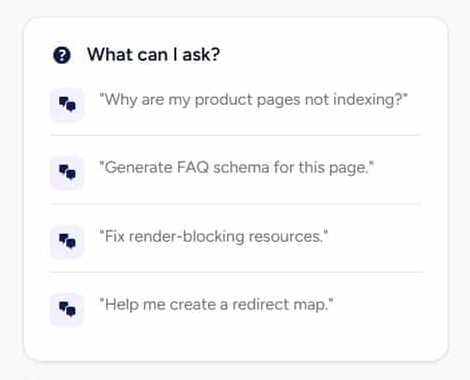
Q2: What kind of questions can I ask the AI Chatbot?

A: You can ask questions like:

  • “Why do I have missing alt text warnings?”
  • “Which schema should I use for this post?”
  • “How do I fix broken links?”
  • “Why did my keyword ranking drop?”

The chatbot responds instantly with step-by-step guidance.


Q3: Does the AI Chatbot make changes automatically?

A: No. The chatbot never makes automatic changes. It only provides recommendations and instructions. You stay in full control.

Threshold

FAQs

Do I need technical knowledge to use this feature?
No. The feature is built for non-technical users and requires no coding or advanced setup.

Does it check both internal and external links?
Yes. It scans and reports both internal links within your website and external links to other websites.

Will broken links affect my SEO?
Yes. Broken links can negatively impact search engine rankings and user experience. Fixing them helps maintain strong SEO performance.

How often should I run a scan?
You can run scans anytime, but it’s recommended to scan regularly—especially after updating content or publishing new pages.

Can I fix links directly from the report?
Absolutely. The report allows you to quickly fix, update, or redirect broken links in just a few clicks.

FAQs

1. What data sources does KeyTrack Configuration use?

2. How many keywords can I track simultaneously?

3. Can I receive alerts for keyword position drops?

4. How often is the data updated?

5. Can I track keywords in multiple languages?

FAQs

Q: What is Image ALT text?

ALT text is a description added to images that helps search engines and screen readers understand image content.

Q: Does this feature scan all images automatically?

Yes. The system automatically scans your entire media library to detect images missing ALT attributes.

Q: Will adding ALT text improve SEO?

Absolutely. ALT text improves image search visibility, strengthens page relevance, and enhances accessibility.

Q: Do I need technical skills to use this feature?

No. The dashboard is designed for non-technical users and requires no coding.

Q: Does the health score update automatically?

Yes. The health score updates in real time as images are optimized.

Step By Step Guide

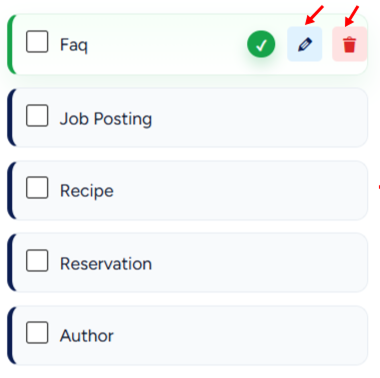
Step 1: Enable Schema Manager

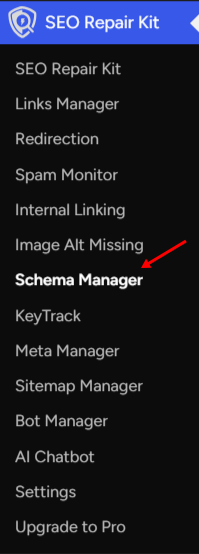
1- Go to WordPress Dashboard → SEO Repair Kit → Schema Manager

2- Ensure the feature is enabled (Pro only)

Step 2: Choose a Schema Type

  1. Click Add New Schema (or select an existing schema to edit) like
    • Article
    • Product
    • FAQ
    • Job Posting
    • Event
    • Local Business
  2. The available fields will update automatically based on the selected schema.

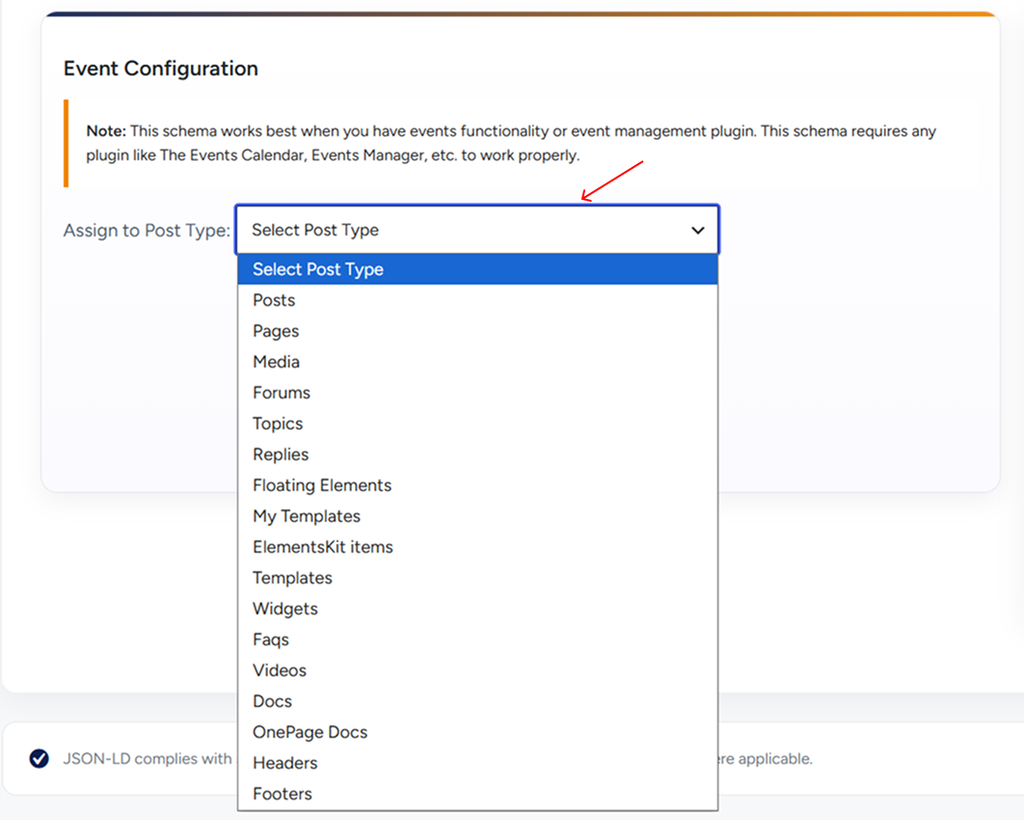
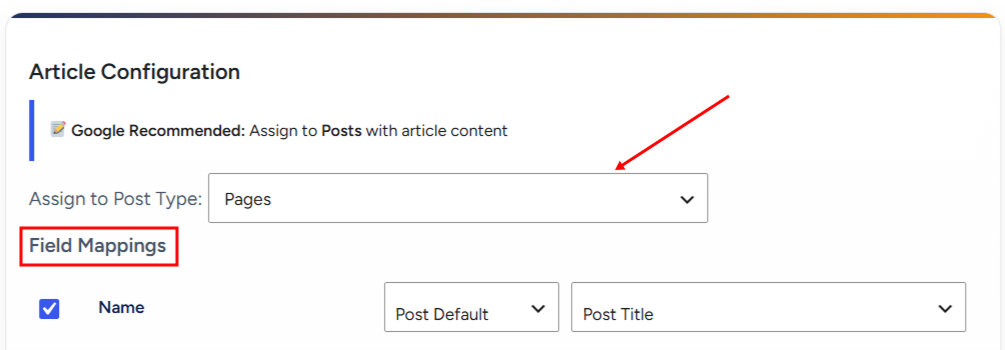
Step 3: Assign a Post or Post Type

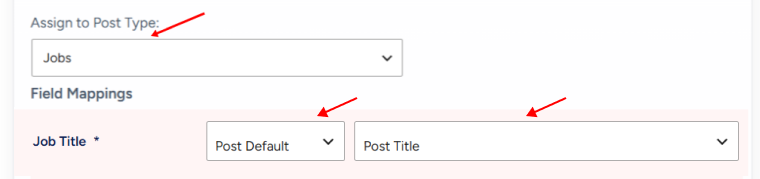
  1. Choose where the schema should be applied:
    • A single post or page, or
    • An entire post type (Posts, Pages, or Custom Post Types)
  2. This determines which content the schema will be attached to.

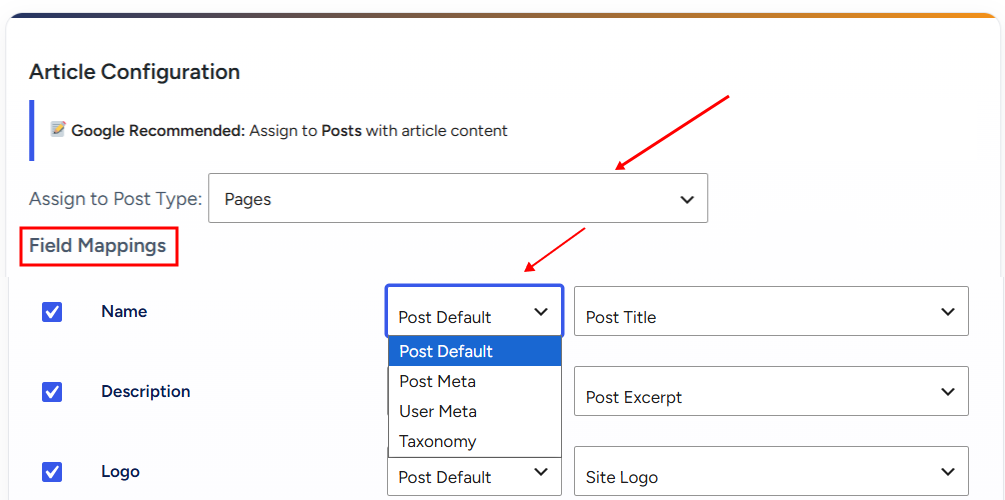
Step 4: Map and Fill Schema Fields

  1. Use the visual editor to fill required and optional schema fields
  2. For each field, you can:
    • Map it to a WordPress field (Post Title, Content, Author, Featured Image, etc.)
    • Map it to a custom field
    • Enter a manual value
  3. Required fields are clearly marked to help avoid errors.

Step 5: Preview the JSON-LD Output

  1. Open the Live Preview panel
  2. Review the generated JSON-LD schema
  3. Ensure all important fields are populated correctly

Step 6: Validate the Schema

  1. Use the built-in validation engine
  2. Fix any:
    • Missing required fields
    • Invalid values
    • Unsupported properties
  3. Validation helps ensure compatibility with search engines and rich results.

Step 7: Save and Apply Schema

  1. Click Save Settings
  2. The schema configuration is stored securely
  3. Schema is automatically applied to the assigned content

Step 8: Verify on the Frontend

  1. View the post or page on the frontend
  2. The schema is automatically injected into the page source as JSON-LD
  3. You may test the page using:
    • Google Rich Results Test
    • Schema.org Validator

Step 9: Manage or Update Schema

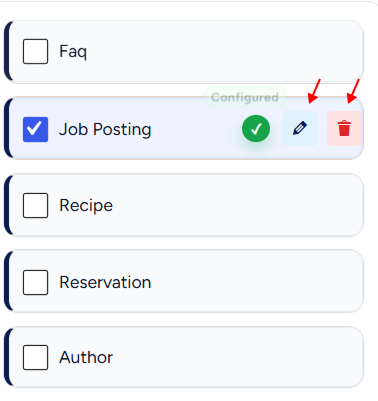
  • Edit schema settings anytime from Schema Manager
  • Apply updates globally or per page
  • Multiple schemas can be managed without conflicts

FAQs

Q1: Is the AI Chatbot free?

A: No. The AI Chatbot is available only in SEO Repair Kit Pro.


Q2: Is my website data safe?

A: Yes. The chatbot only uses necessary SEO-related information to generate responses. No sensitive data is stored.


Q3: Can beginners use the AI Chatbot?

A: Yes. The chatbot is designed for non-technical users and explains concepts in simple language.


Q4: Does the AI Chatbot replace human support?

A: The chatbot handles common SEO issues instantly. For advanced cases, you can still contact the SEO Repair Kit support team.


Q5: Why is the chatbot not responding?

A: Check that:

  • You are using the Pro version
  • Internet connection is active
  • AI Chatbot is enabled in settin

Step-by-Step Guide

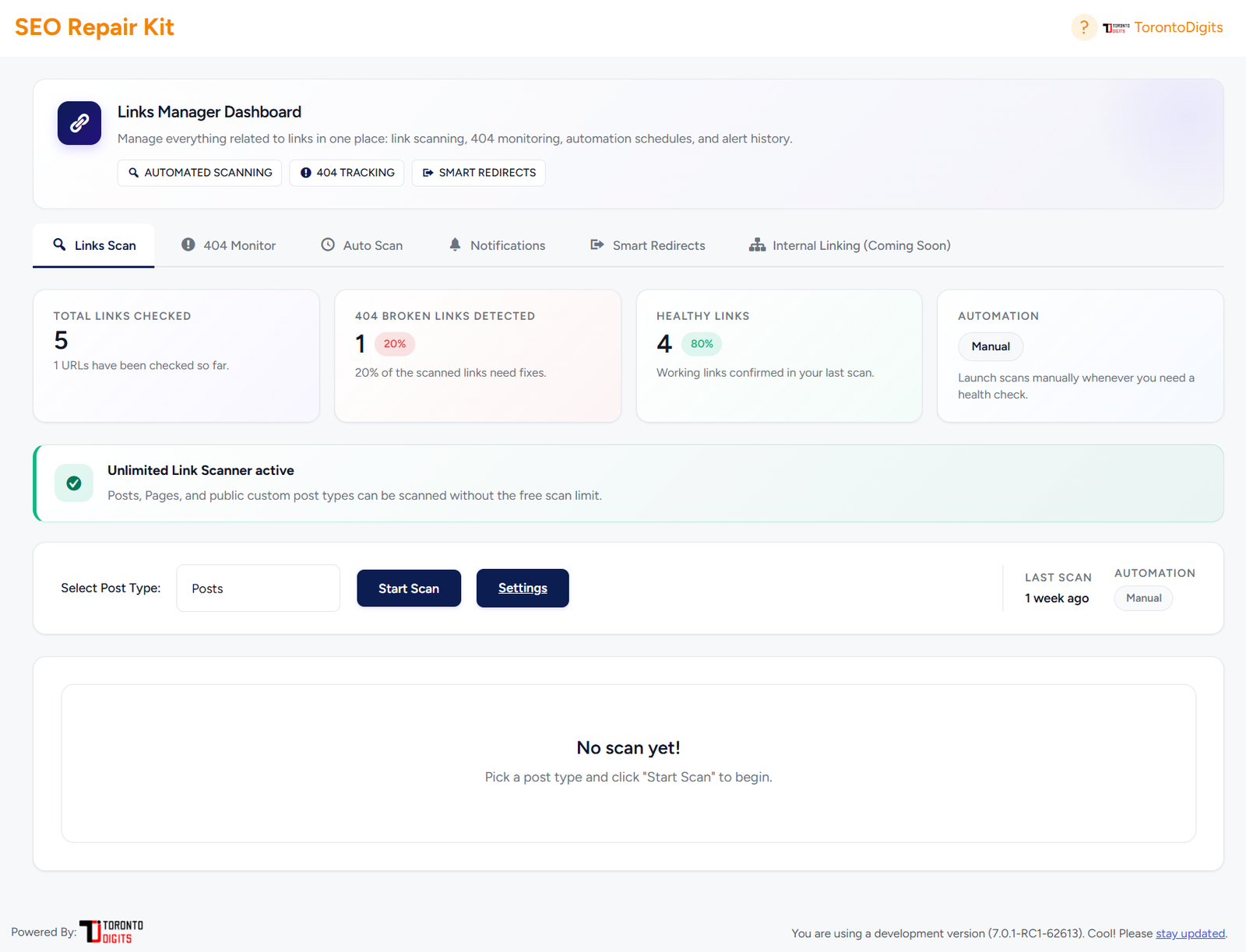
Using the Broken Link Scanner Dashboard:

Step 1: Access the Link Scanner

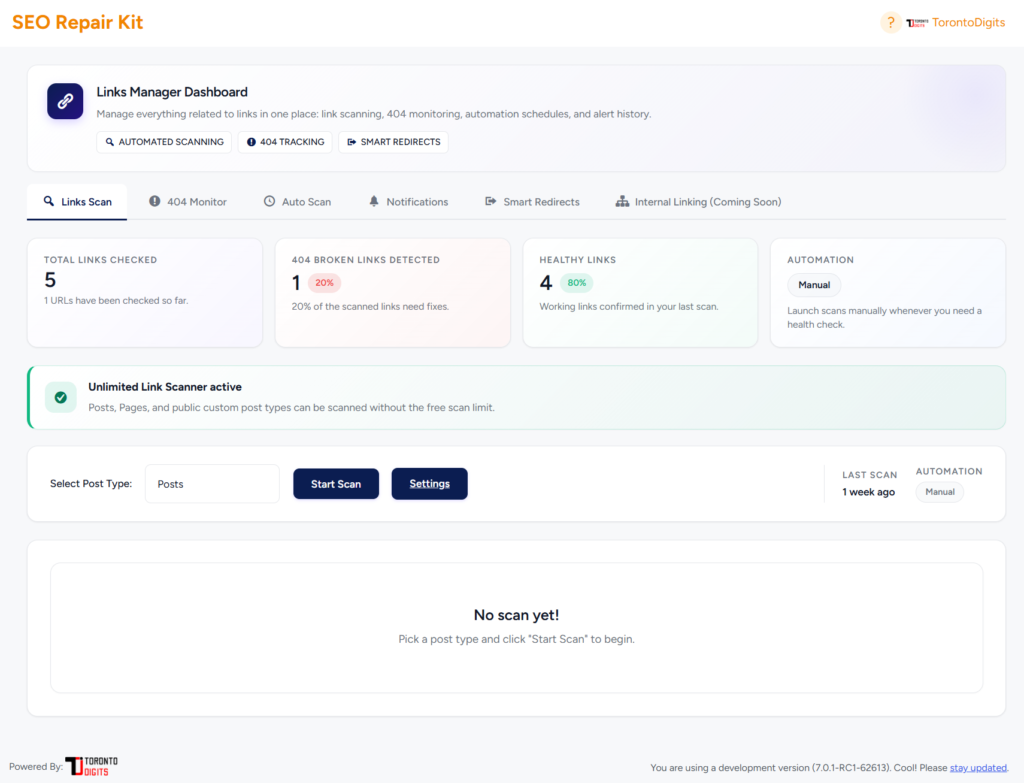
From your SEO Repair Kit dashboard, open the Link Scanner tab. This is the main workspace where you can scan, review, and fix broken links across your site.

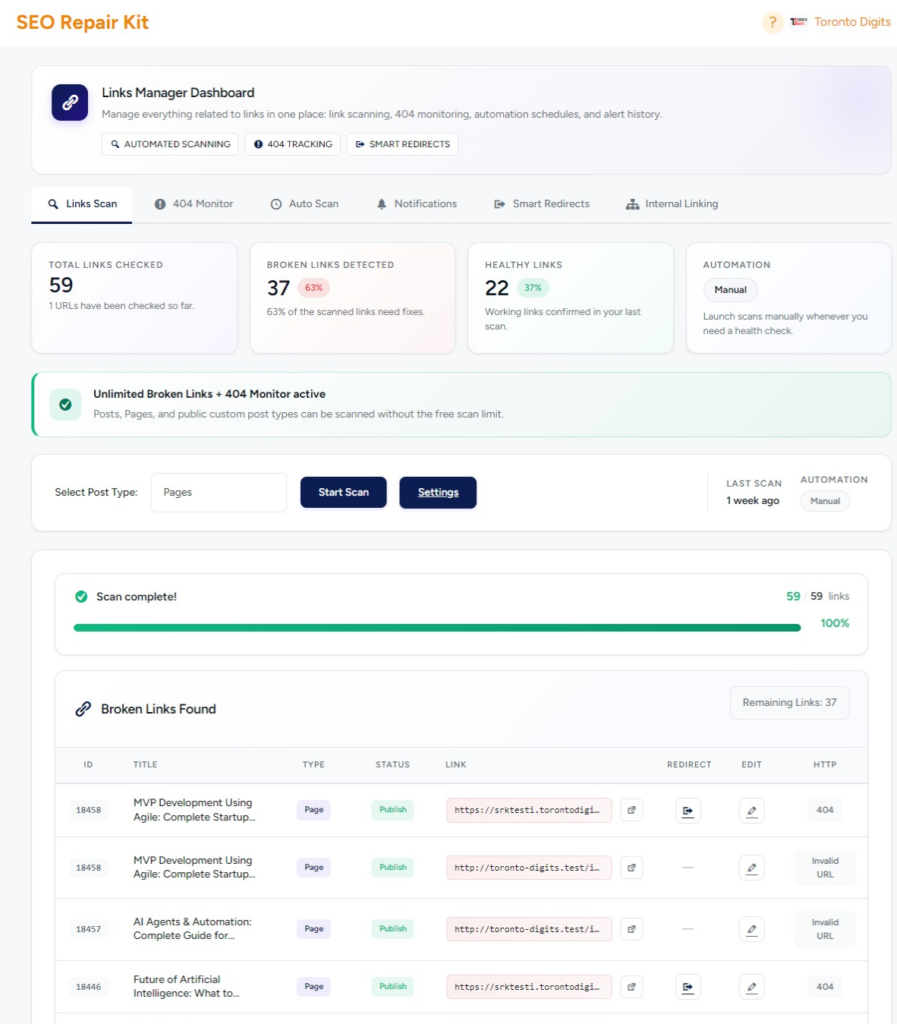
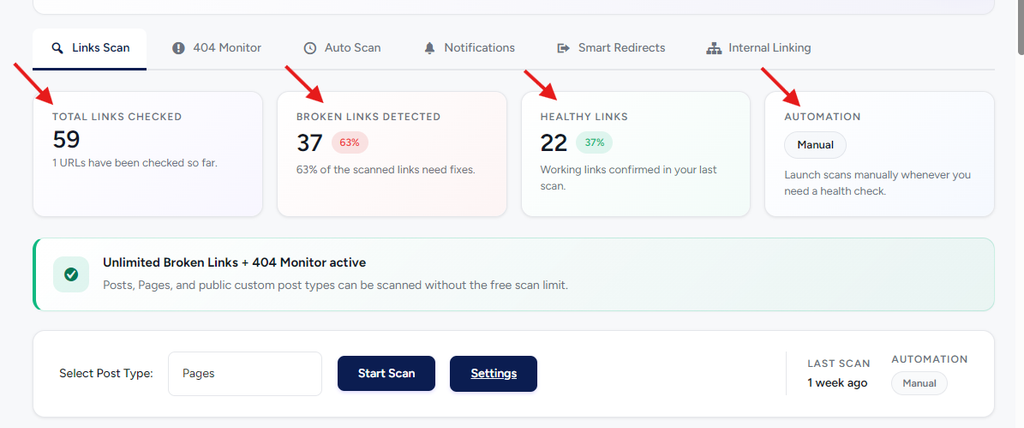
Step 2: Review the Overview Cards

At the top of the dashboard, you’ll see a quick summary of your site’s link health:

  • Total Links Checked
    Shows how many links have been scanned during the current or last scan.
  • Broken Links Detected
    Displays the total number and percentage of links returning errors (such as 404).
  • Healthy Links
    Confirms how many links are working correctly.
  • Automation Status
    Indicates whether scans are being run manually or automatically.

These cards give you an instant health check before diving into details.

Step 3: Select What You Want to Scan

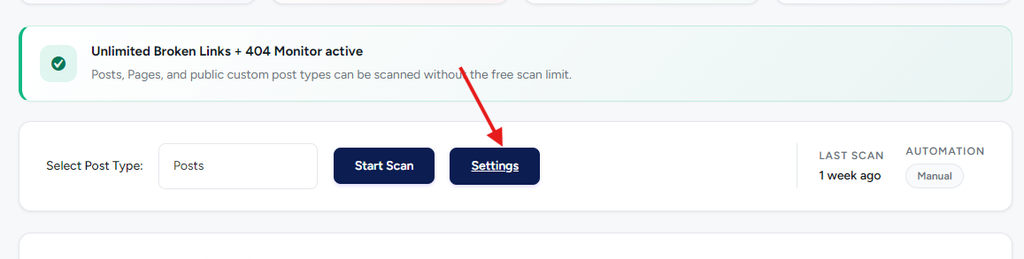
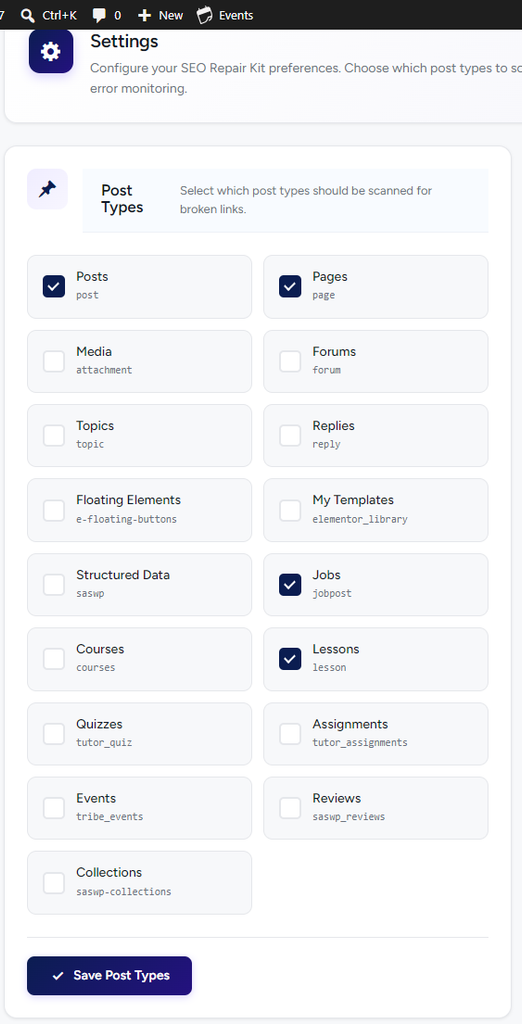
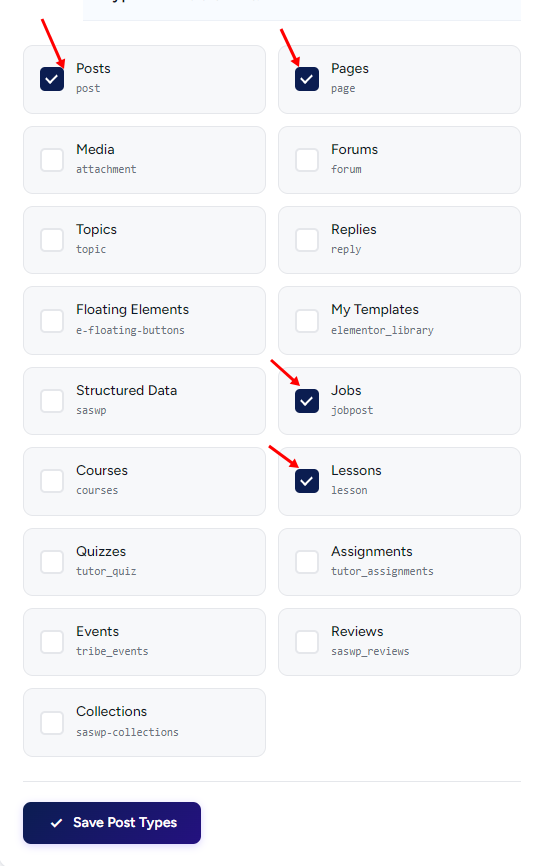
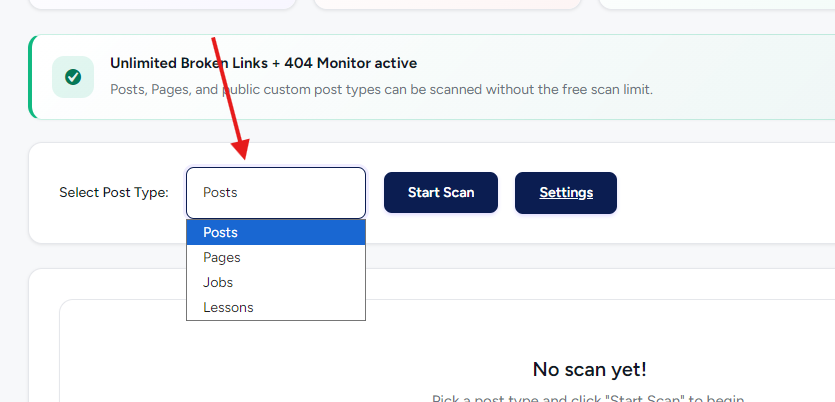
Use the Select Post Type dropdown to choose which content to scan, such as:

  • Posts
  • Pages
  • Or other supported content types

This lets you focus scans on specific areas of your website.

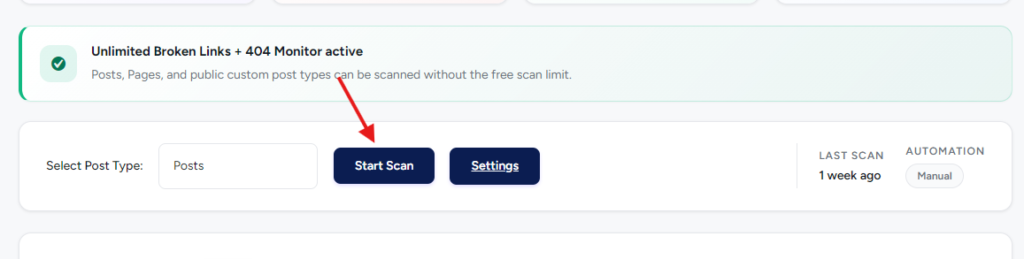
Step 4: Start the Scan

Click the Start Scan button to begin scanning the selected content.

  • The scanner checks internal and external links
  • Each link is tested for availability and error responses
  • Progress is shown in real time

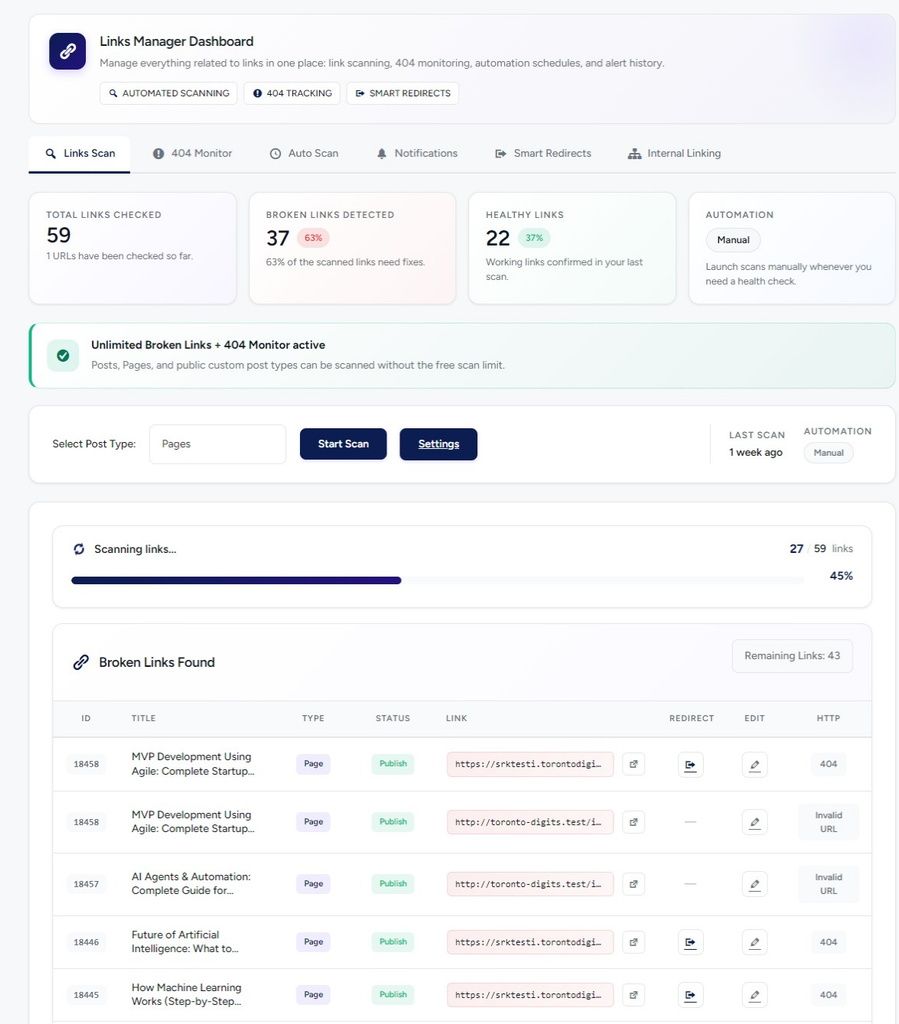
Step 5: Monitor Scan Progress

During the scan, a progress bar appears with a status message such as “Scan complete!” once finished.

You’ll also see:

  • Total links scanned
  • Completion percentage
  • Time of the last scan

This confirms the scan has successfully completed.

Step 6: Review Broken Links Found

Scroll down to the Broken Links Found table to see detailed results.

Each row includes:

  • Post Title – Where the broken link appears
  • Type – Content type (e.g., Post)
  • Status – Publication status
  • Broken Link URL – The actual failing link
  • Redirect Action – Option to redirect the broken link
  • Link Text – Anchor text used in the content
  • Edit Icon – Quickly edit the source content
  • HTTP Status Code – Error type (e.g., 404)

This makes it easy to understand exactly where and why each issue exists.

Step 7: Fix or Redirect Broken Links

For each broken link, you can take action directly from the table:

  • Edit the link to update it with a correct URL
  • Redirect the link to a relevant working page
  • Remove the link if it’s no longer needed

All actions are performed without writing any code.

Step 8: Export the Report (Optional)

Click Download CSV to export the broken links report.

This is useful for:

  • Sharing with team members
  • Tracking fixes
  • Maintaining audit records

Step 9: Re-scan to Confirm Fixes

After fixing broken links, run another scan to confirm:

  • Errors are resolved
  • Your site is fully healthy
  • No new broken links exist

Regular re-scans help maintain strong SEO and user experience.

Step 10: Maintain Ongoing Link Health

Repeat scans whenever you:

  • Publish new content
  • Update existing pages
  • Migrate or delete URLs

This ensures broken links never silently damage your SEO again.

FAQs

Q1: Is Schema Manager free?

No. Schema Manager is a Pro feature of SEO Repair Kit.


Q2: Does Schema Manager use JSON-LD?

Yes. All schema markups are generated using JSON-LD, fully compliant with Google guidelines.


Q3: Can I add schema without coding?

Yes. Schema Manager is 100% no-code and uses a visual interface.


Q4: Can I add multiple schemas on one page?

Yes. You can add multiple schema types such as Article + FAQ + Review.


Q5: Will schema guarantee rich results?

No plugin can guarantee rich results. Schema improves eligibility, but final display depends on search engines.


Q6: Does it work with custom post types?

Yes. You can enable schema for any post type.


Q7: Can I edit schema after publishing?

Yes. You can update or delete schema at any time.


Q8: Is schema automatically validated?

Yes. The built-in validation system checks required fields and errors before saving.

Troubleshooting

Getting Started

Welcome to Your Complete SEO Solution for WordPress

SEO Repair Kit is a comprehensive plugin for WordPress, designed to help you optimize your website by fixing broken links, managing redirections, and tracking keyword performance with ease. With this powerful tool, you can keep your website healthy, enhance your SEO rankings, and track keyword journeys – all from one centralized dashboard.

SEO Repair Kit saves time and reduces the complexity of manual SEO work, helping users take control of their website’s SEO performance. Whether you’re dealing with broken links, setting up URL redirections, or monitoring keyword journeys, SEORepairKit has got you covered.

Installation:

SEORepairKit is available at seorepairkit.com for direct download. Alternatively, you can navigate to your WordPress admin dashboard, go to the Plugins tab, search for “SEORepairKit,” and install and activate it.

For more detail, please visit this article Installation of SEORepairKit

Broken Links:

Broken links can negatively impact both user experience and SEO. With SEORepairKit, you can quickly scan your entire site for broken links and fix them from one easy-to-use interface. The plugin provides a report of all detected broken links, allowing you to manage them efficiently.

Redirection:

Managing redirects is essential for keeping your SEO intact, especially when pages are moved or deleted. SEORepairKit simplifies redirection management, allowing you to easily set up and monitor redirects for your website.

Threshold:

The Threshold feature allows users to track the performance of their keywords over time. This tool shows the journey of your keywords, helping you understand how they rank in search engines, how many clicks they receive, and their overall impressions.

Introduction

For instance, if you want to optimize your website for search engines or manage broken links effectively, the best approach is to utilize specialized tools like SEORepairKit. This plugin empowers users to streamline their SEO efforts without requiring any coding knowledge, making it easy to manage critical aspects of your website’s performance.

What to Expect from SEORepairKit?

SEORepairKit is a comprehensive plugin designed to help you enhance your WordPress site’s SEO.

Here are the key features included with SEORepairKit:

  • Broken Link Checker: Automatically scans your site for broken links and provides an easy-to-use interface for managing them.
  • Redirection Management: Simplifies the setup and monitoring of redirects to maintain SEO integrity when pages are moved or deleted.
  • Keyword Tracking: Monitor your keywords’ performance over time, including clicks, impressions, and average positions.
  • Customizable Settings: Tailor the plugin’s functionality to meet your specific SEO needs with user-friendly options.
  • Alt Text Generation: Automatically generates SEO-friendly alt text for your images to improve accessibility and search engine optimization.

Installation

Redirection

Threshold

Redirection

Getting Started

Introduction of Redirection:

Redirection is the process of automatically sending visitors and search engines from one URL to another. This is especially important when pages are deleted, URLs are changed, or content is moved. Without proper redirection, users may land on error pages, and valuable SEO equity can be lost.

SEO Repair Kit’s Redirection feature allows you to create and manage redirects easily, ensuring a smooth user experience and protecting your site’s search engine rankings.

Requirements:

  • SEO Repair Kit plugin installed and activated
  • WordPress admin access
  • Existing or planned URL changes
  • No coding knowledge required

Access:

You can access the Redirection feature by navigating to:

WordPress Dashboard → SEO Repair Kit → Redirection

This opens the Redirection Manager, where all redirect rules, logs, and analytics are managed.

Why Use the Redirection Tool?

Using the Redirection tool helps you:

  • Preserve SEO value when URLs change
  • Prevent visitors from landing on 404 error pages
  • Maintain a clean and crawlable site structure
  • Track redirect usage and performance
  • Manage redirects professionally without plugin conflicts

What You’ll Learn

In the following sections, we will guide you through:

  • Installation & Setup: Get started by installing and activating the Redirection feature
  • How It Works: Understand how redirects are created and managed
  • Step-by-Step Guide: Learn how to create, monitor, and manage redirects
  • FAQs: Find answers to common questions and troubleshooting tips

How It Works

The Redirection feature works by mapping old or broken URLs to new, active ones. You can set up redirects manually or allow the system to automatically suggest redirects for deleted or moved pages.

Key Features:

  • Simple Setup: Allows you to create, edit, and delete redirects quickly.
  • Automatic 404 Monitoring: Automatically detects 404 errors and allows you to redirect them to the appropriate pages.
  • Manual Redirects: You have the flexibility to create manual redirects by entering both the old and new URLs.
  • Redirect Logs: The system keeps track of all your redirects, giving you a history of changes.
  • Error Tracking: It can also notify you when an error occurs, ensuring your site is always in top shape.

This system ensures that users always find the content they’re looking for, even when the original page has been moved or deleted

How It Benefits SEO:

  • Preserves Link Equity: Ensures that link value (PageRank) from old URLs is passed on to the new URLs.
  • Prevents Duplicate Content: Redirecting duplicate pages to the main page avoids search engine penalties.
  • Improves Site Health: Regularly fixing broken links and redirecting them helps maintain a clean site architecture.

Redirection Works in WordPress:

Redirection involves setting up rules that automatically send users from one URL to another. When someone tries to visit an old URL, the redirection rules trigger, and they are taken to the correct page. There are different types of redirects that can be used:

  • 301 Redirect: Permanent redirect. It indicates that the URL has been moved permanently to a new location. This is the most common type used for SEO.
  • 302 Redirect: Temporary redirect. It tells search engines that the content is temporarily located at a different URL.
  • 307 Redirect: Another temporary redirect, used when the request method should not change.
  • 404 Redirect: A default redirect that occurs when the URL is not found. It’s good to set up custom 404 redirects to guide users to a helpful page instead.

Step By Step Guide

Step 1: Open the Redirection Dashboard

From your WordPress admin panel, go to:

SEO Repair Kit → Redirection

This opens the Redirection Manager dashboard, where all redirect rules are listed.

Step 2: Review Existing Redirects

On the dashboard, you will see a list of existing redirects with details such as:

  • Source URL
  • Target URL
  • Redirect type (301 / 302)
  • Status (Active / Inactive)
  • Hit count

This gives you a quick overview of your current redirection setup.

Step 3: Create a New Redirect

Click the Add New Redirect button.

Fill in the required fields:

  • Source URL: The old or broken URL
  • Target URL: The destination URL
  • Redirect Type: Choose 301 or 302
  • Status: Set as Active

Save the redirect to apply it immediately.

Step 4: Enable Advanced Redirect Options (Optional)

For advanced use cases, you can:

  • Enable Regex pattern matching
  • Set position-based redirect priority
  • Manage redirect order to avoid conflicts

These options are ideal for large websites and dynamic URLs.

Step 5: Monitor Redirect Hits & Performance

Each redirect tracks how many times it has been used.

You can:

  • Identify most-hit redirects
  • Analyze redirect effectiveness
  • Detect unnecessary or outdated redirects

This helps optimize both SEO and performance.

Step 6: Manage Redirect Status

You can:

  • Activate or deactivate redirects
  • Edit source or target URLs
  • Delete unused redirects

This keeps your redirection system clean and efficient.

Step 7: Handle 404 Errors Proactively

The system automatically detects 404 errors.

You can:

  • View broken URLs
  • Create redirects directly from detected errors
  • Prevent repeated crawl issues

FAQs

1. What is the difference between 301 and 302 redirects?

301 redirects are permanent and pass SEO value, while 302 redirects are temporary and do not fully transfer link equity.

2. Will redirects affect my SEO?

Yes—in a positive way. Proper redirects protect rankings and prevent SEO loss.

3. Can I track how many times a redirect is used?

Yes. The Redirection Manager tracks hit counts and performance.

4. Do I need technical knowledge to use this feature?

No. The interface is beginner-friendly and requires no coding.

5. Can I disable a redirect without deleting it?

Yes. Redirects can be toggled between active and inactive status.

6. Does this support advanced redirects like regex?

Yes. Regex and position-based redirects are supported for advanced users.

Image AltText

Getting Started

Image ALT Text:

Image ALT text (alternative text) is a short, descriptive text added to images that explains their content. It helps search engines understand what an image represents and allows screen readers to describe images to visually impaired users.

Introduction to Image ALT Text:

Images enhance visual appeal, but without ALT text, they remain invisible to search engines and assistive technologies. The Image ALT Text feature in SEO Repair Kit automatically identifies images missing ALT attributes. It provides an easy way to add or update them—without manual searching or technical effort.

Why It Matters:

Missing ALT text can negatively affect both SEO and accessibility. Search engines rely on ALT text to index images properly, while users with screen readers depend on it to understand visual content. By optimizing image ALT text, you:

  • Improve image search visibility
  • Enhance accessibility compliance
  • Strengthen on-page SEO signals
  • Create a better experience for all users

Requirements:

  • SEO Repair Kit plugin installed and activated
  • Access to the WordPress Media Library
  • Images uploaded to your website
  • No coding or technical skills required

Introduction

Image Alt Text is an essential feature for improving both the accessibility and SEO of your website. By adding descriptive alternative text to your images, you help search engines index your content more effectively and ensure that users with visual impairments can understand what the images represent.

In the SEO Repair Kit plugin, you can easily review images that lack alt text and manually assign descriptive text to them, making sure your website adheres to SEO best practices.

How It Works

The Image ALT Text Manager continuously scans your media library to detect images missing ALT attributes. It organizes results into a dedicated dashboard where you can:

  • View total images and ALT health status
  • Identify images without ALT text
  • Add or update ALT text individually or in bulk
  • Track overall optimization progress with a health score

All actions are performed through a clean, visual interface designed for non-technical users.

Step By Step Guide

Step 1: Open the Image ALT Text Manager

From the WordPress admin panel, go to:

SEO Repair Kit → Image Alt Missing

This opens the Image ALT Text dashboard.

Step 2: Review the Overview Metrics

At the top of the dashboard, you’ll see key summary cards:

  • Total Images
    Displays the total number of images in your media library.
  • Missing ALT Text
    Shows how many images require optimization.
  • With ALT Text
    Confirms how many images are already optimized.
  • Health Score
    A percentage score representing your overall ALT text optimization status.

These metrics help you quickly assess image SEO health.

Step 3: Filter Images by ALT Status

Use the filter buttons to manage images efficiently:

  • All – View all images
  • Missing Alt – Show only images without ALT text
  • Has Alt – Display images already optimized

This allows you to focus only on images that need attention.

Step 4: Browse the Image Library

Scroll through the image cards in the Image Library section.
Each image card shows:

  • Image preview
  • Image title
  • Upload date
  • ALT text status indicator

Images missing ALT text are clearly highlighted.

Step 5: Add ALT Text to an Individual Image

Click Add Alt Text on any image card.

  • Enter a clear, descriptive ALT text
  • Keep it concise and relevant
  • Include keywords naturally where appropriate

Save the changes to instantly update the image.

Step 6: Monitor Optimization Progress

As ALT text is added:

  • The Missing ALT Text count decreases
  • The count of ALT Text increases
  • The Health Score improves in real time

This provides immediate feedback on your optimization progress.

Step 7: Maintain Ongoing Image Optimization

Revisit the Image ALT Text Manager regularly—especially after uploading new images—to ensure all visuals remain optimized for SEO and accessibility.

FAQs

Q: What is Image ALT text?

ALT text is a description added to images that helps search engines and screen readers understand image content.

Q: Does this feature scan all images automatically?

Yes. The system automatically scans your entire media library to detect images missing ALT attributes.

Q: Will adding ALT text improve SEO?

Absolutely. ALT text improves image search visibility, strengthens page relevance, and enhances accessibility.

Q: Do I need technical skills to use this feature?

No. The dashboard is designed for non-technical users and requires no coding.

Q: Does the health score update automatically?

Yes. The health score updates in real time as images are optimized.

Schema Manager

Getting Started

What is Schema Markup?

Schema Support in SEO Repair Kit helps you add structured data to your website in a simple, accurate, and SEO-friendly way. It allows search engines like Google to better understand your content and display enhanced results such as FAQs, reviews, products, jobs, events, and business details directly in search results.

With the built-in Schema Manager, you can create, manage, and apply schema markup without writing any code. The system uses JSON-LD, Google’s recommended format, and follows schema.org standards to ensure maximum compatibility and reliability.

SEO Repair Kit’s schema support is designed for both beginners and advanced users. You can use pre-built schema templates, dynamically map WordPress fields, preview the generated schema in real time, and validate it to avoid errors before publishing.

Whether you want to apply schema globally across your site or customize it for individual posts and pages, Schema Support in SEO Repair Kit gives you full control—helping improve search visibility, eligibility for rich results, and overall SEO performance.


Why Use Schema Manager?

Schema Manager simplifies the process of adding structured data to your website. With Schema Manager, you can:

  • Automatically generate JSON-LD schema (Google-recommended format)
  • Use pre-built schema templates
  • Apply schema to any post type (posts, pages, or custom post types)
  • Preview schema before publishing
  • Validate schema to detect errors or missing fields
  • Improve eligibility for Google Rich Results
  • Maintain SEO-friendly and clean output

No coding knowledge is required.


Supported Schema Types

Schema Manager supports 20+ schema types, including:

  • Article
  • Blog Posting
  • News Article
  • FAQ
  • HowTo
  • Video Object
  • Product
  • Job Posting
  • Event
  • Course
  • Review
  • Recipe
  • Local Business
  • Organization
  • Corporation
  • Reservation
  • Medical Condition
  • Medical Web Page
  • Website

(Additional schema types may be added in future updates.)

How It Works

2. How Schema Manager Works

Schema Manager works by generating and attaching structured data (JSON-LD) to your website content. JSON-LD is the format recommended by Google and is automatically injected into the page source, allowing search engines to clearly understand your content.


Core Workflow

  1. Select a Schema Type
    Choose the schema type that best matches your content, such as Article, Product, FAQ, Job Posting, Event, or Local Business.
  2. Assign Content or Post Type
    Apply the schema to a specific post, page, or an entire custom post type.
  3. Map and Fill Schema Fields
    Use the visual schema editor to map schema properties to WordPress fields (e.g., Post Title, Author, Featured Image) or enter custom values where required.
  4. Live JSON-LD Preview
    Instantly preview the generated JSON-LD schema to see how the structured data will be output.
  5. Validate Schema Data
    The built-in validation engine checks for missing, invalid, or unsupported properties based on the selected schema type.
  6. Save and Apply Schema
    Once saved, the schema configuration is stored and automatically applied to the assigned content.
  7. Automatic Frontend Output
    The schema is injected into the page <head> or page source dynamically when the page is loaded.

Key Highlights

  • Visual Schema Builder
    Create and manage schema without writing any code.
  • Dynamic Data Mapping
    Automatically fetch values such as post title, author name, publish date, featured image, custom fields, and taxonomy data.
  • Real-Time Validation
    Ensures schema compliance with schema.org standards and Google Rich Results requirements.
  • Live Preview
    View the exact JSON-LD output before publishing.

Global & Page-Level Control

  • Apply schema globally to all posts of a selected post type
  • Override or customize schema individually on specific posts or pages
  • Manage multiple schema types without conflicts

SEO-Friendly Output

  • Clean and optimized JSON-LD
  • Follows schema.org specifications
  • Compatible with Google Rich Results Test and Schema Validator
  • Designed to improve eligibility for rich results (appearance not guaranteed)

Step By Step Guide

Step 1: Enable Schema Manager

1- Go to WordPress Dashboard → SEO Repair Kit → Schema Manager

2- Ensure the feature is enabled (Pro only)

Step 2: Choose a Schema Type

  1. Click Add New Schema (or select an existing schema to edit) like
    • Article
    • Product
    • FAQ
    • Job Posting
    • Event
    • Local Business
  2. The available fields will update automatically based on the selected schema.

Step 3: Assign a Post or Post Type

  1. Choose where the schema should be applied:
    • A single post or page, or
    • An entire post type (Posts, Pages, or Custom Post Types)
  2. This determines which content the schema will be attached to.

Step 4: Map and Fill Schema Fields

  1. Use the visual editor to fill required and optional schema fields
  2. For each field, you can:
    • Map it to a WordPress field (Post Title, Content, Author, Featured Image, etc.)
    • Map it to a custom field
    • Enter a manual value
  3. Required fields are clearly marked to help avoid errors.

Step 5: Preview the JSON-LD Output

  1. Open the Live Preview panel
  2. Review the generated JSON-LD schema
  3. Ensure all important fields are populated correctly

Step 6: Validate the Schema

  1. Use the built-in validation engine
  2. Fix any:
    • Missing required fields
    • Invalid values
    • Unsupported properties
  3. Validation helps ensure compatibility with search engines and rich results.

Step 7: Save and Apply Schema

  1. Click Save Settings
  2. The schema configuration is stored securely
  3. Schema is automatically applied to the assigned content

Step 8: Verify on the Frontend

  1. View the post or page on the frontend
  2. The schema is automatically injected into the page source as JSON-LD
  3. You may test the page using:
    • Google Rich Results Test
    • Schema.org Validator

Step 9: Manage or Update Schema

  • Edit schema settings anytime from Schema Manager
  • Apply updates globally or per page
  • Multiple schemas can be managed without conflicts

FAQs

Q1: Is Schema Manager free?

No. Schema Manager is a Pro feature of SEO Repair Kit.


Q2: Does Schema Manager use JSON-LD?

Yes. All schema markups are generated using JSON-LD, fully compliant with Google guidelines.


Q3: Can I add schema without coding?

Yes. Schema Manager is 100% no-code and uses a visual interface.


Q4: Can I add multiple schemas on one page?

Yes. You can add multiple schema types such as Article + FAQ + Review.


Q5: Will schema guarantee rich results?

No plugin can guarantee rich results. Schema improves eligibility, but final display depends on search engines.


Q6: Does it work with custom post types?

Yes. You can enable schema for any post type.


Q7: Can I edit schema after publishing?

Yes. You can update or delete schema at any time.


Q8: Is schema automatically validated?

Yes. The built-in validation system checks required fields and errors before saving.

AI Chatbot

Getting Started

The AI Chatbot in SEO Repair Kit (Pro) is a built-in intelligent assistant that helps users understand, monitor, and fix SEO issues directly inside the WordPress dashboard. It acts as a real-time support agent, guiding users across all major SEO Repair Kit features.

Q1: What is the AI Chatbot in SEO Repair Kit?

A: The AI Chatbot is an in-dashboard SEO assistant that helps you:

  • Understand SEO issues
  • Fix content and technical problems
  • Learn how to use SEO Repair Kit features
  • Get instant answers without opening support tickets

It is available as a Pro feature.


Q2: Where can I access the AI Chatbot?

A: You can open the AI Chatbot from:

  • SEO Repair Kit Dashboard
  • Inside post or page editor
  • Feature pages like Schema Manager, Redirection Manager, KeyTrack, and Broken Links

Q3: Do I need to enable the AI Chatbot?

A: Yes. Go to:

WordPress Admin → SEO Repair Kit → Settings → AI Chatbot → Enable

Once enabled, the chatbot icon becomes available across the plugin.

How It Works

Q1: How does the AI Chatbot understand my site?

A: The AI Chatbot is context-aware, meaning it understands:

  • The page or feature you are currently viewing
  • SEO Repair Kit scan results
  • Schema, redirection, and keyword data

This allows it to provide relevant and accurate answers, not generic SEO advice.


Q2: What kind of questions can I ask the AI Chatbot?

A: You can ask questions like:

  • “Why do I have missing alt text warnings?”
  • “Which schema should I use for this post?”
  • “How do I fix broken links?”
  • “Why did my keyword ranking drop?”

The chatbot responds instantly with step-by-step guidance.


Q3: Does the AI Chatbot make changes automatically?

A: No. The chatbot never makes automatic changes. It only provides recommendations and instructions. You stay in full control.

FAQs

Q1: Is the AI Chatbot free?

A: No. The AI Chatbot is available only in SEO Repair Kit Pro.


Q2: Is my website data safe?

A: Yes. The chatbot only uses necessary SEO-related information to generate responses. No sensitive data is stored.


Q3: Can beginners use the AI Chatbot?

A: Yes. The chatbot is designed for non-technical users and explains concepts in simple language.


Q4: Does the AI Chatbot replace human support?

A: The chatbot handles common SEO issues instantly. For advanced cases, you can still contact the SEO Repair Kit support team.


Q5: Why is the chatbot not responding?

A: Check that:

  • You are using the Pro version
  • Internet connection is active
  • AI Chatbot is enabled in settin

KeyTrack Configuration

Get Started

Overview

KeyTrack Configuration in the SEO Repair Kit enables you to track specific keywords’ performance metrics, helping you monitor and improve your site’s SEO over time.

Why Use KeyTrack Configuration?

  • Monitor changes in keyword rankings.
  • Set up notifications for significant shifts in keyword performance.
  • Make data-driven adjustments to improve content visibility and search engine rankings.

Requirements

  • SEO Repair Kit plugin installed and activated.
  • Google Site Kit integration (for fetching data directly from Google Search Console).

How it works

The KeyTrack Configuration feature in the SEO Repair Kit provides streamlined keyword tracking by collecting key metrics and notifying you of any significant changes. Here’s how it operates:

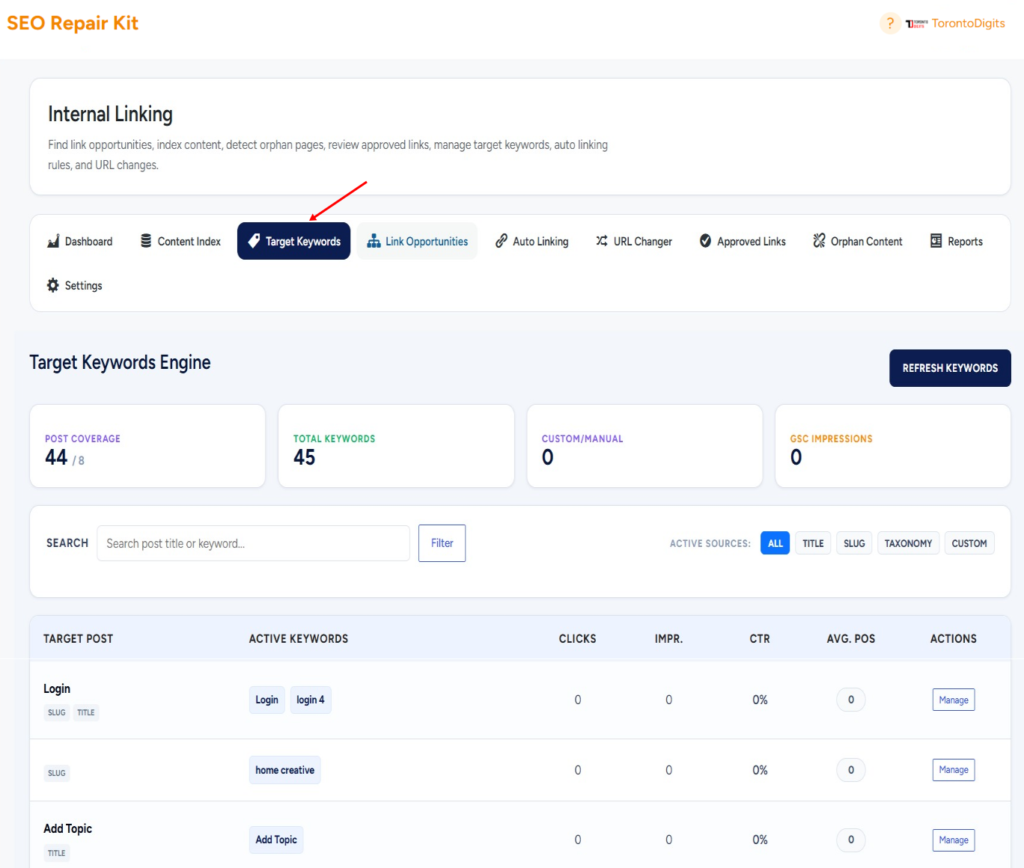
  • Keyword Selection: Choose specific keywords you want to monitor. This could include core keywords for your site or high-priority terms that impact your SEO strategy.
  • Data Collection: KeyTrack pulls essential data for each keyword—such as ranking, impressions, clicks, and CTR—directly from Google Search Console and any other linked sources, providing comprehensive insights into performance.
  • Threshold-Based Alerts: Set custom thresholds, like receiving alerts for position changes, declines in CTR, or any shifts in impressions. These notifications keep you informed and allow you to take action when performance changes occur.
  • Clear Performance Visualization: The interactive KeyTrack dashboard shows each keyword’s performance history in a user-friendly view, making it easy to see trends and patterns. You can analyze shifts over time, measure the success of your SEO efforts, and make strategic adjustments.

Step By Step Guide

Step 1: Access to the Plugin SEO Repair Kit

  • Go to the SEO Repair Kit Dashboard.
  • Select KeyTrack from the main menu.
  • Now Select Go to Site Kit Settings.

Step 2: Sign in With Google

  • Click on Sign in with Google for Connect with Site Kit.

Step 3: Email Selection

  • Set up Email alerts if you want to be notified of any significant changes.
  • Now Select Email and Continue to another Step.

Step 4: KeyTrack Configuration

  • Select all 3 Checkboxes to Configure.
  • Now Allow us to go another Step.
  • Now Select the Next button.
  • Now Select Go to my Dashboard.
  • Now you can select Go to SEO Kit KeyTrack.
  • Now you’ll enter in the KeyTrack Feature.

FAQs

1. What data sources does KeyTrack Configuration use?

2. How many keywords can I track simultaneously?

3. Can I receive alerts for keyword position drops?

4. How often is the data updated?

5. Can I track keywords in multiple languages?

Bot Manager

Getting Started

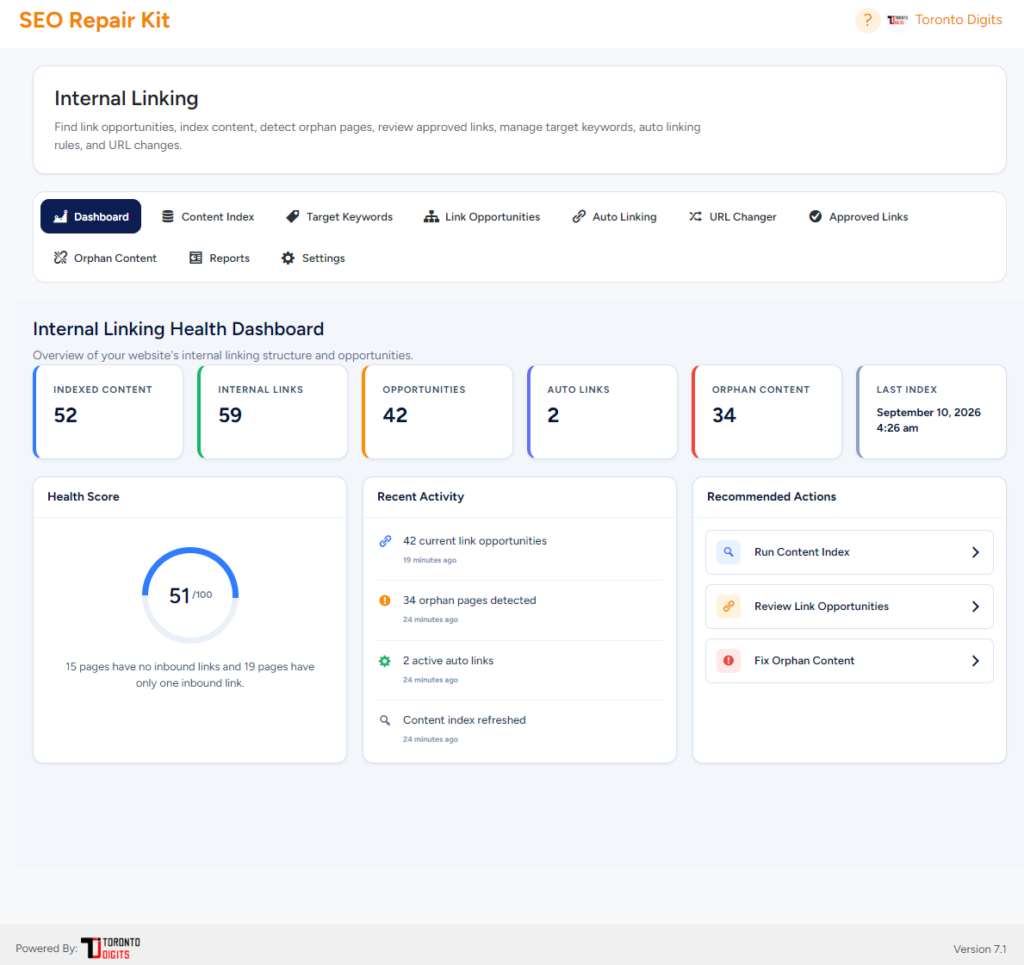
Getting started with Bot Manager takes just a few minutes:

  1. Install and activate SEO Repair Kit
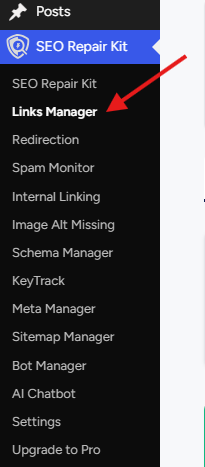
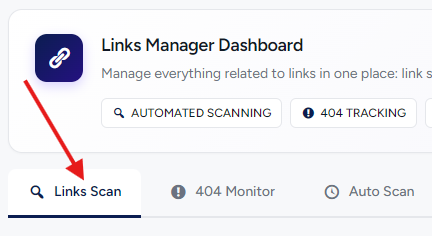
  2. Navigate to Bot Manager from your dashboard
  3. Review your current robots.txt status
  4. Choose which bots you want to allow or block
  5. Save changes — your rules are applied instantly at the server level

No manual file editing. No technical setup. Everything is handled for you.

How It Works

Bot Manager works by intelligently managing crawler access at both the file level and the server level:

  • robots.txt Visual Editor
    Edit and manage your robots.txt file using a clean, visual interface with built-in best practices.
  • LLMs.txt Generator
    Create and manage an llms.txt file to help AI models understand what content they can discover and use.
  • AI Bot Access Control
    Allow or block specific AI crawlers like ChatGPT, Claude, Google Bard, and others.
  • Server-Level Blocking
    Block unwanted bots with 403 responses, preventing access before they reach your content.
  • Automatic Rule Syncing
    When you block a bot, Bot Manager automatically updates your robots.txt rules.

Real-Time Preview & Validation
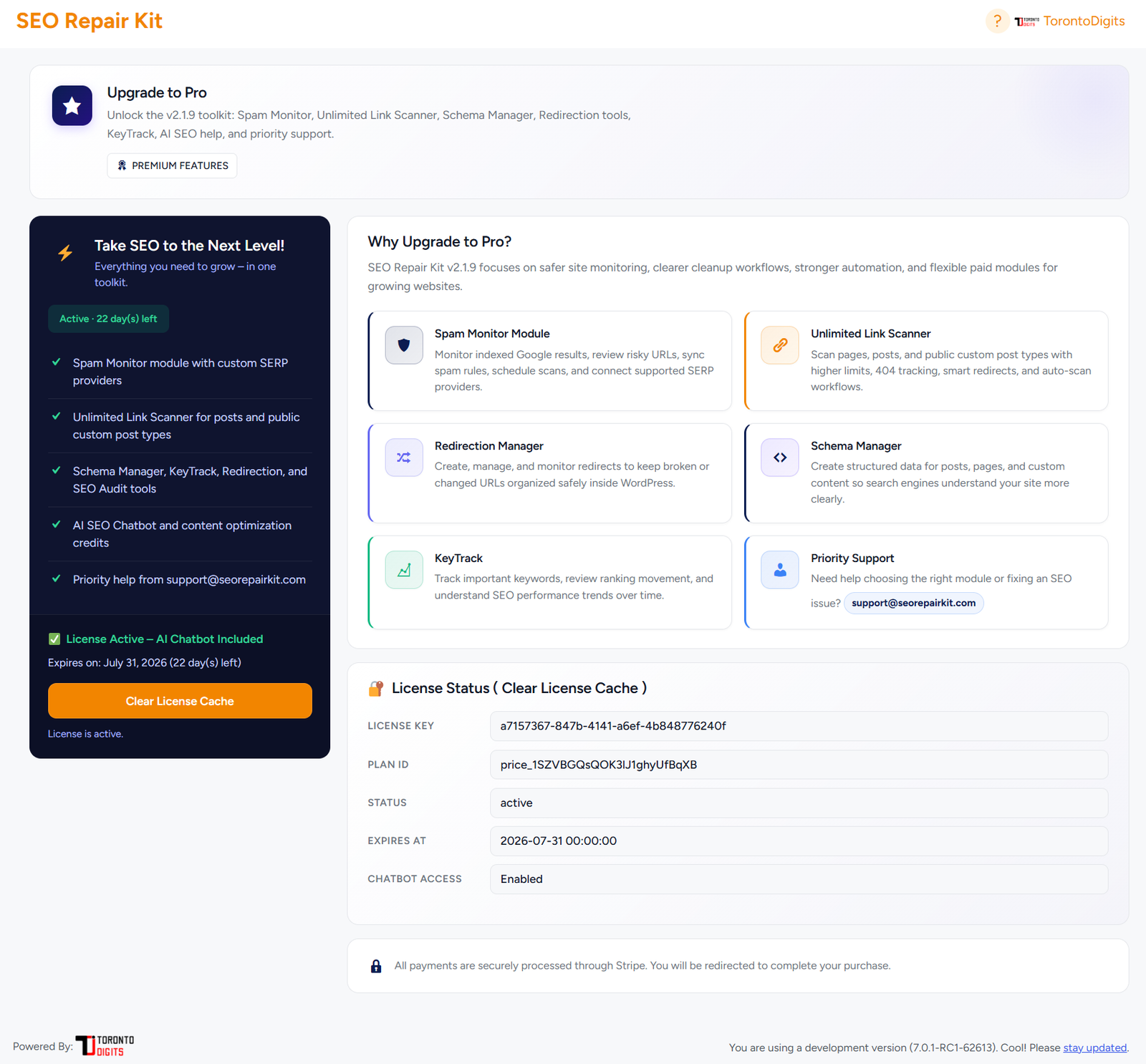
Instantly see how your rules will behave before applying them live.
FAQs

Q1: What is a Bot Manager?

A: Bot Manager is a tool that lets you control how search engines and AI crawlers access your website — without editing files manually.


Q2: What is robots.txt?

A: robots.txt tells search engines which pages they can or cannot crawl. Bot Manager lets you manage it visually with SEO and security best practices.


Q3: What is llms.txt?

A: llms.txt is a discovery file for AI models, helping them understand what content they’re allowed to access and learn from.


Q4: Can I block AI bots like ChatGPT or Claude?

A: Yes. You can block or allow individual AI crawlers with one click — including ChatGPT, Claude, Google Bard, and more.

Q5: Does blocking bots affect SEO?

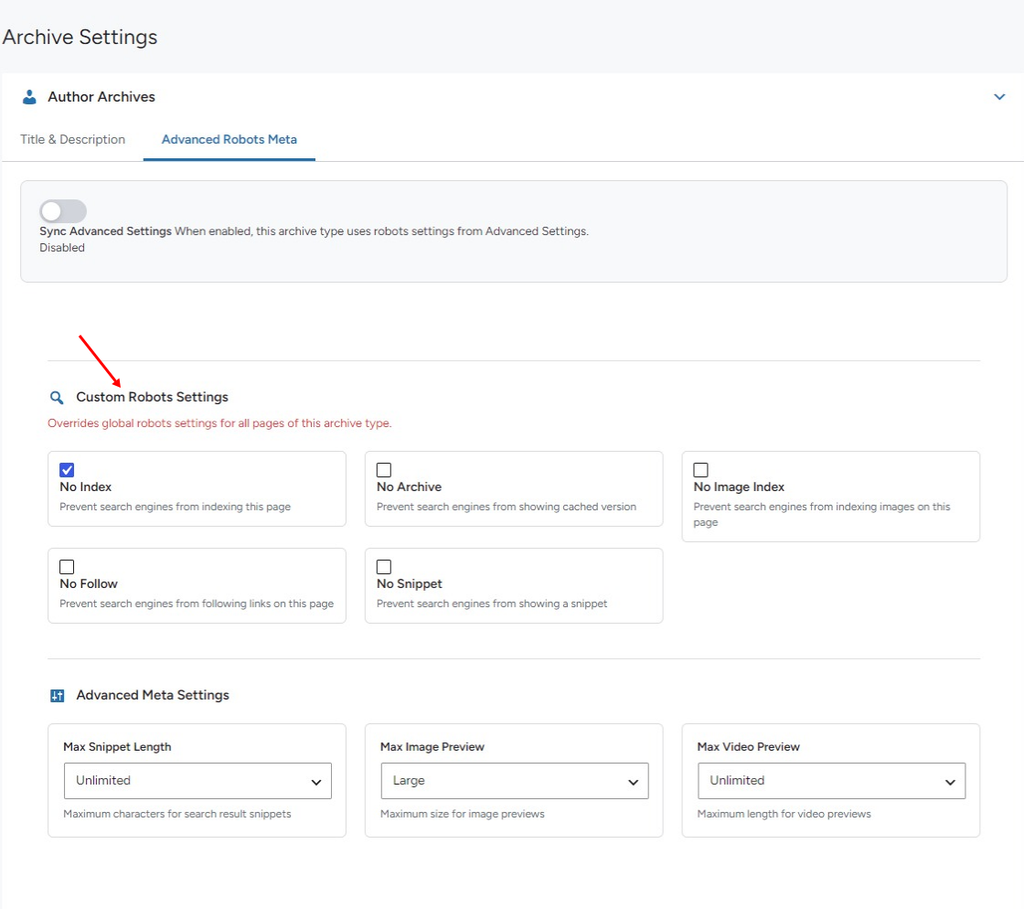
A: No. Blocking AI bots does not affect Google rankings. Bot Manager ensures search engines and AI crawlers are handled separately.

Q6: How does server-level blocking work?

A: Blocked bots receive a 403 Forbidden response, stopping them before they access your content — faster and more secure than file-based blocking alone.

Q7: Is this safe for non-technical users?

A: Absolutely. Everything is handled through a visual interface with real-time validation to prevent mistakes.

Q8: Will changes apply immediately?

A: Yes. Once saved, changes are applied instantly at the server and file level.