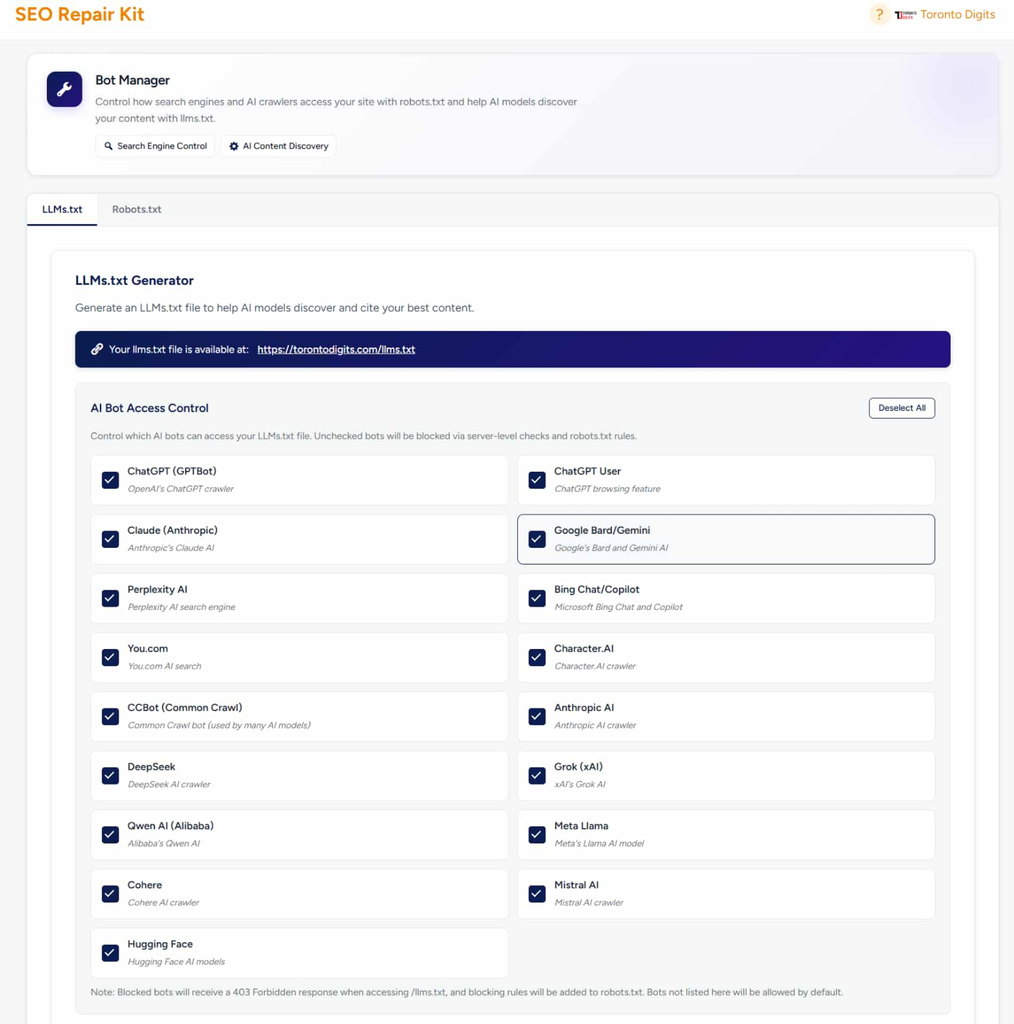
Bot Manager gives you centralized control over search engine bots and AI crawlers accessing your WordPress site. It allows you to manage your robots.txt file visually, generate an llms.txt file for AI model discovery, and block or allow specific AI bots — all without touching code.
Introduction to Bot Manager:
As search engines and AI crawlers (like ChatGPT, Google Bard, Claude) increasingly scan websites, controlling what they can access becomes critical. Some bots consume bandwidth, scrape content, or ignore standard rules. Bot Manager automates and simplifies this control, letting you protect sensitive content, improve crawl efficiency, and future-proof your site for AI-driven search.
Why It Matters:
Uncontrolled bot access can:
Slow down your server
Expose private or unfinished content
Allow AI models to use your data without permission
Waste crawl budget on unimportant pages
By managing bot access properly, you improve site performance, protect intellectual property, and optimize how search engines index your content — boosting SEO and security simultaneously.
Requirements:
The SEO Repair Kit plugin must be installed and activated
Server must allow robots.txt and .htaccess (or equivalent) file access
No coding skills required — the visual editor handles everything
2. How it Works
Robots.txt Management:
Bot Manager provides a visual editor for your robots.txt file. Instead of manually editing code, you can add, remove, or modify rules using simple toggles and dropdowns. The tool validates your rules in real time, preventing syntax errors that could confuse search engines.
AI Bot Control:
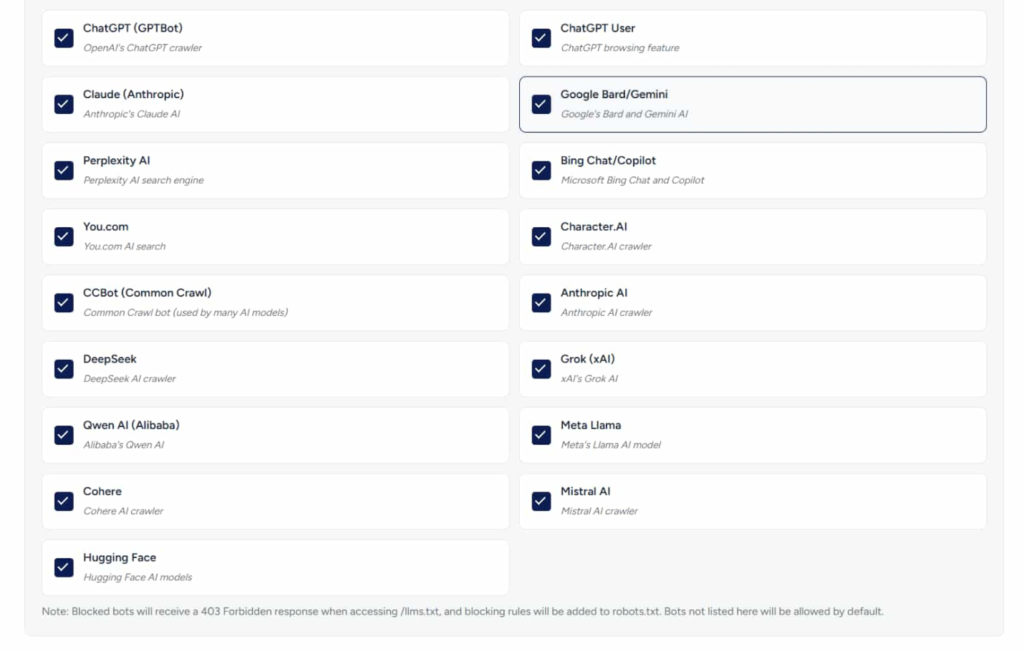
You can block or allow specific AI crawlers — including ChatGPT (GPTBot), Google Bard (Google-Extended), Claude (Anthropic), and others. When you block a bot, Bot Manager automatically adds the appropriate rules to your robots.txt and optionally enforces them at the server level with a 403 Forbidden response.
LLMs.txt Generator:
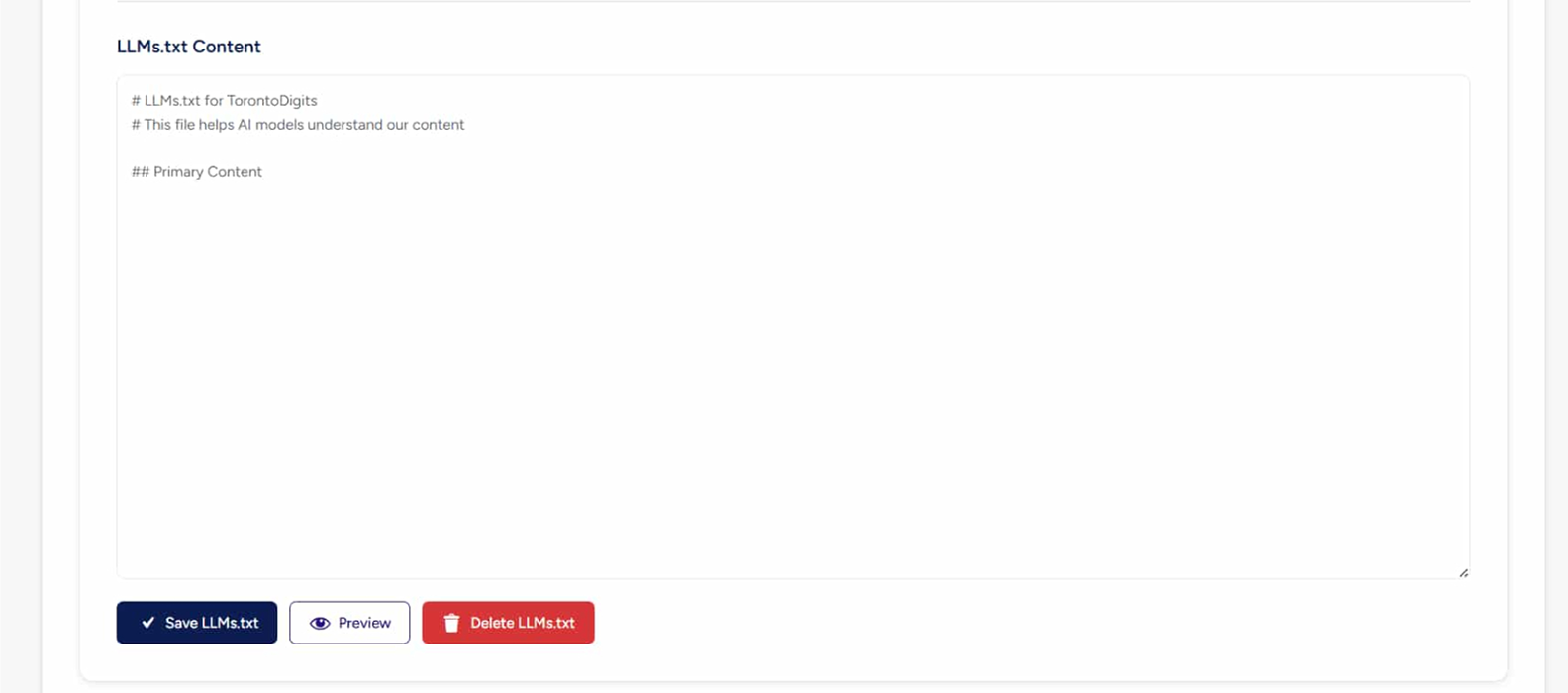
AI models are beginning to support llms.txt — a new standard that tells AI crawlers which content they’re allowed to read. Bot Manager lets you generate this file automatically, selecting which post types and taxonomies to include or exclude. This ensures your content is used appropriately by AI systems while respecting your preferences.
Server-Level Enforcement:
For stricter control, Bot Manager can block unwanted bots at the server level (via .htaccess or Nginx config). This stops bots before they even read your robots.txt, returning a 403 error and saving server resources.
Real-Time Validation & Preview:
Every change you make is validated instantly. A preview panel shows exactly how your robots.txt and llms.txt will appear to crawlers, so there’s no guesswork.
Proactive Bot Policy:
Once configured, Bot Manager works proactively. New bots added to the blocklist are automatically denied access. Regular updates ensure your site stays protected against emerging crawlers.
3. Step by Step Guide
Step 1: Access Bot Manager
From your WordPress admin panel, go to SEO Repair Kit → Bot Manager. This is your central hub for controlling all bot and crawler access.
Step 2: Review the Overview Cards
At the top of the dashboard, you’ll see a quick summary:
Robots.txt Status – Whether the file exists and is writable
LLMs.txt Status – Whether the AI discovery file is generated
Blocked AI Bots – Number of AI crawlers currently blocked
Allowed Bots – Number of bots explicitly allowed
These cards give you an instant snapshot of your bot control health.
Step 3: Manage Robots.txt
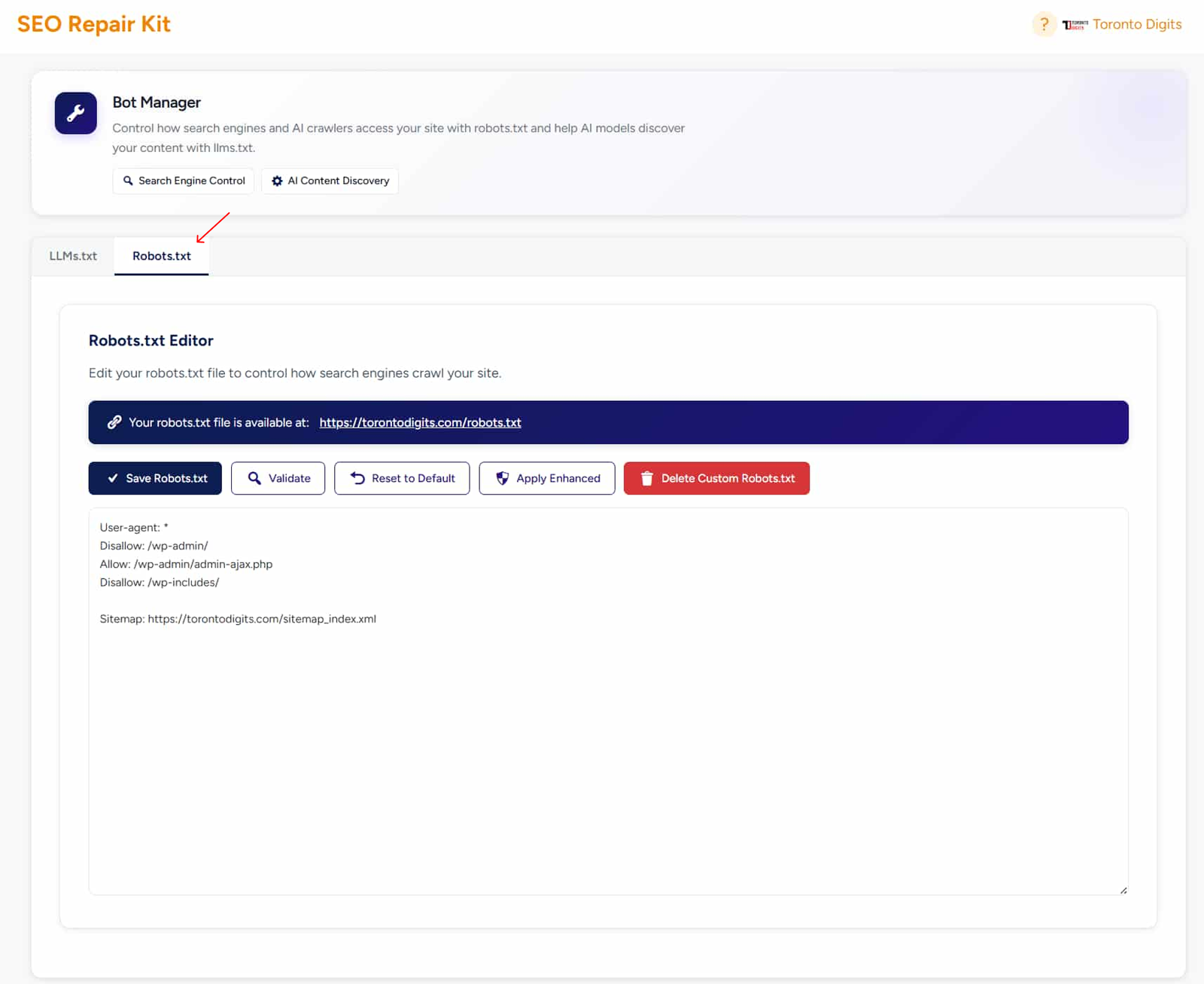
Click on the Robots.txt Editor tab.
Use the visual interface to add new rules (e.g., Disallow: /private/)
Choose user agents from a dropdown (Googlebot, GPTBot, etc.)
Set allow/disallow paths with auto-completion
See a live preview of the generated file
You can also switch to Code View if you prefer manual editing.
Step 4: Control AI Bots
Go to the AI Bot Control section.
See a list of known AI crawlers (ChatGPT, Claude, Bard, etc.)
For each bot, choose:
Allow (default)
Block via robots.txt
Block at server level (403)
Changes are applied immediately
Bot Manager automatically updates both robots.txt and server config files when needed.
Step 5: Generate LLMs.txt
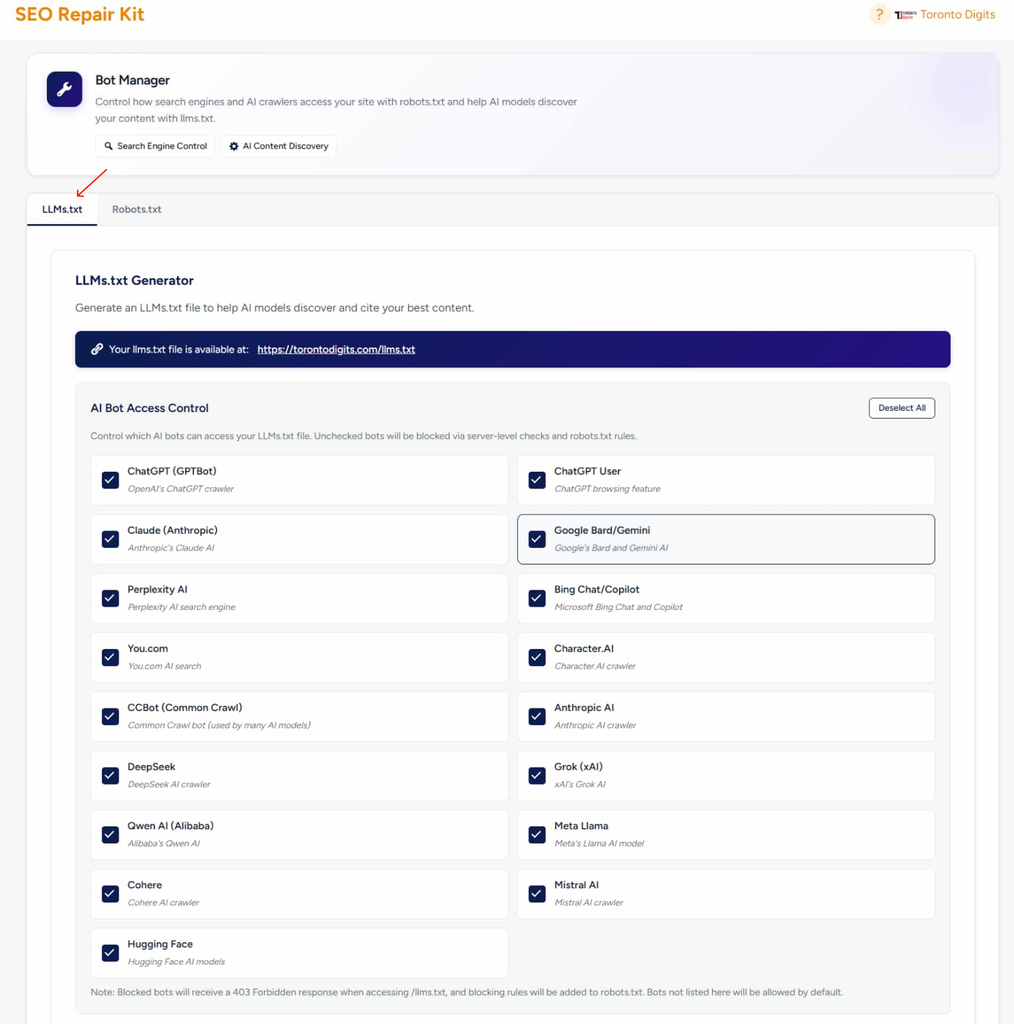
Navigate to the LLMs.txt Generator.
Enable the generator with a single toggle
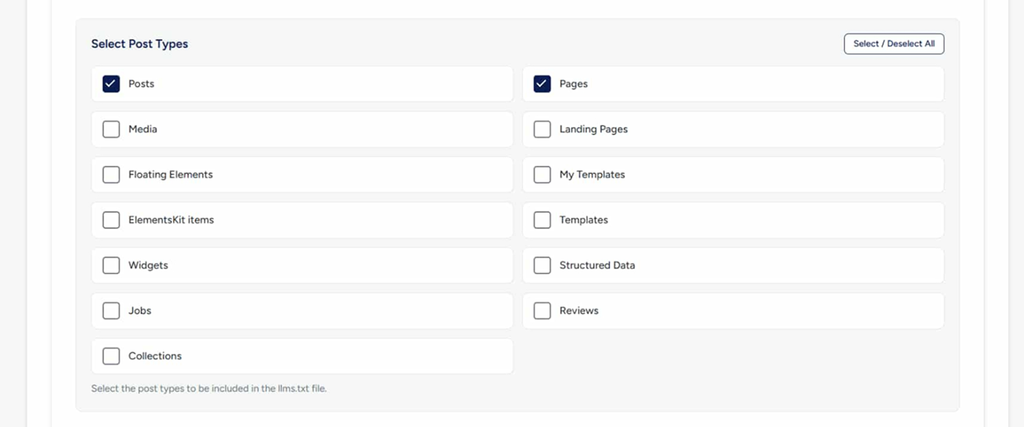
Select which post types to include (posts, pages, custom post types)
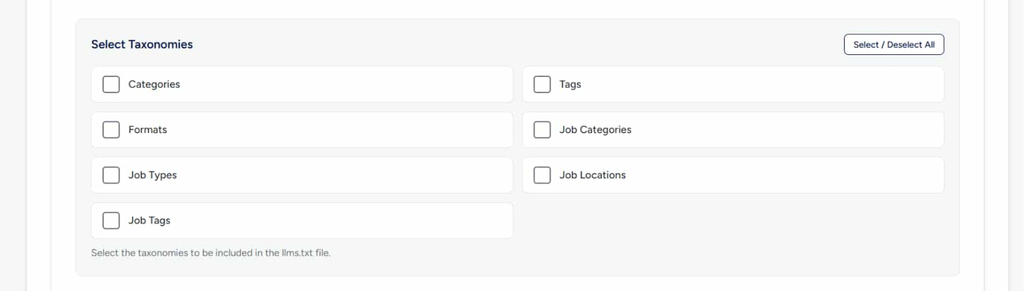
Select which taxonomies to include (categories, tags, etc.)
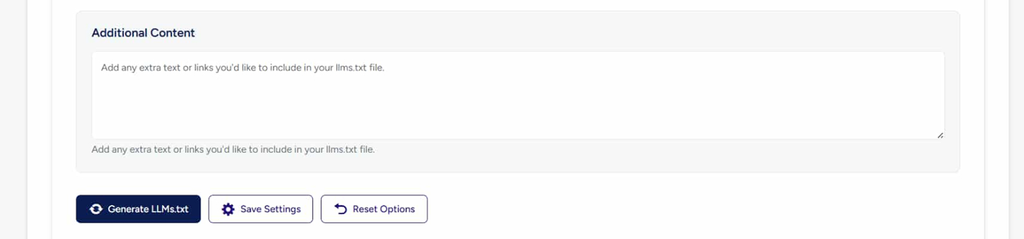
Preview the generated llms.txt file
Click Save & Generate
The file will be created at yoursite.com/llms.txt and automatically updated when you publish new content.
Step 6: Validate and Test
Click the Validate button to check for:
Syntax errors in robots.txt
Conflicts between rules
Missing directives
Use the Test Crawler tool to simulate how a specific bot (e.g., GPTBot) would see your site.
Step 7: Apply Server-Level Blocking (Optional)
For enhanced security, enable Server-Level Enforcement:
Go to Advanced Settings
Toggle on “Block unwanted bots at server level”
Choose which blocked bots should receive a 403 error
Bot Manager writes the necessary rules to .htaccess or nginx.conf
Step 8: Monitor Bot Activity
Visit the Bot Log section (if enabled) to see:
Which bots have accessed your site recently
How often they were blocked or allowed
Bandwidth usage by crawler
Use this data to refine your bot management strategy.
Step 9: Export Configuration (Optional)
Click Export Settings to download a JSON backup of your:
Robots.txt rules
AI bot blocklist
LLMs.txt settings
This is useful for migrating configurations to other sites or keeping a backup.
Step 10: Maintain Ongoing Bot Control
Regularly review:
New AI crawlers added to the known list (plugin updates bring them in)
Changes to your site structure that may need new robots.txt rules
LLMs.txt content after adding new post types or taxonomies
Set up automatic weekly scans to ensure your bot policies remain optimal.
4. FAQs
Q1: What is a Bot Manager?
Bot Manager is a tool that lets you control how search engines and AI crawlers access your website — without editing files manually.
Q2: What is robots.txt?
robots.txt tells search engines which pages they can or cannot crawl. Bot Manager lets you manage it visually with SEO and security best practices.
Q3: What is llms.txt?
llms.txt is a discovery file for AI models, helping them understand what content they’re allowed to access and learn from.
Q4: Can I block AI bots like ChatGPT or Claude?
Yes. You can block or allow individual AI crawlers with one click — including ChatGPT, Claude, Google Bard, and more.
Q5: Does blocking bots affect SEO?
No. Blocking AI bots does not affect Google rankings. Bot Manager ensures search engines and AI crawlers are handled separately.
Q6: How does server-level blocking work?
Blocked bots receive a 403 Forbidden response, stopping them before they access your content — faster and more secure than file-based blocking alone.
Q7: Is this safe for non-technical users?
Absolutely. Everything is handled through a visual interface with real-time validation to prevent mistakes.
Q8: Will changes apply immediately?
Yes. Once saved, changes are applied instantly at the server and file level.